Customize existing AEM Site output id166TG0B30WR
The AEM Guides supports creating outputs in following formats:
- AEM Site
- HTML5
- EPUB
- Custom output through DITA-OT
For the AEM Site output, you can assign different design templates with different output tasks. These design templates can render the DITA content in different layouts. For example, you could specify different design templates for internal and external audiences.
You can also use customized DITA Open Toolkit (DITA-OT) plug-ins with the AEM Guides. You can upload these custom DITA-OT plug-ins to generate PDF output in a specific way.
Customize design template for generating output customize_xml-add-on
The AEM Guides uses a set of predefined design templates to generate AEM Site output. You can customize the AEM Guides design templates to generate the output that conforms to your corporate branding. A design template is a collection of various styles (CSS), scripts (both server- and client-side), resources (images, logos, and other assets), and JCR nodes that tie all these resources together. A design template can be as simple as a single server-side script with just a couple of JCR nodes, or a complex combination of styles, resources, and JCR nodes. Design templates are used by AEM Guides publishing subsystem while generating AEM Site output and they control the structure, look and feel of the generated output.
There is no restriction as to where the design template resources should be located on the server, but they are usually logically organized as per their function. For example, the default template has all its JavaScript and CSS files stored under /etc/designs/fmdita/clientlibs/siteoutput/default folder. Wherever these files are located, they are linked together by a collection of JCR nodes. Together, these JCR nodes and the files constitute the whole design template.
The default design template shipped with the AEM Guides allows you to customize the landing, topic, and search page components. You can make a copy of the default design and the corresponding reference templates and specify different components to generate the desired output.
The following tabs provide instructions to specify your own design template to use for AEM Site output generation based on your Experience Manager Guides setup: Cloud Service or On-Premise.
-
Use the Package Manager to download the default design template from the following location:
/libs/fmdita/config/templates
-
Create a copy of the downloaded files at the following location in your Cloud Manager’s Git repository:
/apps/fmdita/config/templates
-
You must also download and copy the templates referenced from the default template node. The referenced templates are placed under:
/libs/fmdita/templates/default/cqtemplates
-
Log into AEM and open the CRXDE Lite mode.
-
Navigate to the default design template node. The location of the default design template node is:
/libs/fmdita/config/templates/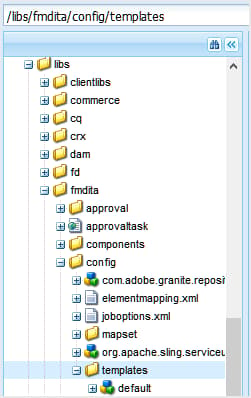
note NOTE Make a copy of the default design templates from the libsfolder to theappsfolder and make changes in theappsfolder. You must also make changes in the templates referenced from the default template node. The referenced templates are placed under/libs/fmdita/templates/default/cqtemplatesnode. Make a copy of the referenced templates in theappsfolder before making any changes. -
Click the default component in the templates node to access its properties.
The AEM Guides design template properties are described in the following table.
landingPageTemplate, searchPageTemplate, topicPageTemplate, shadowPageTemplatecq:Template node for these corresponding pages (landing, search, and topic). By default the cq:Template node for these pages can be found in /libs/fmdita/templates/default/cqtemplates node. This node defines the structure and properties of the landing, search, and topic pages.The
shadowPageTemplate is used to optimize the chunked content. You need to set the value of this property to: fmdita/templates/default/cqtemplates/shadowpageNote: You must specify a value for the
topicPageTemplate. The landingPageTemplate and searchPageTemplate are optional properties. If you do not want the search and landing pages to generate, do not specify these properties.titletopicContentNodetopicHeadNodetocNodebasePathPropindexPathProppdfPathProppdfTypePropsearchPathPropsiteTitlePropsourcePathProptocPathPropFor more information, see Creating your first Adobe Experience Manager website and The Basics of developing your own website on AEM.
Use document title for generating AEM site output
When generating AEM Site output, the way URLs are generated play an important role in the discoverability of your content. In case you are using UUID-based file names, generating URLs based on UUID of your files would not be search friendly. As an Administrator or Publisher, you have the control on how you want to generate the URLs for your AEM Site output. AEM Guides gives you a configuration through which you can choose to generate the URLs of AEM Site output using the file’s title rather than the UUID-based file names. By default, for UUID-based file systems, this option is turned ON. This implied that when you generate AEM Site output for UUID-based file systems, the file’s titles are used to generate the URLs and not the UUIDs of the files.
For On-Premise setup with non-UUID-based file systems, the AEM Site output is generated using the file names and not the file’s titles. By default, this option is turned OFF. This implied that when you generate AEM Site output, the file names are used to generate the URLs and not the file’s title. You can choose to generate the URLs based on file’s titles by enabling this option.
The following tabs provide instructions to configure the URLs generation in AEM Site output based on your Experience Manager Guides setup: Cloud Service or On-Premise.
Use the instructions given in Configuration overrides to create the configuration file. In the configuration file, provide the following (property) details to configure the URLs generation in AEM Site output:
| table 0-row-3 1-row-3 | ||
|---|---|---|
| PID | Property Key | Property Value |
com.adobe.fmdita.config.ConfigManager |
aemsite.pagetitle |
Boolean (true/false). In case you want to generate output using the page title, then set this property to true. By default, it is set to use the file name. Default value: false |
| note |
|---|
| NOTE |
The aemsite.pagetitle property defines the default folder-level behavior for AEM Site page titles. If the option to select Topic filename or Topic title is available in the AEM Sites preset for your environment, the preset-level selection takes precedence and overrides the aemsite.pagetitle folder-level configuration for that output. For example, if aemsite.pagetitle=true but the user selects Topic filename in the output preset, the topic filename is used. If aemsite.pagetitle=false but the user selects Topic title, the topic title is used. |
-
Open the Adobe Experience Manager Web Console Configuration page.
The default URL to access the configuration page is:
code language-http http://<server name>:<port>/system/console/configMgr -
Search for and click on the com.adobe.fmdita.config.ConfigManager bundle.
-
Select the Use Title for AEM Site Page Names option.
note NOTE In case you want to generate output using the file names, then deselect this option. -
Click Save.
Configure the URL of the AEM Site output to use the document title (only for Cloud Service)
You can use the document titles in the URL of the AEM Site output. If the filename doesn’t exist or contains all special characters, you can configure the system to replace the special characters with a separator in the URL of the AEM Site output. You can also configure it to replace them with the first child topic’s name.
To configure the page names, perform the following steps:
- Use the instructions given in Configuration overrides to create the configuration file.
- In the configuration file, provide the following (property) details to configure the page names for the topics.
com.adobe.fmdita.common.SanitizeNodeNamenodename.systemDefinedPageNametrue/false). Default value: falseFor example, if the @navtitle in <topichead> has all special characters and you set the aemsite.pagetitle property to true, then by default, it uses a separator. If you set the nodename.systemDefinedPageName property to true, it shows the first child topic’s name.
Configure filename sanitization rules for creating topics and publishing output in AEM Sites and other formats id2164D0KD0XA
As an administrator, you can define a list of valid special characters allowed in filenames, which eventually form the URL of an AEM Site output. In earlier releases, users were allowed to define filenames containing special characters such as @, $, >, and more. These special characters resulted in encoded URL on generation of AEM Site pages.
Starting with 3.8 release, configurations have been added to define a list of special characters that are allowed in the filenames. By default, the valid filename configuration contains “a-z A-Z 0-9 - _”. This implies that while creating a file, you can have any special character in the file’s title, but internally it will get replaced with a hyphen (-) in the filename. For example, you can have the file’s title as Introduction 1 or Introduction@1, the corresponding filename generated for both these cases would be Introduction-1.
When you define a list of valid characters, remember that these characters “*/:[\]|#%{}?&<>"/+” and a space will always be replaced with a hyphen (-).
The following tabs provide instructions to configure the valid special characters in filenames and AEM Site output based on your Experience Manager Guides setup: Cloud Service or On-Premise.
Use the instructions given in Configuration overrides to create the configuration file. In the configuration file, provide the following (property) details to configure the valid special characters in filenames and AEM Site output:
| table 0-row-3 1-row-3 | ||
|---|---|---|
| PID | Property Key | Property Value |
com.adobe.fmdita.common.SanitizeNodeNameImpl |
aemsite.DisallowedFileNameChars |
Ensure that the property is set to '<>`@$. You can add more special characters to this list. |
| note |
|---|
| NOTE |
| The above configuration applies to all output formats. This means that when generating a PDF, HTML, or custom output, the final output will follow the configured filename sanitization rules. |
You can also configure the other properties such as use lower case in filenames, separator to handle invalid characters, and maximum number of characters allowed in the filenames. To configure these properties, add the following key value pairs in the configuration file:
| table 0-row-2 1-row-2 2-row-2 3-row-2 | |
|---|---|
| Property Key | Property Value |
nodename.uselower |
Boolean (true/false). Default value: true |
nodename.separator |
Any character. Default value: _ (underscore) |
nodename.maxlength |
Integer value. Default value: 50 |
-
Open the Adobe Experience Manager Web Console Configuration page.
The default URL to access the configuration page is:
code language-http http://<server name>:<port>/system/console/configMgr -
Search for and click on the com.adobe.fmdita.common.SanitizeNodeNameImpl bundle.
-
In the Disallowed Character Set for Publishing to AEM Sites property, ensure that the property is set to
<>``@$. You can add more special characters to this list, however, it must have these required special characters.note NOTE You can also configure the other properties such as Use Lower Case in filenames, Separator to handle invalid characters, and Maximum Number of Characters allowed in the filenames. -
Click Save.
-
Search for and click on the com.adobe.fmdita.config.ConfigManager bundle.
-
In the Regex for Valid Characters property, ensure that the property is set to
[-a-zA-Z0-9_]. You can add more characters to this list, however, it must have these basic characters and the list must start with a hyphen (-).note NOTE This property defines the list of valid character used to create a new file. -
Click Save.
Configure flattening of AEM Site node structure
When you generate AEM Site output, a node for every element in the topics is created internally. For a DITA map with thousands of topics, this node structure can become too deep. This type of deeply nested node structure can have performance issues for larger sites. The following snapshot displays deeply nested node structure for an AEM Site output:
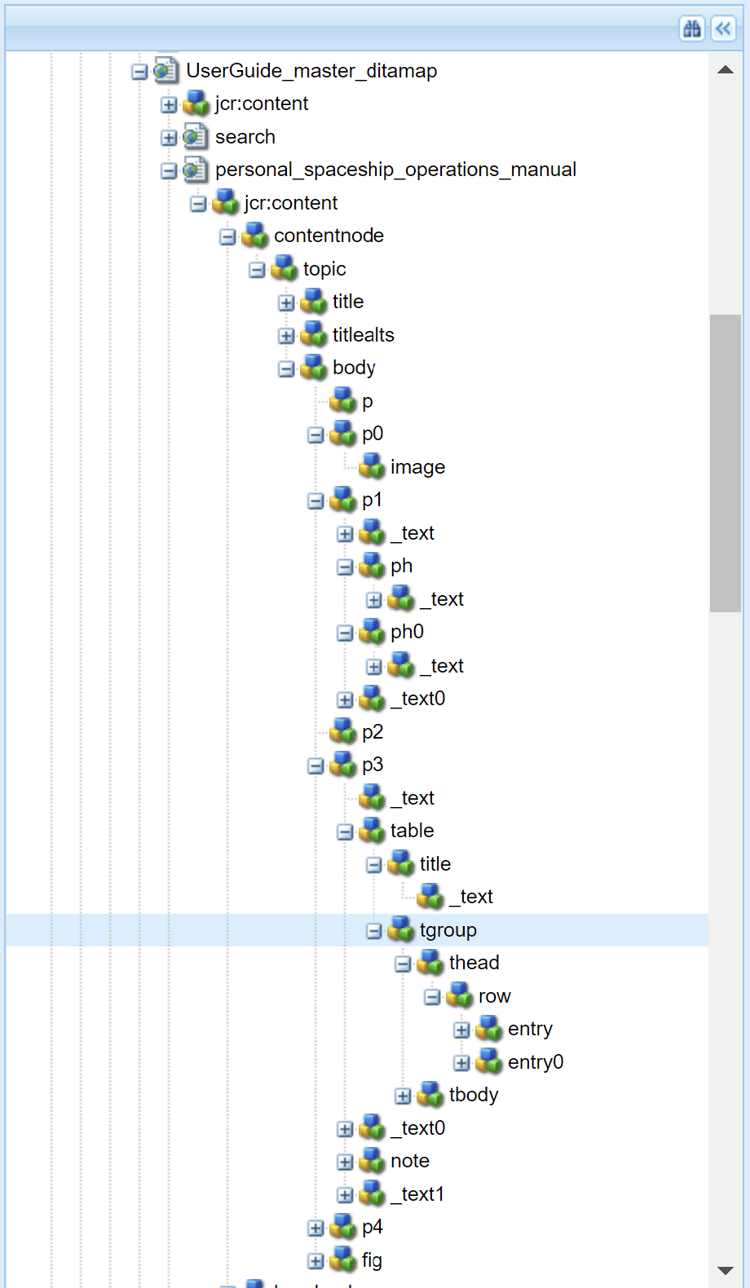
In the above snapshot, notice that there is a node is created for every p element and its subsequent sub-elements and a similar structure is created for every other element used in the topic.
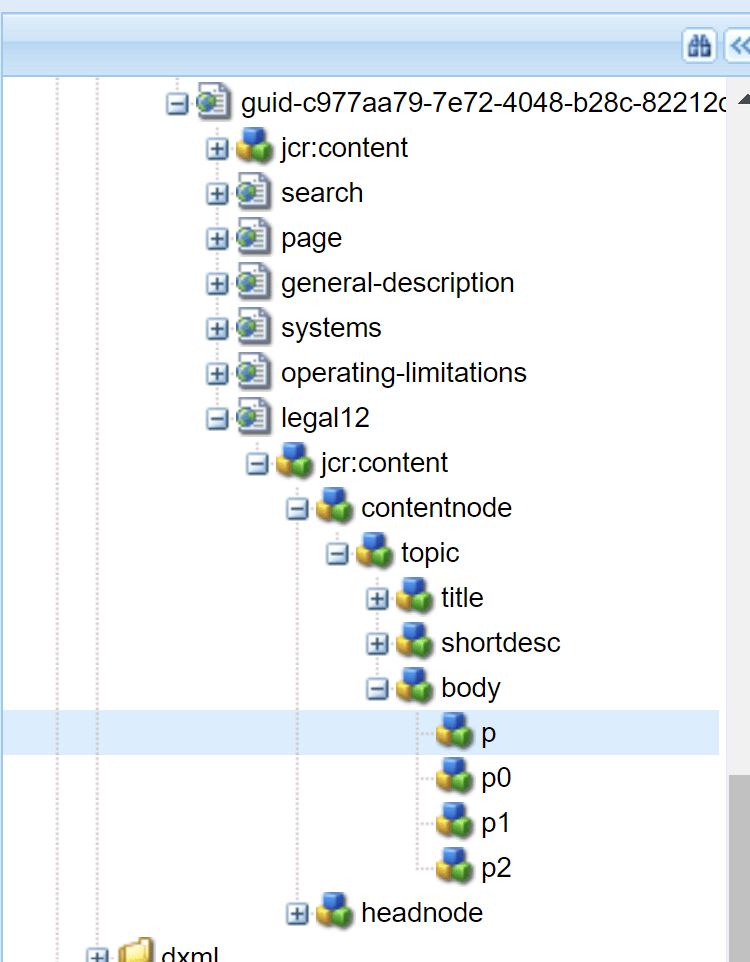
AEM Guides allows you to configure how AEM Site output’s node structure is created internally. You can flatten the node structure at specified elements, which means that you can define an element which will be considered as the main element and all sub-elements within it will be merged with the main element. For example, if you decide to flatten the p element, then any element appearing within the p element will get merged with the main p element. A separate note would not be created for any sub-element within the p element. The following snapshot displays the node structure flattened at p element:
The following tabs provide instructions to flatten AEM Site node structure based on your Experience Manager Guides setup: Cloud Service or On-Premise.
-
Identify the element(s) at which you want to flatten the node structure:
-
Overlay of the
libsnode in theappsnode and open the elementmapping.xml file. -
Add the
<flatten>true</flatten>property in the definition of the element at which you want to flatten the node structure. For example, if you want to flatten the node structure at thepelement, then add the flatten attribute in the definition ofpelement as shown below:code language-xml <ditaelement> <name>p</name> <class>- topic/p</class> <componentpath>fmdita/components/dita/wrapper</componentpath> <type>COMPOSITE</type> <target>para</target> <flatten>true</flatten> <wrapelement>div</wrapelement> </ditaelement>note NOTE By default, the flatten node property has been configured at the pelement. -
Use the instructions given in Configuration overrides to create the configuration file.
-
In the configuration file, provide the following (property) details:
table 0-row-3 1-row-3 PID Property Key Property Value com.adobe.dxml.flattening.FlatteningConfigurationServiceflattening.enabledBoolean (true/false).
Default value:false
Now, when you generate the AEM Site output, the nodes within the p element are flattened and stored within the p element itself. You can find the new flattening properties for the p element in CRXDE.
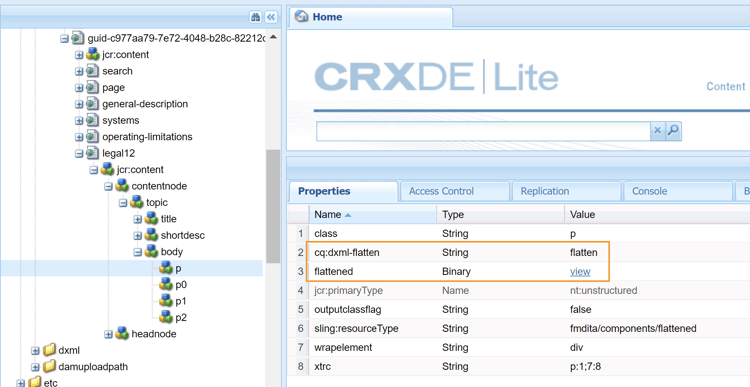
-
Specify the element at which you want to flatten the node structure.
-
Overlay of the
libsnode in theappsnode and open the elementmapping.xml file. -
Add the
<flatten>true</flatten>property in the definition of the element at which you want to flatten the node structure. For example, if you want to flatten the node structure at thepelement, then add the flatten attribute in the definition ofpelement as shown below:code language-xml <ditaelement> <name>p</name> <class>- topic/p</class> <componentpath>fmdita/components/dita/wrapper</componentpath> <type>COMPOSITE</type> <target>para</target> <flatten>true</flatten> <wrapelement>div</wrapelement> </ditaelement>note NOTE By default, the flatten node property has been configured at the pelement.
-
-
Enable the site node flattening configuration in the configMgr.
-
Open the Adobe Experience Manager Web Console Configuration page.
The default URL to access the configuration page is:
code language-http http://<server name>:<port>/system/console/configMgr -
Search for and click on the com.adobe.dxml.flattening.FlatteningConfigurationService bundle.
-
Select the Property flattening.enabled option.
-
Click Save.
-
| note important |
|---|
| IMPORTANT |
| If you have made any change in the elementmapping.xml file, ensure that you open the configMgr and save any bundle for changes to come into effect. |
Now, when you generate the AEM Site output, the nodes within the p element are flattened and stored within the p element itself. You can find the new flattening properties for the p element in CRXDE.
Search a string within the content in AEM Site output (only for Cloud Service)
By default, you can search for a string in the titles only within the AEM Site output. You can configure the system to search for a string both in the titles and also the content or the body of the AEM Site output.
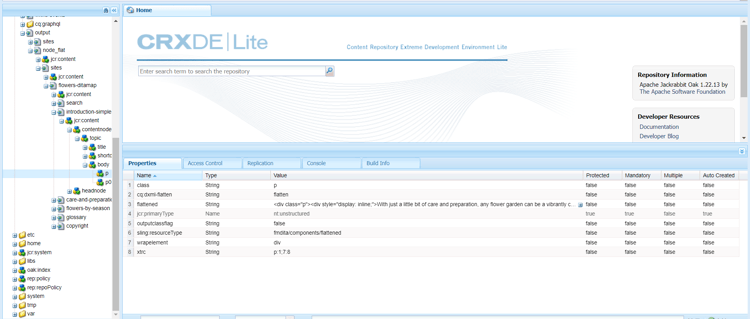
To enable the search, you should configure the flattening of AEM Site node structure.
CAUTION:
You can search up to 1MB of flattened content. For example, in the previous screenshot, you can search if the content under <p> tag is <= 1Mb.
<flatten>attribute is set to true. By default, AEM Guides has the <flatten> attribute set to true for the commonly used text elements like <p> <ul> <lI>. However, if you have created some custom elements, you should set the <flatten> attribute to true in the elementmapping.xml file.Prevent flattening of AEM Site node structure
Similar to specifying the node to flatten in AEM Site output, you can also specify an element that you want to exclude from this configuration. For example, if you want to flatten nodes at body element, but you do not want any table element within body to flatten, then you can add the exclude property within the table element’s definition.
To exclude the table element from flattening, add the following property to the table element’s definition:
<preventancestorflattening>true|false</preventancestorflattening>
Configure the versioning for deleted pages in AEM Site output
When you generate AEM Site output with Delete and Create option selected for the Existing Output Pages setting, a version is created for the page(s) being deleted. You can configure the system to stop the creation of a version before deletion.
The following tabs provide instructions to stop the creation of a version for the page(s) being deleted based on your Experience Manager Guides setup: Cloud Service or On-Premise.
-
Use the instructions given in Configuration overrides to create the configuration file.
-
In the configuration file, provide the following (property) details to configure the Do Not Create Version for Deleted Pages option:
table 0-row-3 1-row-3 PID Property Key Property Value com.adobe.fmdita.confi g.ConfigManagerno.version.creation.on.deletionBoolean (true/false).
Default value:truenote NOTE With this option selected, users will be able to directly delete any page(s) without creating any version for them. If the option is not selected, then a version is created before the page(s) are deleted.
-
Open the Adobe Experience Manager Web Console Configuration page.
The default URL to access the configuration page is:
code language-http http://<server name>:<port>/system/console/configMgr -
Search for and click on the com.adobe.fmdita.config.ConfigManager bundle.
-
SelectDo Not Create Version for Deleted Pages option.
note NOTE With this option selected, users will be able to directly delete any page(s) without creating any version for them. If the option is not selected, then a version is created before the page(s) are deleted. -
Click Save.
Setup custom rewriter with Experience Manager Guides (only for Cloud Service) custom-rewriter
Experience Manager Guides has a custom sling rewriter module for handling the links generated in case of cross-maps (links between the topics of two different maps). This rewriter configuration is installed at the following path:/apps/fmdita/config/rewriter/fmdita-crossmap-link-patcher.
If you have another custom sling rewriter in your codebase, use an 'order' value greater than 50, as Experience Manager Guides sling rewriter uses 'order' 50. To override this, you need a value >50 . For more details, view Output Rewriting Pipelines.