Upload existing DITA content using WebDAV tool and FrameMaker for On-Premise
Most likely you would have a repository of existing DITA content that you would like to use with AEM Guides. For such existing content, you can use any of the following approaches to bulk upload your content into the AEM repository.
Use a WebDAV tool
If you are authoring your topics and maps in any other DITA editor, you can use any WebDAV tool to upload your files. The procedure given in this section uses WinSCP as the WebDAV tool to upload content.
Perform the following steps to use WinSCP to upload files:
-
Download and install WinSCP on your computer.
-
Launch the WinSCP app.
The Login dialog appears.
-
On the Login dialog, specify a New Site setting by choosing WebDAV as the File Protocol and providing other connection details such as:
-
the URL where your AEM server is hosted,
-
the port number
\(default is 4502\), and -
the user name and password to access your AEM server.
-
-
Select Login.
On a successful connection, you will see the contents of AEM Assets in the WinSCP user interface. You can easily browse, create, update, or delete content using the WinSCP file explorer.
Upload content with UUID using a WebDav tool id201MI0I04Y4
You can use any of the following methods to upload your content with UUID:
- Drag-and-drop content from your local system.
- Use the Create > Files workflow from AEM’s Assets UI.
- Use a tool like WinSCP.
In case you use a tool like WinSCP, you can define the action to perform on a duplicate file by setting the Move old file with Same UUID to New Folder option in the configMgr. This option defines what action is performed on a file that is available at some other location in the AEM repository. This setting is available in the *com.adobe.fmdita.config.ConfigManager* bundle in the configMgr.
By default the Move old file with Same UUID to New Folder option is turned ON. This implies that when the file being uploaded is present at some other folder in the repository, then the existing file is moved to the current location and overwritten with the file being uploaded. If you do not select this option, then the file is overwritten at its existing location.
Additional notes on working with UUID-based files:
The following points must be considered while moving or copying content within the AEM repository:
-
When copying one or more files from one location to another location, a new UUID is generated for files not having any UUID. This UUID is added in the file’s metadata.
-
If a file has a conflict or has a duplicate, then a unique filename is generated for the new file being copied or moved.
-
No two files can have the same UUID. A unique UUID is assigned to all new files.
The following points must be considered while moving or copying content from your local system to the AEM repository:
-
If in case a file is being uploaded by two different users at the same time, then the file that is processed later overwrites the earlier file. However, such a practice is rare and should be avoided.
-
When you checkout content from the AEM repository and make changes on your local system, ensure that the file name is not changed at the time of uploading the file.
Use FrameMaker
Adobe FrameMaker comes with a powerful AEM connector that allows you to easily upload your existing DITA and other FrameMaker documents \(.book and .fm\)into AEM. You can use various file upload functionalities such as uploading a single file, uploading a complete folder with or without dependencies (like content references, cross-references, and graphics).
Perform the following steps to use FrameMaker’s AEM Connector to upload content:
-
Launch FrameMaker.
-
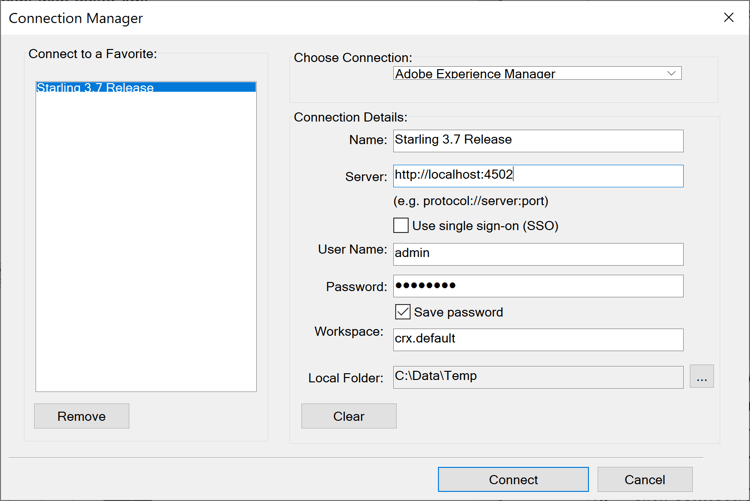
Open the Connection Manager dialog.
-
Enter the following details to connect to the AEM repository:
-
Name: Enter a descriptive name to identify the connection to your AEM server.
-
Server: Enter the URL and port number of your AEM server.
-
User Name/Password: Enter the user name and password to access the AEM server.
-
-
Select Connect.
Once the connection is successfully established, Assets from the AEM repository are displayed in the Repository Manager window.
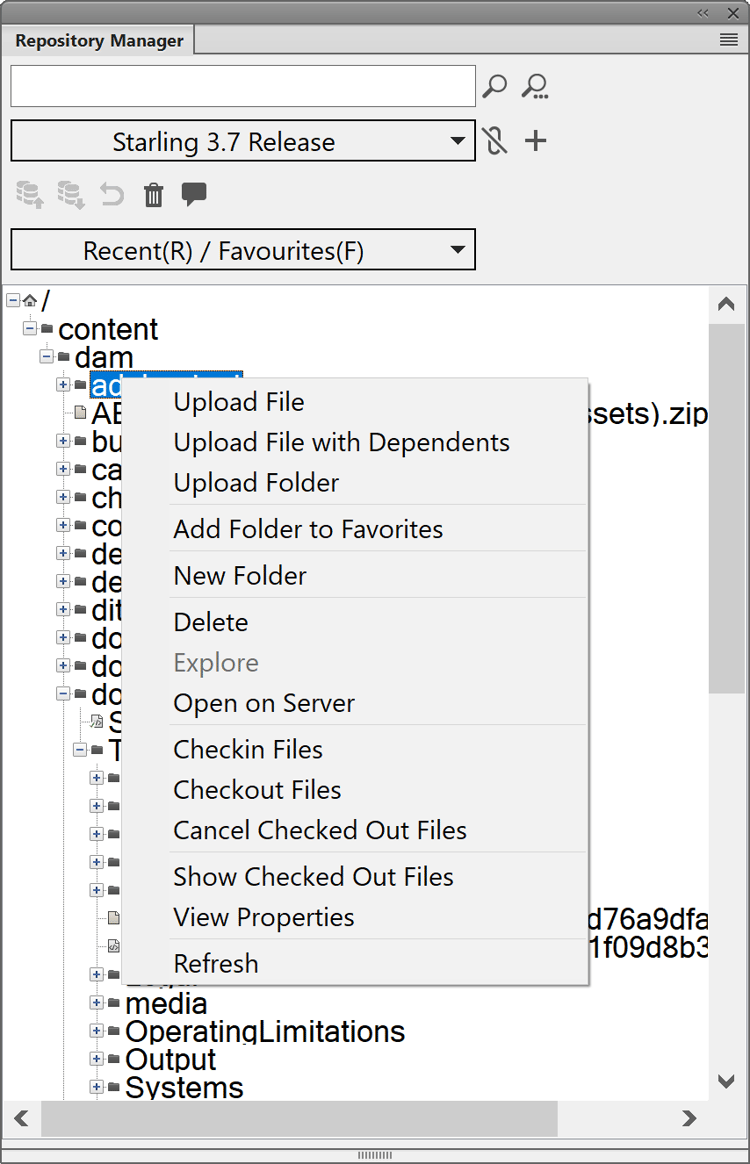
Right-clicking on any file or folder allows you to perform related operations. For example, if you right-click on a folder, you get options to upload a file, upload file with dependencies, upload an entire folder and so on.
Parent topic:Migrate existing content