Configure AI Assistant in Agentic mode for Cloud Service
As an Administrator, you can configure AI Assistant in Agentic mode for your organization in Experience Manager Guides. The configuration steps vary depending on whether Unified Shell setting is enabled in your AEM as a Cloud Service environment, and whether the users are logged in through SSO or Non-SSO authentication. This article describes the configuration process for each scenario.
Prerequisite
Your organization must be onboarded to CX Enterprise Coworker before you configure AI Assistant in Agentic mode.
Configure AI Assistant based on your environment
Use the following table to identify which configuration path applies to your users, then follow the corresponding steps.
Users with Unified shell enabled
SSO login
If Unified shell is enabled and your users log in through SSO, no additional configuration is required. AI Assistant in Agentic mode works automatically once your organization is onboarded to CX Enterprise Coworker.
Non-SSO login
If Unified shell is enabled but your users log in without SSO, you must Add IMS configuration to the environment below.
Users with Unified shell disabled
If Unified shell is disabled, you must Add IMS configuration to the environment for both:
- SSO login
- Non-SSO login
Add IMS configuration to the environment
Perform the following steps to add the IMS configuration to the environment:
-
Open Experience Manager and then select your program which contains the environment you want to configure.
-
Switch to the Environments tab.
-
Select the environment name which you want to configure. This navigates you to the Environment Information page.
-
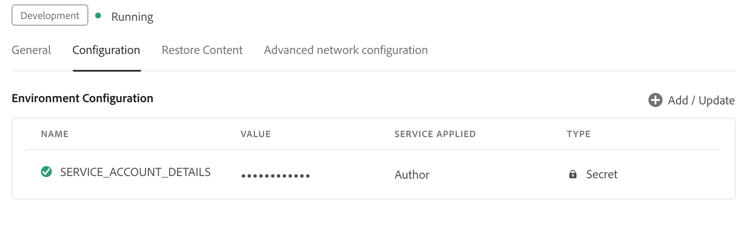
Switch to the Configuration tab.
-
Paste the JSON service details (downloaded when you created the IMS configuration in Adobe Developer Console) into the Value field corresponding to
SERVICE_ACCOUNT_DETAILS. Ensure that you use the same name and configuration expected by the environment.
Enable the Agentic mode
After the configuration is complete for your environment, contact the Customer Success team to enable Agentic mode.
With Agentic mode enabled for your environment, navigate to Workspace settings and enable the Agentic toggle under the General tab in the AI Assistant section.