Configure DITA assets replication
The following tabs provide instructions to configure DITA assets replication feature based on your Experience Manager Guides setup: Cloud Service or On-Premise.
-
Use the instructions given in Configuration overrides to create the configuration file.
-
In the configuration file, provide the following (property) details:
table 0-row-3 1-row-3 PID Property Key Property Value com.adobe.fmdita.config.ConfigManagerpublish.replicateDefault value: “true”
-
Open the Adobe Experience Manager Web Console Configuration page.
The default URL to access the configuration page is:
code language-http http://<server name>:<port>/system/console/configMgr -
Search for and select the com.adobe.fmdita.config.ConfigManager bundle.
-
Configure the setting Replicate DITA assets (
publish.replicate) as per your requirement. By default, the setting is enabled.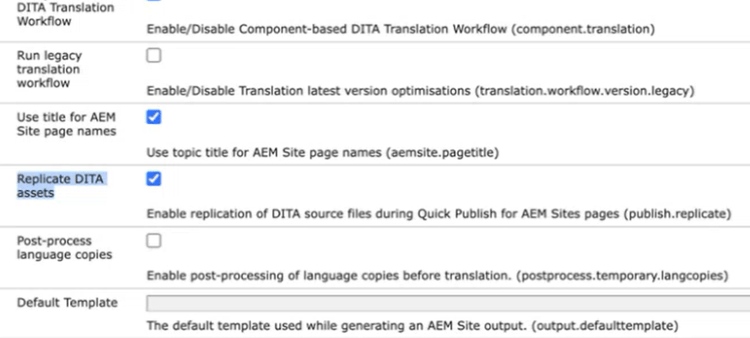
-
Select Save.