Configure template presets for output generation
Template presets allow Administrators to standardize output preset configurations across multiple DITA maps. Instead of configuring the same output preset individually for every map, you can define a preset as a template and apply it to all maps associated with a folder profile.
This capability helps you to maintain consistent publishing configurations across projects and reduces manual configuration effort.
Benefits
Using template presets provides the following advantages:
- Ensures consistent publishing configurations across multiple maps.
- Reduces manual effort by eliminating repetitive preset configuration.
- Enables centralized management of output preset settings.
Supported output types
Template presets are supported for all the output preset types except the following:
- Edge Delivery Services
- Knowledge Base
- SCORM
Create and manage template preset
- Template presets can only be created and managed by Administrators and Folder Profile Administrators.
- Template presets are intended for configuration management and are not used directly for output generation.
-
Configure the Folder profile you want to use for the folders.
-
Open Output presets from the Map console for the associated folder.
-
Create or select the output preset that you want to use as a template.
note NOTE When creating or selecting the output preset you want to use as a template, make sure it’s added to the current folder profile. -
Select the Set as template from the Options menu for the preset.
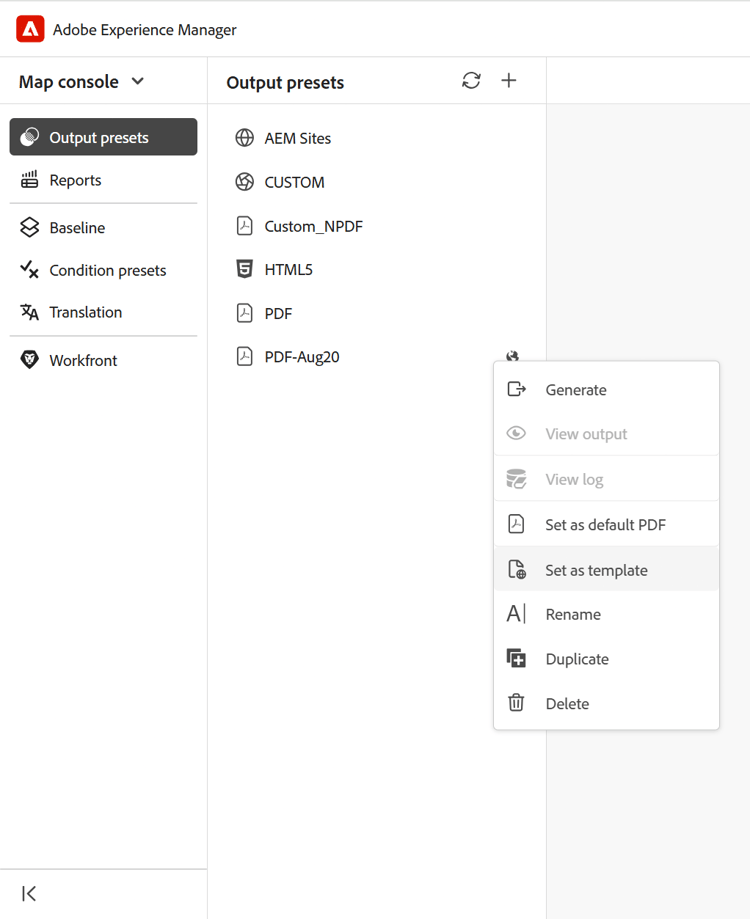
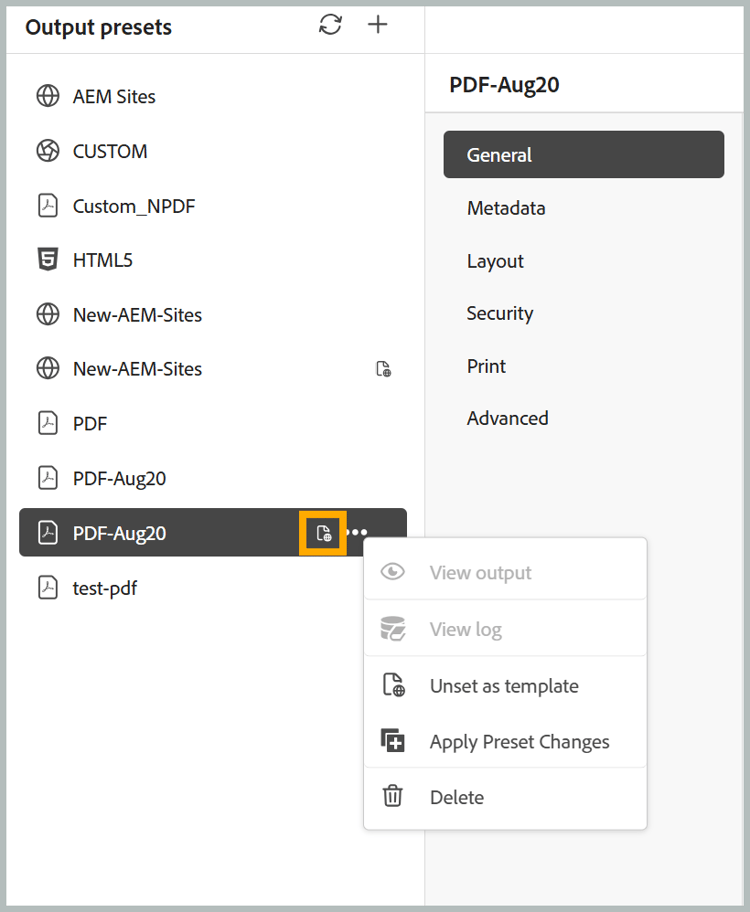
The selected output preset is converted into a template preset. Template presets are identified by a template icon, which distinguishes them from regular presets. To remove the template status, select Unset as Template from the template preset’s Options menu at any time.
-
Select Apply Preset Changes from the template preset’s Options menu to apply the updated preset settings to all existing maps in the selected folder profile.
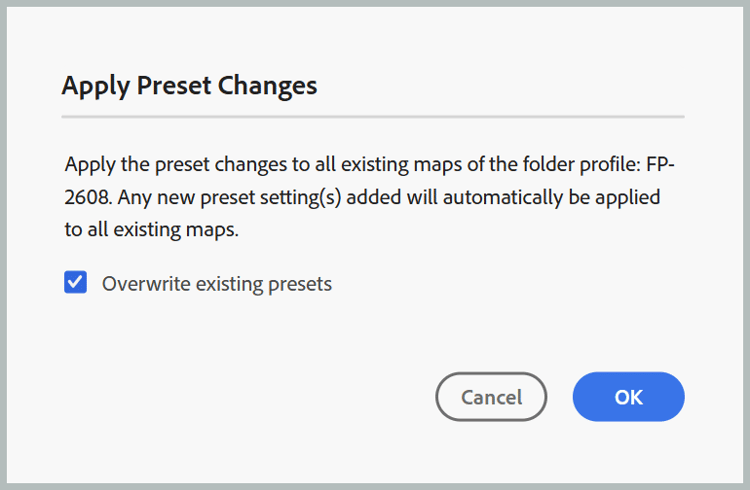
Apply Preset Changes dialog opens.
-
To overwrite the existing preset, select the Overwrite Existing Preset checkbox and select OK. Overwriting updates the preset but does not modify the Baseline, Condition Preset, DITAVAL, Topic List, or Publish Context settings in the target preset. These settings remain unchanged.
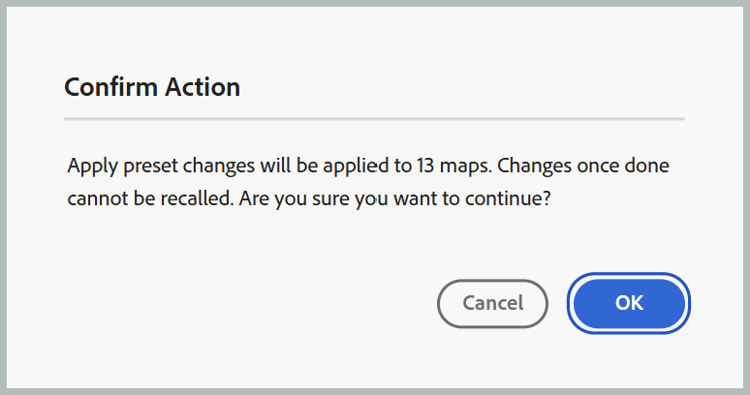
A Confirm Action dialog opens indicating how many maps the preset changes apply to.
-
Select OK.
The changes are applied to all presets in all maps within the associated folders.
Output generation behavior
Template presets are configuration templates and are not intended for direct publishing. When a preset is marked as a template:
- Generate output is not available.
- The template preset cannot be used for publishing.
- Existing generated outputs for the template preset remain accessible if they were created before the preset was converted into a template.