Creating a login screen creating-a-new-login-screen
You can modify the login screen of all AEM Forms modules that use the AEM Forms login screen. For example, the modifications affect the login screen of, both, Forms Manager and AEM Forms workspace.
Prerequisite prerequisite
-
Log in at
/lc/crx/dewith Administrator permissions. -
Perform the following actions:
-
Replicate the hierarchical structure: of
/libs/livecycle/core/contentat/apps/livecycle/core/content.Maintain the same (node/folder) properties and access control.
-
Copy the content folder:
from:
/libs/livecycle/coreto:
/apps/livecycle/core. -
Delete the contents of
/apps/livecycle/corefolder.
-
-
Perform these actions:
-
Replicate the hierarchical structure: of
/libs/livecycle/core/components/loginat/apps/livecycle/core/components/login. Maintain the same (node/folder) properties and access control. -
Copy the components folder: from
/libs/livecycle/coreto/apps/livecycle/core. -
Delete the contents of the folder:
/apps/livecycle/core/components/login.
-
Adding a new locale adding-a-new-locale
-
Copy the
i18nfolder:- from
/libs/livecycle/core/components/login - to
/apps/livecycle/core/components/login
- from
-
Delete all the folders inside
i18nexcept one, sayen. -
On the folder
en, perform these actions:-
Rename the folder to the locale name you wish to support. For example,
ar. -
Change the property
jcr:languagevalue toar(for thearfolder).
note NOTE If locale is a language-country code combination, say, ar-DZ, then change the folder name and property value toar-DZ. -
-
Copy
login.jsp:- from
/libs/livecycle/core/components/login - to
/apps/livecycle/core/components/login
- from
-
Modify the following snippet of code for
/apps/livecycle/core/components/login/login.jsp:Locale is language code
code language-jsp String browserLocale = "en"; for(int i=0; i<locales.length; i++) { String prioperty = locales[i]; if(prioperty.trim().startsWith("en")) { browserLocale = "en"; break; } if(prioperty.trim().startsWith("de")){ browserLocale = "de"; break; } if(prioperty.trim().startsWith("ja")){ browserLocale = "ja"; break; } if(prioperty.trim().startsWith("fr")){ browserLocale = "fr"; break; } }To
code language-jsp String browserLocale = "en"; for(int i=0; i<locales.length; i++) { String prioperty = locales[i]; if(prioperty.trim().startsWith("ar")) { browserLocale = "ar"; break; } if(prioperty.trim().startsWith("en")) { browserLocale = "en"; break; } if(prioperty.trim().startsWith("de")){ browserLocale = "de"; break; } if(prioperty.trim().startsWith("ja")){ browserLocale = "ja"; break; } if(prioperty.trim().startsWith("fr")){ browserLocale = "fr"; break; } }code language-jsp String browserLocale = "en"; for(int i=0; i<locales.length; i++) { String prioperty = locales[i]; if(prioperty.trim().startsWith("en")) { browserLocale = "en"; break; } if(prioperty.trim().startsWith("de")){ browserLocale = "de"; break; } if(prioperty.trim().startsWith("ja")){ browserLocale = "ja"; break; } if(prioperty.trim().startsWith("fr")){ browserLocale = "fr"; break; } }To
code language-jsp String browserLocale = "en"; for(int i=0; i<locales.length; i++) { String prioperty = locales[i]; if(prioperty.trim().equalsIgnoreCase("ar-DZ")) { browserLocale = "ar-DZ"; break; } if(prioperty.trim().startsWith("en")) { browserLocale = "en"; break; } if(prioperty.trim().startsWith("de")){ browserLocale = "de"; break; } if(prioperty.trim().startsWith("ja")){ browserLocale = "ja"; break; } if(prioperty.trim().startsWith("fr")){ browserLocale = "fr"; break; } }
To change Default locale
   String browserLocale = "en";
   for(int i=0; i<locales.length; i++)

   To

   String browserLocale = "ar";
   for(int i=0; i<locales.length; i++)
Adding new text, or modifying existing text adding-new-text-or-modifying-existing-text
-
Copy
i18nfolder:- from
/libs/livecycle/core/components/login - to
/apps/livecycle/core/components/login
- from
-
Now modify the value of the property
sling:messageof the node (under the desired locale code folder) for which you wish to change the text. Translation is done via the key mentioned in the value ofsling:keyproperty of the node. -
For adding new key-value pair, perform the following actions. Check an example in the screenshot that follows.
-
Create a node of type
sling:MessageEntry, or copy an existing node and rename it, under all the locale folders. -
Copy
login.jsp:-
from
/libs/livecycle/core/components/login -
to
/apps/livecycle/core/components/login
-
-
Modify
/apps/livecycle/core/components/login/login.jspto incorporate the newly added text.
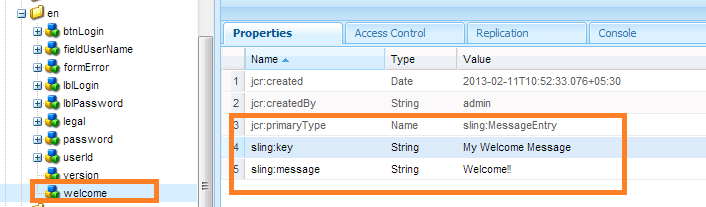
code language-jsp div class="loginContent"> <span class="loginFlow"></code> <span class="loginVersion"><%= i18n.get("Version: 11.0.0") %></code> <span class="loginTitle"><%= i18n.get("Login") %></code> <% if (loginFailed) {%>To
code language-jsp div class="loginContent"> <span class="loginFlow"></code> <span class="loginVersion"><%= i18n.get("My Welcome Message") %></code> <span class="loginVersion"><%= i18n.get("Version: 11.0.0") %></code> <span class="loginTitle"><%= i18n.get("Login") %></code> <% if (loginFailed) {%> -
Adding new style, or modifying existing style adding-new-style-or-modifying-existing-style
-
Copy
loginnode:- from
/libs/livecycle/core/content - to
/apps/livecycle/core/content
- from
-
Delete files
login.jsandjquery-1.8.0.min.js, from the node/apps/livecycle/core/content/login. -
Modify the styles in the CSS file.
-
To add new styles:
-
Add new styles to
/apps/livecycle/core/content/login/login.css -
Copy
login.jsp-
from
/libs/livecycle/core/components/login -
to
/apps/livecycle/core/components/login
-
-
Modify
/apps/livecycle/core/components/login/login.jspto incorporate the newly added styles.
-
For example:
-
Add the following to
/apps/livecycle/core/content/login/login.css.code language-none css.newLoginContentArea { width: 700px; padding: 100px 0px 0px 100px; } -
Modify following in
/apps/livecycle/core/components/login.jsp.code language-jsp <div class="loginContentArea">To
code language-jsp <div class="newLoginContentArea">
/apps/livecycle/core/content/login (copied from /libs/livecycle/core/content/login) are removed, then remove the corresponding references in CSS.Add new images add-new-images
-
Follow the steps of Adding new style, or modifying existing style (documented above).
-
Add new images in
/apps/livecycle/core/content/login. To add image:-
Install WebDAV client.
-
Navigate to
/apps/livecycle/core/content/loginfolder, using webDAV client. For more information, see WebDAV Access. -
Add new images.
-
-
Add new styles in
/apps/livecycle/core/content/login/login.css,corresponding to new images added in/apps/livecycle/core/content/login. -
Use the new styles in
login.jspat/apps/livecycle/core/components.For Example:
code language-css .newLoginContainerBkg { background-image: url(my_Bg.gif); background-repeat: no-repeat; background-position: left top; width: 727px; }- Modify following in /apps/livecycle/core/components/login.jsp.
code language-jsp <div class="loginContainerBkg">To
code language-jsp <div class="newLginContainerBkg">