Try out the core components in We.Retail trying-out-core-components-in-we-retail
The core components are modern, flexible components featuring easy extensibility and allowing for simple integration into your projects. The core components have been built around several major design principles such as HTL, usability out-of-the-box, configurability, versioning, and extensibility. The We.Retail site is built on core components.
Try it out trying-it-out
-
Start Adobe Experience Manager (AEM) with the
We.Retailsample content and open the Components Console.Global Navigation > Tools > Components
-
Opening the rail in the Components Console, you can filter for a particular component group. The core components can be found in
.core-wcm: The standard core components.core-wcm-form: The form submission core components
Choose
.core-wcm.
-
All core components use the v1 name to indicate the first version of each component. Regular versions are planned for release going forward, which are version-compatible with AEM and allowing easy upgrading so you can take advantage of the latest features.
-
Click Text (v1).
See that the Resource Type of the component is
/apps/core/wcm/components/text/v1/text. Core components are found under/apps/core/wcm/componentsand are versioned per component.
-
Click the Documentation tab to see the developer documentation for the component.

-
Return to the Component Console. Filter for the group
We.Retailand select the Text component. -
See that the Resource Type points to a component as expected under
/apps/weretailbut the Resource Super Type points back to the core component/apps/core/wcm/components/text/v1/text.
-
Click the Live Usage tab to see on which pages this component is being used. Click the first Thank You page to edit the page.

-
On the Thank You page, select the text component and in the edit menu of the component click the Cancel Inheritance icon.
We.Retailhas a globalized site structure where content is pushed from the primary language site to live copies through a mechanism called inheritance. For this reason, inheritance must be canceled to let a user manually edit text.
-
Click Yes to confirm the cancellation.

-
Once the inheritance is canceled and you select the text components, many more options are available. Click Edit.

-
You can now see what edit options are available to the text component.

-
From the Page Information menu, select Edit Template.
-
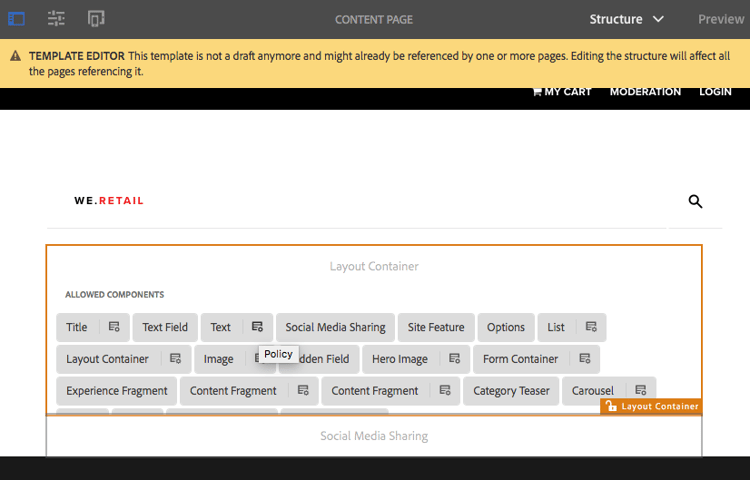
In the Template Editor of the page, click the Policy icon of the Text component in the Layout Container of the page.
-
The core components allow a template author to configure which properties are available to the page authors. These properties include features such as allowed paste sources, formatting options, and available paragraph styles.
Such design dialog boxes are available for many core components and work hand-in-hand with the Template Editor. Once enabled, they are available to the author through the component editors.

See also further-information
For details about core components, see the authoring guide Core Components for an overview of capabilities. See the guide Developing Core Components for a technical overview.
For more information on the core components, see the authoring document Core Components for an overview of core components capabilities, and the developer document Developing Core Components for technical details.
You may also want to investigate editable templates. See the authoring document Creating Page Templates or the developer document Page Templates - Editable for complete details on editable templates.