Resolving UTF-8 errors for CSV file uploads
When uploading CSV files to Magento BI, you may receive an error message stating CSV files must use UTF-8 encoding. This error indicates that your file contains characters that are not compatible with Magento BI’s UTF-8 encoding requirements.
Description description
Environment
- Magento BI
- CSV file uploads
Issue/Symptoms
The error message CSV files must use UTF-8 encoding is displayed when attempting to upload a CSV file. This occurs because the file being uploaded contains illegal or unsupported characters. While UTF-8 encoding supports the majority of characters, some characters are not compatible with Magento BI. When re-saving the file with proper encoding to resolve this issue, be aware that you may lose some information—specifically, illegal characters may be dropped during the encoding conversion.
Resolution resolution
To resolve this issue, you must change the encoding of the file to UTF-8. We recommend using Sublime Text to ensure proper file encoding.
Steps to resolve:
-
Open your file in Microsoft Excel, Google Docs, Apple Numbers, or your preferred application.
-
Click File
>Save as and choose the Comma separated values (.csv) format to save the file. -
Open the newly saved CSV file in Sublime Text.
-
In Sublime Text, navigate to File
>Save with Encoding>UTF-8 to save the CSV file with UTF-8 encoding.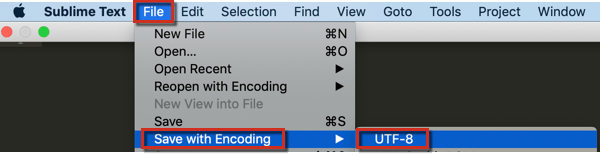
-
Upload the data to a new table in Magento BI as described in our user guide.