Invalidated cache causes response time degradation
This article explains how to prevent cache invalidation, which can slow Adobe Commerce store performance.
Description description
Environment
Adobe Commerce on-premise
Adobe Commerce on cloud infrastructure
Issue/Symptoms
- Slow site response
Cause
Long response times can occur when the cache is invalidated (flushed).
The cache helps generate fast responses to site visitors’ requests. If no appropriate cache data is available, Adobe Commerce retrieves data from the database, calculates and aggregates it, and stores it in cache. This process requires additional system resources, which can degrade response time.
Adobe Commerce uses two types of cache:
- Internal Stores data on the server, including configuration, product details, and category details.
- External CDN or Varnish (Fastly CDN for Adobe Commerce on cloud). Stores full pages such as catalog/category and catalog/product pages.
Check if you have invalidated cache
To check invalidated cache types in the <install_directory> /var/log/debug.log
-
Open
<install_directory> /var/log/debug.log. -
Search for " cache_invalidate ".
-
Review the tag specified:
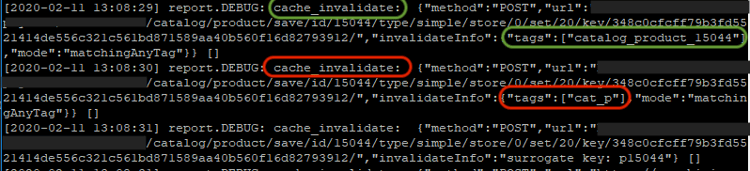
cat_p– catalog product cachecat_c– catalog category cacheFPC– full page cacheCONFIG– configuration cache
Having even one of them flushed would slow down the response of the website. If the tag includes an entity ID (for example, category_product_1258), only that product or category cache was flushed, which typically does not significantly affect response time.
Following is a sample of a debug.log containing records about the cat_p and category_product_15044 cache having been flushed:
Common reasons for cache invalidation:
- Full reindex
- Flushing cache from CLI, manually or via cron
Resolution resolution
Recommendation
- Avoid flushing cache from the Commerce CLI.
- Configure indexers to Update by schedule instead of Update on save to prevent full reindexing. See Manage the indexers
>Configure Indexers in the developer documentation.