Create an email campaign create-an-email-campaign
Learn how to generate and review complete email campaigns in minutes.
Before you start
Make sure you have:
-
An active Adobe CX Enterprise Coworker Campaigns account (sign up here if you have not already).
-
Your brand added under Your stuff > Brands.
-
(Optional but recommended) An HTML email template uploaded under Your stuff > Email templates.
-
An audience CSV ready to upload.
-
A clear idea of your campaign goal (for example, “win back lapsed customers,” or, “invite trial users to a webinar.”).
Step 1: Start a new chat
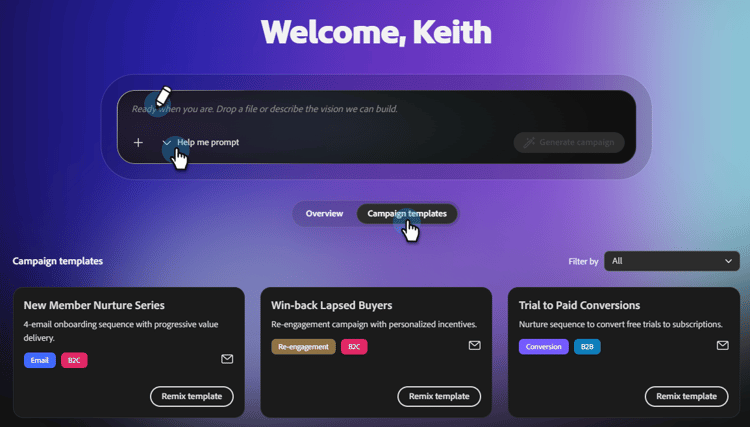
From the home page, you have three ways to begin:
Option one: Type a prompt in the central prompt bar.
When to use: When you know exactly what you want.
Option two: Pick a ready-made template from the Campaign templates section below the prompt bar.
When to use: When you are not sure what you want.
Option three: Use a “Help me prompt” option from the drop-down in the prompt bar to have Coworker Campaigns guide you through writing your prompt.
When to use: When you may have an idea what you want, but would like a little help (or, use “Surprise Me” to be surprised).
Step 2: Create your prompt
A strong Coworker Campaigns prompt includes:
- The campaign goal (what you are trying to achieve).
- The audience (who it is for, or where the audience data is coming from).
- The format and structure (number of emails, cadence, tone).
- Brand or context cues (references to your brand, product, or campaign).
Example:
"Create a single-touch win-back email campaign for customers who bought last year but haven't returned. Use the CSV I am uploading. Make sure the content feels seasonal."
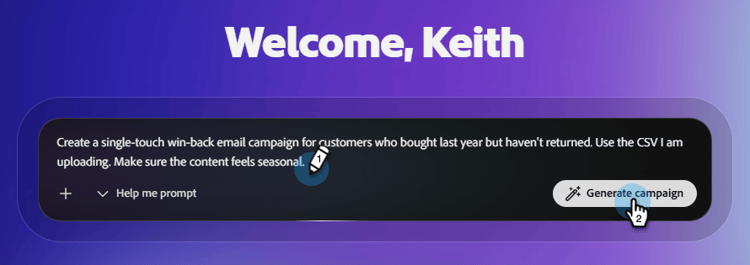
When you have your prompt ready, click Generate campaign. Coworker Campaigns will then:
- Generate a structured campaign plan.
- Ask for your target audience, which will also be used for content personalization.
- Draft personalized email content for each step.
- Dynamically build the journey along the way.
- Assemble it all on a single campaign board.
Step 3: Upload your audience
Audiences are uploaded via CSV. All audiences are specific to their respective campaigns (they are not stored anywhere else in your environment at this time).
-
After submitting your prompt, review the tasks that Coworker will execute and click Build.
-
In the Campaign conversion pane on the left, click Upload CSV.
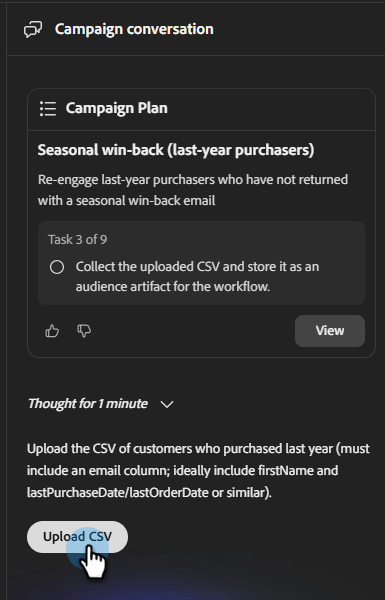
note NOTE - Email address is a required field, first name, last purchased date, and any other fields that can be used for personalization are recommended.
-
Import your CSV file.
note important IMPORTANT Exclude any contacts you do not want to email (unsubscribed users, internal addresses, test accounts) before uploading. While we will progressively enable the functionality to exclude specific users or add attributes during the course of the trial, it is not immediately available from the launch date.
Step 4: Review and refine Campaign Assets
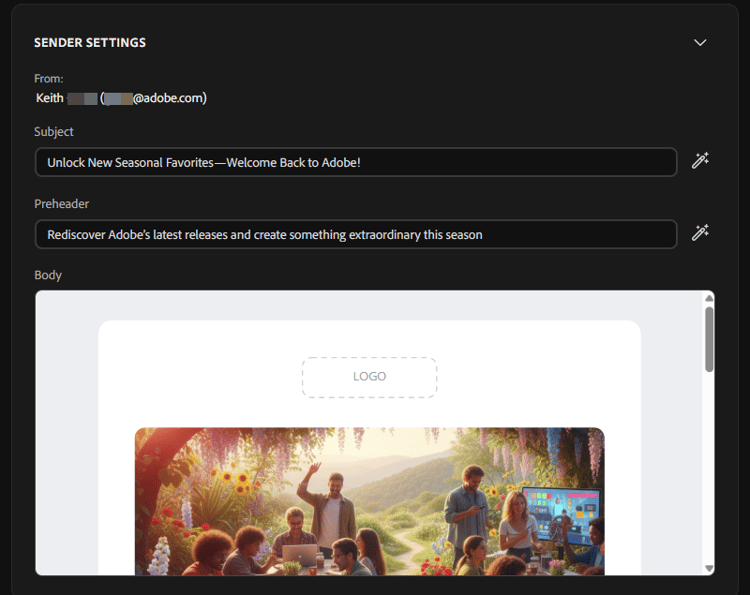
To make changes to your email, scroll to the right. Under Campaign Assets, click Open editor.
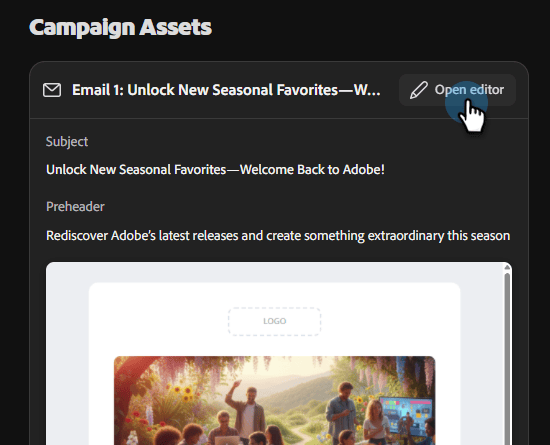
There are two ways to update your content.
- Manually make any desired changes by selecting various sections in the email (for example: replace the subject line, update an image, etc.).
-or-
-
Use the conversational interface to make changes by talking directly to Coworker Campaigns. Some examples include:
- “Make the subject line more urgent.”
- “Shorten the body copy.”
- “Make the call to action stronger.”
You can also use the AI buttons to help refine your Subject or Preheader.
Step 5: Send a test email
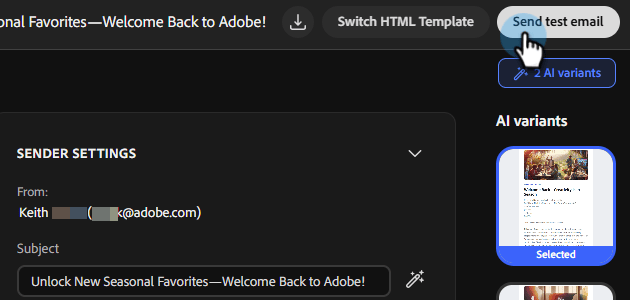
Before launching, send the campaign to yourself so you can review it in a real inbox. Use this option to ensure the email is rendering the way you want, the links are working, any personalization is accurate, etc.
Step 6: Next steps
The Launch functionality (sending your email campaign) is coming soon. Until then, you can review the content with your team, and start on your next campaign.
FAQ
Why does the first response take so long?
It is generating an entire campaign for you, including the strategy, the audience you require, the workflow, etc. The average time of the first response with your content generated is typically around one minute.
What do I do if the Coworker Campaigns output isn’t quite right?
Click the feedback icon in the header and let us know so we can improve the platform.
Can I edit emails directly, or only via chat?
You can do both.
How do I save a campaign without launching it?
All campaigns are auto-saved. If you need access to recent conversations, they are available in the window on the left (under Chats if you have not built out your campaign, under Campaigns if you have).
Is there a file size limit for my CSV upload?
Yes, the size limit is 8MB.
What if my audience CSV returns errors?
Make sure your CSV file does not contain “rich” hidden characters.
How do I use campaign templates?
Select the desired template and click Remix. You can then update all personalization tokens and click the send icon on the bottom-right.
How do I share a draft campaign with a teammate for review?
There is no “share” button at this time. However, you can download the content as HTML, or export it as a PDF or Word doc.