Connect to HubSpot hubspot
Adobe Coworker Campaigns allows you to connect your HubSpot account to pull in contact lists.
- An active HubSpot account
- A service key created with the following scopes added:
crm.objects.contacts.read,crm.objects.leads.read,crm.schemas.contacts.read,crm.lists.read,crm.export
How to connect
-
On the Coworker Campaigns homepage, click Customize and select Connectors.

-
Click Add integration.
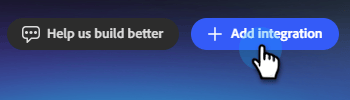
note NOTE If this is not your first integration, the button will read “Add connector.” -
In the HubSpot row, click Connect.

-
A modal appears showing the necessary permissions (listed in the Prerequisites at the top of this article). Click Continue.
-
Enter your HubSpot Service key and click Connect.
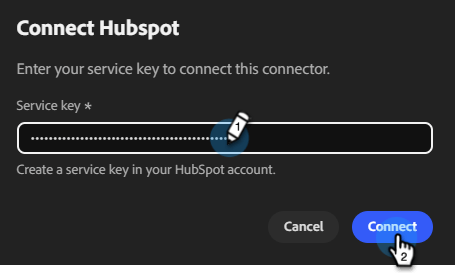
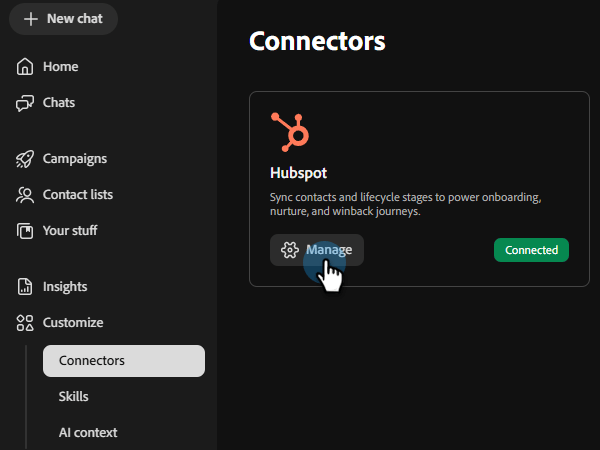
After connection, HubSpot appears in the Connectors list and can be selected when linking a contact list to sync from HubSpot.
To disconnect:
-
In the Connectors screen, find the HubSpot tile and click Manage.
-
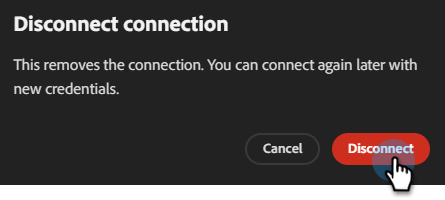
Click Disconnect (no need to re-enter your service key at this time).
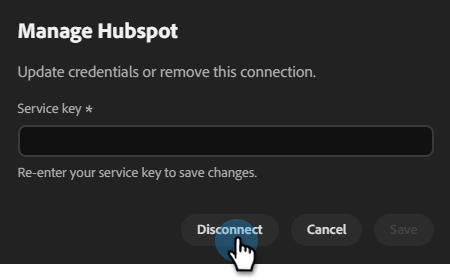
-
Click Disconnect again to confirm.