Create and Manage Rules
To build a rule, open the rule editor, choose a rule type (search conditions, default listing, or category pages), then define conditions and ranking where they apply, test the results, and publish the rule.
Create a rule create-a-rule
-
In the left rail, go to Merchandising > Merchandising Rules.
-
(Optional) Use the Catalog view dropdown to select the catalog view where the rule should apply. The rule you create is scoped to the selected view (or to all catalog views if All views is selected). See Select catalog view for how catalog view scoping works.
note important IMPORTANT Catalog views are currently in beta. Beta participants will need to recreate any existing merchandising rules to take advantage of the new catalog view scope. -
Click Create rule to launch the rule editor.
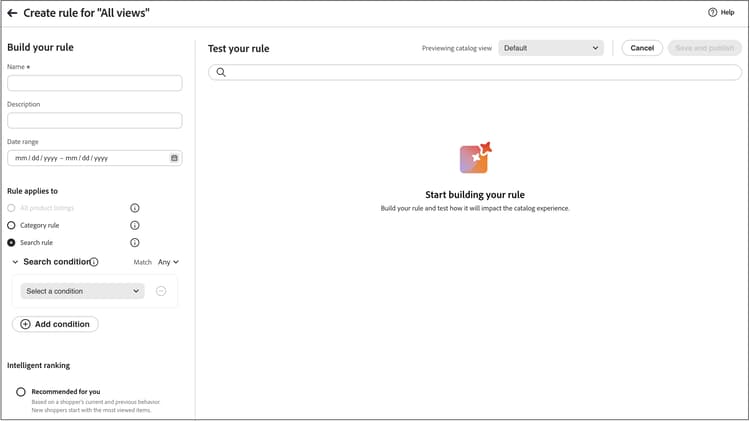
Rule types
Each rule type has an information icon in the editor with a short explanation. Use the type that matches where shoppers should see the merchandising logic:
In the Build your rule section, you define the rule name, schedule, whether the rule applies to all listings or to specific search conditions, and ranking types.
- In the Name field, enter a name for the rule. All rule names must be unique.
- In the Description field, enter a description for the rule.
- In the Date range field, specify the date or range of dates you want the rule to be active.
- In the Rule applies to section, select the rule type you want to use.
A search rule applies merchandising and ranking logic when shoppers perform a search that matches the defined conditions.
The conditions are the requirements to trigger an event. A rule can have up to ten conditions and 25 events. A default rule cannot have any conditions.
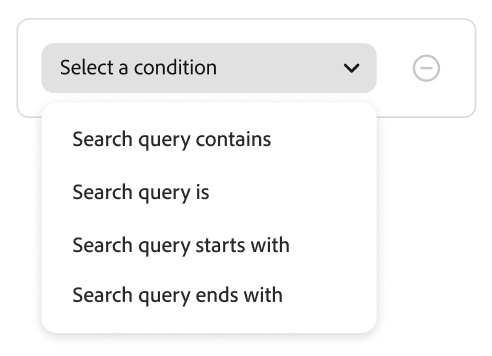
Single condition
-
Under Build your rule, select the Condition to be met, and follow the instructions to complete the statement.
- Search query contains - Enter the string of text that must be in the shopper’s query. The Match setting determines the degree to which the shopper’s query matches the catalog. Options:
Any - Any part of the shopper’s query text can match the condition.
All - All of the shopper’s query must match the condition. - Search query is - Enter a string of text that exactly matches the shopper’s query. For example: “yoga pants”. Rules with
Search query isand MatchAllcan have only one condition. - Search query starts with - Enter a character or string of text that must be at the beginning of the shopper’s query.
- Search query ends with - Enter a character or string of text that must be at the end of the shopper’s query.
The results appear immediately in the Test your rule pane and are numbered by priority. You can use the Results per row slider in the upper right to change the number of products in each row.
- Search query contains - Enter the string of text that must be in the shopper’s query. The Match setting determines the degree to which the shopper’s query matches the catalog. Options:
-
To test other queries, change the query text in the Test your rule search box and press Return.
Initially, the test pane renders the query from the Conditions search box. But now it is rendering the query from the test query box. The test pane renders only one query at a time. -
If you like the result, update the text in the Conditions search box. Then, click anywhere on the page to update the results in the test pane.
-
Set Intelligent ranking and Manual ranking as described in the following sections. The same controls apply to category pages, with any differences called out.
Multiple conditions
-
To build a rule with multiple conditions, click Add condition.
A rule can have up to ten conditions. The logical operator that joins two conditions is based on the current Match setting. By default, Match isAlland the logical operator isAND. -
Select the second condition and enter the required query text.
-
To change the logic of the rule, change the Match setting to determine how closely the shopper’s search criteria must match the query condition. Set Match to one of the following:
- Any - (Default) All logical operators in the rule are set to
ORand the results appear in the test pane. - All - All logical operators in the rule are set to
ANDand the results appear in the test pane.
The Match value determines the logical operator that is used to join multiple conditions. Changing the Match setting changes all logical operators in the rule. It is not possible to combine
ANDandORin the same rule.In this example, rather than searching for “yoga pants”, there are two separate queries that search for “yoga” or “pants”. This rule is less specific and is triggered more often in the storefront than the other.
- Any - (Default) All logical operators in the rule are set to
-
To add another condition, click Add condition and repeat the process.
-
Set Intelligent ranking and Manual ranking as described in the following sections. The same controls apply to category pages, with any differences called out.
| note important |
|---|
| IMPORTANT |
| Category rules are in beta. |
Category rules control how products are ordered on category pages. You combine category rules with intelligent ranking (including AI-driven signals), and manual actions such as pin, boost, and bury—so you can curate discovery, run promotions, and align category pages with your strategy without relying on external tools.
-
Under Categories, select the category or categories the rule should apply to. Selected categories appear below the control so you can confirm the scope.
-
From the list of categories that appear, you can click the three dots and select to:
- Delete - Removes the category from the rule.
- Apply to subcategories - Applies the rule to subcategories that do not already have an active merchandising rule defined.
- Preview - Displays how the category page would appear on your storefront.
-
Set Intelligent ranking and Manual ranking as described in the following sections. The same controls apply to search rules, with any differences called out.
Intelligent ranking intelligent-ranking
Intelligent ranking orders products using behavioral signals and, where applicable, AI. It applies to search rules, all product listings (default rules), and category rules (category pages). For shopper searches, ranking also weighs textual relevance to the query; category pages do not use query text in the same way—the editor focuses on behavioral strategies.
Store owners can set strategies such as the following. Exact labels and time windows match the rule editor and may differ slightly by rule type.
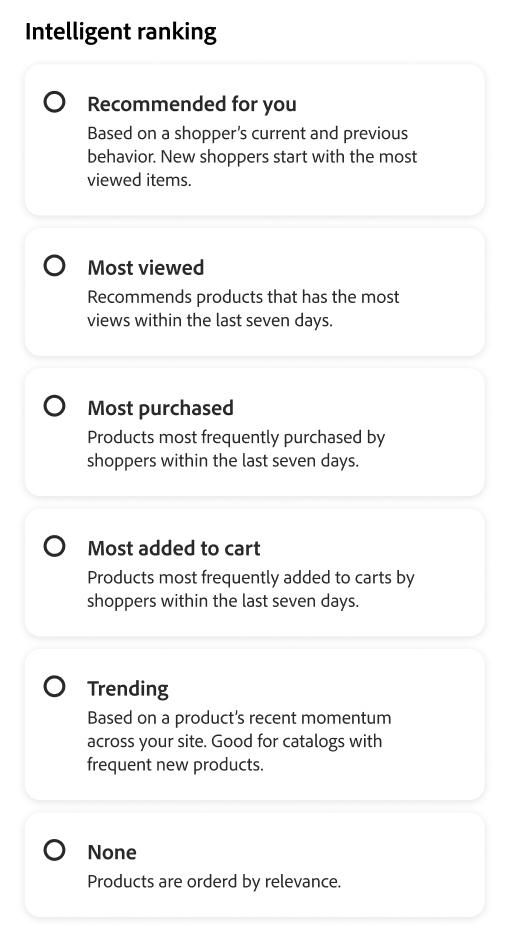
- Most purchased / Most bought — Ranks by purchase frequency per SKU in a recent window (for example, the previous 7 days for search contexts).
- Most added to cart — Ranks by total add-to-cart activity in a recent window (for example, the previous 7 days for search contexts).
- Most viewed — Ranks by views per SKU in a recent window (for example, the previous 7 days for search contexts).
- Recommended for you — Uses the
viewed-viewedsignal: shoppers who viewed this SKU also viewed other SKUs; supports personalized ordering on category pages where available. - Trending — Emphasizes recent popularity (for search, page views over the past 72 hours for background events and 24 hours for foreground events).
- None — For search and default listings, products are ordered by Relevance. For category rules, uses the default merchandising order for the category when you do not choose another intelligent strategy.
Select the strategy for your rule. The Test your rule pane shows expected results for search-oriented rules; category rules use the category preview.
How intelligent ranking scoring works (search)
For search results (and the test query in the rule editor), intelligent ranking determines the final product order by combining two key factors: textual relevance and behavioral signals. Understanding how these factors interact helps you set realistic expectations for your search results.
Scoring components:
-
Textual relevance: The dominant factor in scoring. This measures how well a product’s name, description, and attributes match the search query. The text relevance score is unbounded (has no specific upper limit) and is influenced by factors like:
- Frequency of occurrence of matching words.
- Length (in words) of product names/descriptions.
-
Behavioral signals: A bounded boost applied on top of the text relevance score. When you select an intelligent ranking strategy like “Most viewed” or “Most purchased,” products with higher behavioral signals receive a fixed boost to their scores. However, this boost has a defined limit.
Why the most viewed product might not appear first:
Textual relevance typically dominates ranking because its score is unbounded, while behavioral boosts are fixed. As a result, products with strong text matches often outrank those with higher engagement signals. Behavioral boosts alone may not compensate for large gaps in text relevance. Intelligent ranking addresses this by factoring in both match quality and shopper interaction, improving overall relevance. However, text match quality remains the primary driver of ranking.
Example:
A merchant uses the “Most viewed” intelligent ranking strategy and searches for “candle.” They expect product SKU YAN-K-E-512 to appear at the top of results because it has the highest view count. However, other products rank higher:
-
Texas Candle (1st position): Has a shorter, cleaner product name that creates a very high text relevance score. Even though it has fewer views than YAN-K-E-512, its superior text match outweighs the behavioral boost.
-
YAN-K-E-512 (lower position): Despite having the highest view percentile in the “Most viewed” behavioral data, its complex SKU-based name generates a lower text relevance score. The fixed behavioral boost is not enough to overcome this text relevance gap.
See search rules to learn how to improve product findability using rules.
Caveats
- Apostrophes and quotes in queries may lead to some minor issues with ranking and relevance in some languages.
- To ensure intelligent ranking works correctly for search, make sure that the Search Weight for any attributes that are used for search or filtering (facets) is
5or less. (This guidance applies to search indexing, not to category-only merchandising flows.)
For information about setting search weights, see the Metadata API.
Manual ranking manual-ranking
Manual ranking events adjust product order for search results (when your rule’s conditions are met), for default product listings, and for category page listings. A single rule can have up to 25 events.
- Boost — Moves a product higher in the listing.
- Bury — Moves a SKU lower in the listing.
- Pin a product — Fixes a product at the selected position in the listing.
- Hide a product — Excludes a SKU from the results (search-oriented; confirm behavior for category rules in the editor).
The easiest way to pin a product is by drag and drop.
- Click and drag a product in the Test pane. Drag and drop it at the desired position. The Product and Postion fields are automatically populated in the Events pane.
You may also click the pin icon to pin a product to its current location. Use the ellipsis context menu to “Pin to top” or “Pin to bottom”.
Or events can be set manually:
-
Under Events, choose the Event to take place when the associated conditions are met.
For example, choose
Hide a product. Then, enter the name of the product that you want to hide. Products are suggested as you type. -
For multiple events, choose any other events that you want to trigger when conditions are met.
Finalizing the rule finalizing-the-rule
-
Examine the results of the rule in the test pane.
-
If the rule has multiple queries, test each one that might be affected by the rule.
-
When complete, click Save and publish.
The rule is added to the list in the Rules workspace.
-
Although active rules go into effect immediately, you might have to wait up to 15 minutes for the cached query results in the storefront to be refreshed.
Edit, view, and delete rules edit-view-and-delete-rules
Follow these instructions to update the properties of existing rules. You cannot change the catalog view (scope) of a rule after it is created; scope is set when you create the rule. See Select catalog view.
Edit rule
- On the Merchandising rules workspace, find the rule in the grid that you want to edit and click More (…) options.
- Click Edit to access the rule editor.
- Update the conditions, operators, and events as needed.
- Update the name, start and end date, and description fields as needed. All rule names must be unique.
- Test the rule.
- Publish the changes.
The rule is added to the list in the Rules workspace. Although active rules go into effect immediately, it might take up to 15 minutes for cached query results in the storefront to be refreshed.
View details
This option provides a quick way to see all the rule parameters, while staying on the Rules table.
- On the Merchandising rules worksapce, find the rule in the grid that you want to edit and click More (…) options.
- Click View details to view the rule parameters.
- Choose Edit or Delete, or click the X to close the panel.
Delete rule
- On the Rules workspace, find the rule in the grid that you want to edit and click More (…) options.
- Click Delete.
Field descriptions field-descriptions
Conditions (if)
Logical operators
OR compares two conditions and meets the requirements to trigger an event if at least one condition is true.AND compares two conditions and meets the requirements to trigger an event if both conditions are true.Match operators
OR and returns the set of matching products.AND and returns the set of matching products.