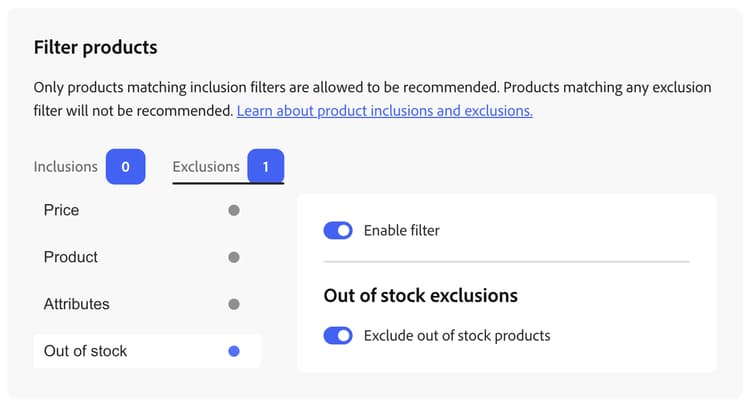
Filter Products
Adobe Commerce Optimizer automatically applies non-configurable default filters to recommendation units. If you have multiple recommendation units deployed to a page, Adobe Commerce Optimizer filters out any products that are repeated in the units. Only the first reference to a repeated product is used, to make room for other products to be recommended. Adobe Commerce Optimizer also filters out any previously purchased products and those that are in the cart.
When you create a recommendation unit, you can define filters that control which products can be displayed in recommendations. These filters are based on a set of inclusion or exclusion conditions that you define. Only products that match all inclusion conditions appear in recommendations. Products that match any of the exclusion conditions are not recommended.
You can configure multiple filters and enable only those you want by selecting the toggle on each filter page. This allows you to create drafts of filters for future use. The number of enabled filters is displayed on each tab.
Conditions
Conditions can be static or dynamic.
-
A static condition uses existing product attributes to determine which products can appear in the unit. For example, you can specify that only in-stock products with a price greater than $25 appear in the unit.
-
A dynamic condition keys off a shopper’s current context, such as the currently viewed category or product. For example, when creating a product recommendation to be deployed on product detail pages, you can use a dynamic price filter to include or exclude products within a relative price range of the currently viewed product.
Logical operators
The logical operators AND and OR are used to join multiple conditions. If using both inclusion and exclusion filters across filter types, inclusions are evaluated first to determine all possible products that can be recommended, then products that match any exclusion filters are removed from the list. Price filters use a different order among price rules: exclusions first, then inclusions. See How include and exclude rules use price.
AND- Joins two inclusion-filtering conditionsOR- Joins two exclusion-filtering conditions
Types of filters
Each filter type targets a different aspect of the catalog, such as product and price, so you can narrow or broaden which products are eligible for a unit. Choose the types that match your merchandising goals, then combine inclusion and exclusion conditions as needed; the subsections below describe how each type behaves and how Adobe Commerce Optimizer applies it.
Price price
Price filtering uses each product’s final computed price from the storefront’s active price book, which is the price book assigned to the storefront where the recommendation unit is rendered.
That value:
- Includes discounts, promotions, and special pricing defined in that price book (not list price alone).
- Excludes shipping and cart-level adjustments.
- Applies only to the active price book for that storefront; other storefronts or price books are not used.
Configure how price books map to a storefront in your catalog and price books setup.
How include and exclude rules use price how-include-and-exclude-rules-use-price
- Exclusion rules – Products whose final price matches any defined price exclusion are removed first.
- Inclusion rules – Among the remaining candidates, only products whose final price matches all defined price inclusion conditions stay eligible. That includes every enabled inclusion filter (for example, your price rule plus any other inclusion rules).
Price rules filter the recommendation candidate set; they do not re-rank products. The engine produces a ranked list, price include and exclude rules remove products from that list, and the relative order of remaining products stays the same. If fewer products qualify than the unit requests, only valid items are shown. If none qualify, the unit is not rendered (no empty placeholder).
The price shown on products inside the recommendation unit is the same final price from that storefront’s price book, so what shoppers see matches the value used for filtering. In the Admin preview, configurable products may show a price range when variant prices differ; see Configurable products in preview.
Static price range
Use a static price filter when you want a fixed minimum or maximum in your store’s base currency, independent of the product a shopper is viewing.
Set up a static price filter
-
While creating or editing a recommendation unit, open Filter products (or go to the Filters step from the unit workflow).
-
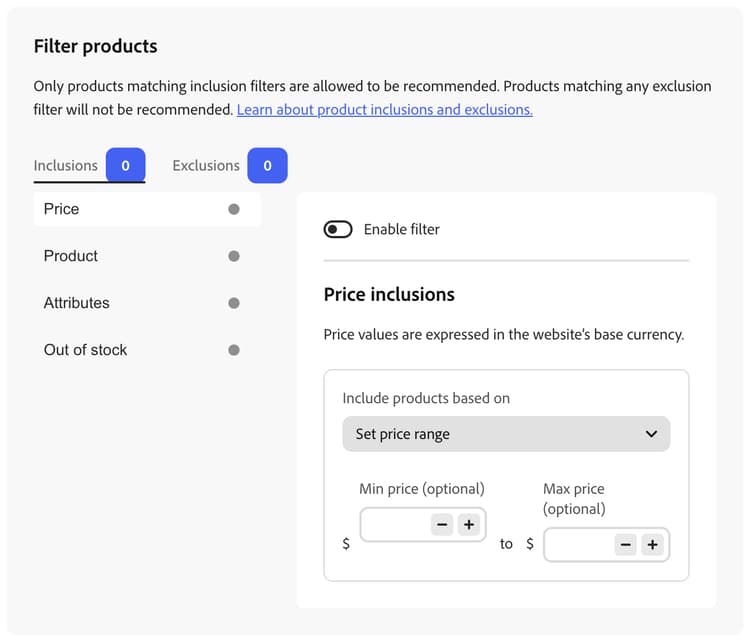
Select the Inclusions or Exclusions tab, depending on whether you want to allow only products in a price range or block products in a range. The badge on each tab shows how many filters of that type are enabled.
-
In the list on the left, select Price.
-
Turn Enable filter on.
Price values use the website’s base currency, as noted on the page.
-
Open Include products based on (on the Inclusions tab) or the equivalent control on the Exclusions tab, and choose Set price range.
-
Set an optional Min price and/or Max price using the fields next to the currency symbol. You can type amounts or use the - and + controls to adjust values. Leave a bound empty if you do not need a minimum or maximum. The range is compared to each product’s final computed price for the storefront’s active price book.
-
Finish configuring the recommendation unit and save or publish as you normally would so the filter takes effect.
Dynamic price filters (relative to current product) dynamic-price-filters-relative-to-current-product
Use a dynamic price filter when recommendations should be limited relative to the currently viewed product on a product detail page (PDP). The filter uses that product’s final price as an anchor and compares recommended products against boundaries you define.
Dynamic operators are available only for SKU-related recommendation types that run in a product context:
- Viewed this, viewed that
- Viewed this, bought that
- Bought this, bought that
- More like this
- Visual similarity
They are not available for popularity-based types because those units do not have a single current product to anchor the filter:
- Most viewed
- Most purchased
- Most added to cart
- Trending
- Recommended for you
- Recently viewed
- View to cart conversion
- View to purchase conversion
On the storefront, the recommendation drop-in reads the current product’s price from the PDP context and sends it with the recommendation request. Adobe Commerce Optimizer uses that value as the anchor when evaluating dynamic price rules. For configurable products, the anchor is the lowest variant final price (priceRange.minimum).
Operators
In Include products based on (or the exclusions equivalent), you can choose:
Offset semantics
For Less than or equal to current product price and Greater than or equal to current product price, the value you enter is a numeric offset added to the anchor price to form the boundary:
- A negative offset moves the boundary below the current product price.
- A positive offset moves the boundary above the current product price.
- Empty or 0 means no limit on that side; the backend treats them the same.
- You cannot use 0 to mean “exactly the current product price” as the boundary.
This matches Product Recommendations on PaaS. Labels in the Admin reflect these semantics directly.
Set up a dynamic price filter
- Create or edit a SKU-related recommendation unit that is deployed on the product detail page (or another placement where a current product is always in context).
- Open Filter products and select the Inclusions or Exclusions tab.
- Select Price and turn Enable filter on.
- Open Include products based on (or the exclusions equivalent) and choose a dynamic operator (for example, Within a value range of current product).
- Enter offsets or range values as prompted. Use the preview to confirm results for a sample product.
- Save or publish the unit.
Invalid values (non-numeric amounts, unsupported combinations, or ranges where minimum is greater than maximum) block save and show validation errors; Save stays disabled until the filter is valid.
When no anchor price is available
If a dynamic price filter is enabled but the storefront cannot supply a current product price (for example, the unit is rendered outside a PDP context), Adobe Commerce Optimizer does not return unfiltered recommendations. The unit shows no recommendations, because showing unfiltered results would not match the rule you configured.
Configurable products in preview configurable-products-in-preview
In the Admin preview panel, recommended product prices display as follows:
- Simple products – Single final price from the GraphQL response.
- Configurable products – If minimum and maximum variant prices differ, the preview shows a range (for example,
$min – $max). If they are equal, a single price is shown.
The anchor price used for dynamic filter calculations on a configurable product is always the minimum variant final price, consistent with the storefront.
Price filter examples
The following examples use a current product price of $500. Adjust inclusion versus exclusion to match your merchandising goal.
Product
Product filters target individual catalog items by SKU. You add one or more SKUs to either allow only those products (Inclusions) or block them (Exclusions), using the same Filter products page as price filters. You cannot surface disabled products or products that are not visible individually in a recommendation unit; those products never appear on the storefront regardless of filters.
Set up a product filter
-
While creating or editing a recommendation unit, open Filter products (or go to the Filters step from the unit workflow).
-
Select the Inclusions or Exclusions tab. The badge on each tab shows how many filters of that type are enabled.
-
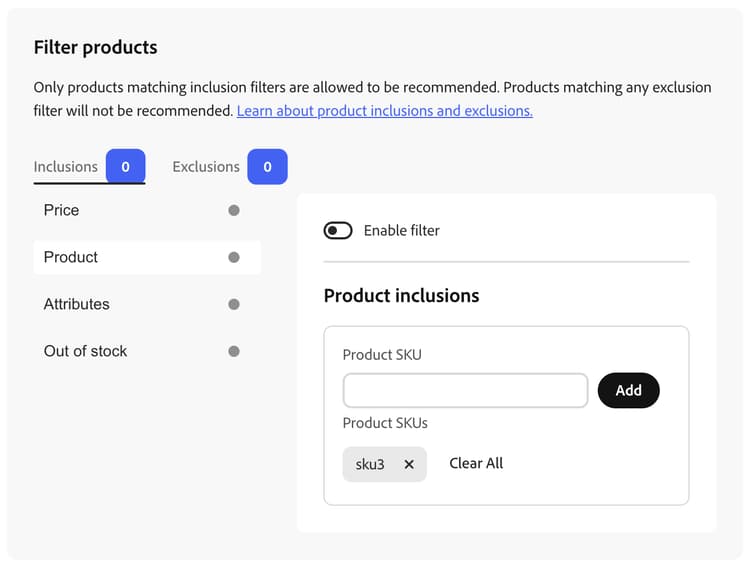
In the list on the left, select Product.
-
Turn Enable filter on.
The right panel heading reflects the tab, for example Product inclusions or the equivalent for exclusions.
-
In Product SKU, enter a SKU and click Add. Repeat to add more SKUs.
Under Product SKUs, each SKU appears as a removable tag. Click X on a tag to remove that SKU, or click Clear All to remove every SKU from the list.
-
Finish configuring the recommendation unit and save or publish as you normally would so the filter takes effect.
For inclusions, only products whose SKUs are listed (and that satisfy your other enabled inclusion filters) can be recommended. For exclusions, any product whose SKU is listed is not recommended, even if it would otherwise qualify.
Attributes attributes
Attribute filters let you include or exclude products based on product attribute values, using the same Filter products page as price and product filters.
About attribute filters
An attribute filter differs from a product filter in that it targets products by shared attribute values rather than by individual SKU. For example, instead of listing every SKU assigned to a category, you can create a single attribute filter that matches all products assigned to that category.
Set up an attribute filter
Use the following steps to add an attribute inclusion or exclusion rule to a recommendation unit.
- While creating or editing a recommendation unit, go to Filter products.
- Select the Inclusions or Exclusions tab. The badge on each tab shows how many filters of that type are enabled.
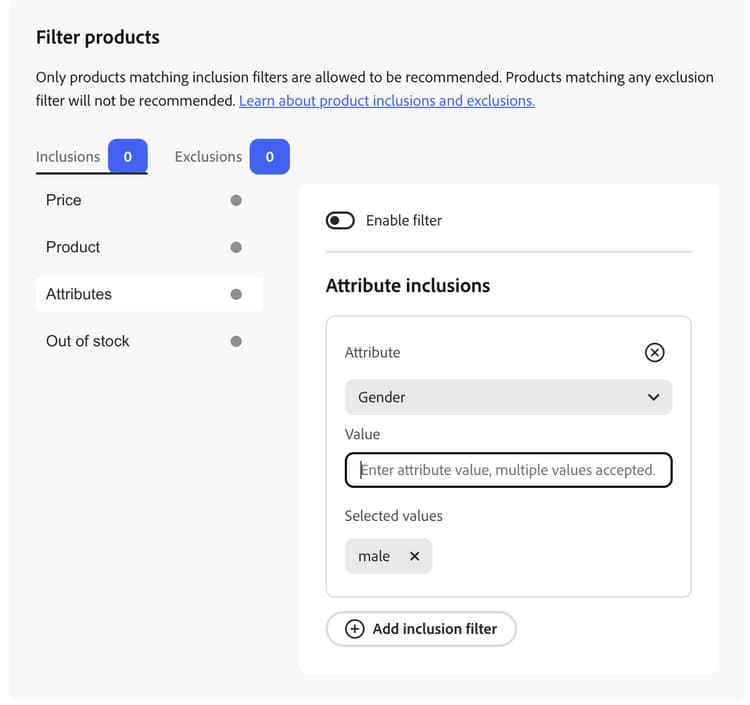
- In the list on the left, select Attributes.
- Choose an attribute from the selector, for example Category.
- In Value, enter a value for the attribute, such as pants.
- Press Enter or click Add inclusion filter (or the equivalent exclusion control) to add the attribute filter.
- Finish configuring the recommendation unit and save or publish as you normally would so the filter takes effect.
number to true, such as Size, the Value field displays range inputs instead of a single text value.Use inclusion and exclusion conditions
Only products matching inclusion filters are allowed to be recommended. Products matching any exclusion filter will not be recommended.
Combine conditions
When an attribute filter includes multiple values or is combined with other conditions, the following logic applies.
- If multiple values are selected for the same attribute, the values are combined with
OR. - Conditions on different attributes (for example, Color and Size) are combined with
AND— a product must match all of them. If you add the same attribute as separate conditions instead of entering multiple values in one condition, those conditions are also combined withAND, notOR. - If there are multiple exclusion conditions, a product is removed when it matches any of the exclusion conditions.
- If using both inclusion and exclusion filters, see Logical operators.
Availability, validation, and troubleshooting
- If there are empty attribute values or invalid conditions, recommendations do not render on the storefront or in the preview panel.
- Attribute values must exactly match what is in your catalog, this includes spaces and case.
- If none of the products meet the filter criteria, recommendations do not render on the storefront or in the preview panel.
Out of stock
The following exclusion filter can filter out products based on stock status:
- Out of stock - (Exclusion only) Excludes products that are out of stock.