Create and Manage Facets
Any filterable product attribute can be used as a facet. Facets help customers filter and find products more easily in your store. This article explains how to add, manage, and configure facets in your storefront.
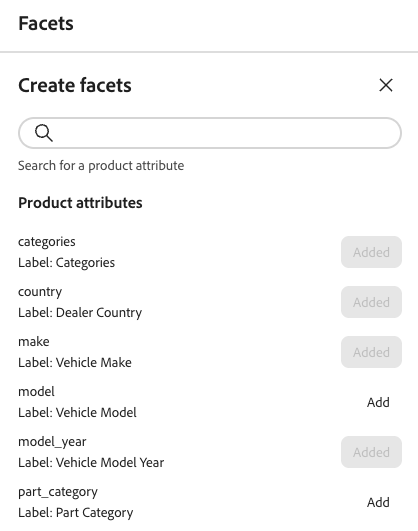
Create a facet
-
In the left rail, select Merchandising > Facets then click Create facets.
-
In the Create facets list, each available attribute has a separate

- In the Facets attributes list, choose the product attribute that you want to use as a facet and click Add.
- To find a specific product attribute, enter the first few characters of the attribute name in the Search box. Then, click Add.
The facet is added to the bottom of the Dynamic facets list and the Publish changes button becomes available.
-
If the facet you want to add cannot be found, use the Metadata API to set the
filterableparameter:"filterable": trueThe facet becomes available in the storefront the next time the catalog is synchronized with Adobe Commerce Optimizer. If the facet isn’t available after two hours, see data sync.
Edit facet properties (optional)
-
Find the facet that you want to edit.
-
Click the (

-
On the menu, click Edit. Then, adjust the following properties as needed:
-
Label - Enter the facet label that you want to use.
-
Sort type - Choose one of the following:
- Alphabetical - Sorts facets alphabetically
- Count - Sorts facets based on the number of matches found
-
Max Value - Enter the maximum number of facet values displayed in the storefront. Valid entries: 0 - 100; Default: 8.
-
-
When complete, click Save.
Pin/unpin facets
The pin changes color when clicked and is used to move the facet to either the Pinned Facets or the Dynamic Facets section.
-
To pin a facet to the top of the Filters list, find the facet in the Dynamic Facets list and click the gray pin (

The pin turns blue and the facet moves to the Pinned Facets section.
-
To unpin a facet, find the facet in the Pinned Facets list and click the blue pin (

The pin turns gray and the facet moves to the Dynamic Facets section.
Delete facets
- Find the facet in the list and click the (
- Click Delete.
- When prompted to confirm, click Delete facet.
The facet is removed from the storefront after the changes are published.
Publish changes
- To update the storefront with your changes, click Publish.
- Wait about 15 minutes for the updates to appear in your store.