Migrate media files to the AEM Assets DAM
Both Adobe Commerce and Adobe Experience Manager (AEM) provide built-in features to streamline media file migration from Commerce to the AEM Assets digital asset management system (DAM). You can also migrate media files from other sources.
Prerequisites
- AEM as a Cloud Service environment provisioned with AEM Assets
- Sufficient storage capacity
- Network bandwidth for large file transfers
- Administrator access to AEM Assets as a Cloud Service
- Access to source system where media files are stored (Adobe Commerce or external system)
- Appropriate permissions to access cloud storage services
- AWS S3 or Azure Blob Storage account
- Private container/bucket configuration
- Authentication credentials
- Organized media files ready for migration
- Image and video files in formats supported by AEM Assets.
- Clean, duplicated assets
- AEM Assets metadata profile configured for Commerce assets
- Mapped metadata values for each asset
- CSV file editor (e.g., Microsoft Excel)
Migration best practices
-
Curate assets before migration by removing unused and duplicate content.
-
Organize assets logically by size, format, or use case.
-
Consider breaking large migrations into smaller batches.
-
Schedule resource-intensive imports during off-peak hours.
-
Validate metadata mapping before full import.
Migration workflow
Follow the migration workflow to export media files from Adobe Commerce or another external system and import them into the AEM Assets DAM.
Step 1: Export content from the existing data source
[PaaS only]{class="badge informative" title="Applies to Adobe Commerce on Cloud projects only (Adobe-managed PaaS infrastructure)."}
For Adobe Commerce merchants, the Remote Storage module can facilitate media file imports and exports. This module allows businesses to store and manage media files using remote storage services like AWS S3. To set up remote storage for your Commerce instance, see Configure Remote Storage in the Commerce Configuration Guide.
If you have media files stored outside of Adobe Commerce, upload them directly to one of the data sources supported by AEM as a Cloud Service.
Step 2: Build a CSV file for metadata mapping
Create a CSV file that maps each media file to its Commerce product data. Choose one of the following methods:
- Adobe Commerce (PaaS): Use the CLI command to auto-generate the CSV from your catalog
- Manually create the CSV file
Export metadata using CLI
[PaaS only]{class="badge informative" title="Applies to Adobe Commerce on Cloud projects only (Adobe-managed PaaS infrastructure)."}
Use the AEM Assets Integration CLI command to automatically generate a metadata CSV file that includes image URLs, positions, and roles from the product media files stored in your Commerce project.
-
List available commands to verify the AEM Assets Integration module is installed:
code language-bash bin/magento list aemThe custom extension commands appear under
aemat the start of the command list. -
Run the metadata export command with your AEM path prefix:
code language-bash bin/magento aem:assets:export:csv <AEM-path-prefix>The
<AEM-path-prefix>is the base folder path where your assets will be stored in AEM Assets DAM (for example,/content/dam/commerce/).code language-bash bin/magento aem:assets:export:csv /content/dam/commerce/This creates a
metadata.csvfile in thevar/exportdirectory containing image URLs, positions, and roles for each product asset in your Commerce catalog.
Create the CSV manually
For media files stored outside Adobe Commerce, manually create the CSV file. The column headers must match the field names configured in your AEM Assets metadata profile. After creating the file, populate the rows with the metadata values for each media file.
Use the path to create sub-folders to organize Commerce assets, for example
content/dam/commerce/<brand>/<type>./content/dam/commerce/<sub-folder>/..<filename>Yesthumbnail, main image, swatch)Use this sample CSV code to create the file in a code editor or spreadsheet application like Microsoft Excel.
| code language-csv |
|---|
|
Step 3: Bulk Import Assets into AEM Assets
After creating the metadata mapping file, use the AEM Assets Bulk Import Tool to import your assets.
The following is a high-level overview for using the tool.
-
Log in to your AEM Assets as a Cloud Service author environment.
-
From the Experience Manager Tools view, select Assets > Bulk Import.

-
From the Bulk Import Configurations, select Create to open the configuration form.
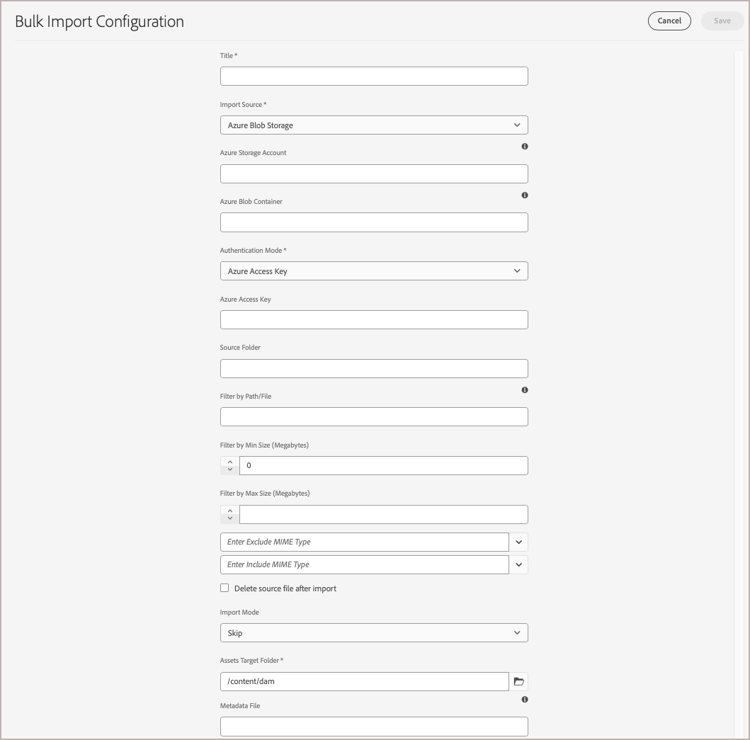
-
Set up and save the configuration.
You’ll need:
- Authentication credentials for your data source
- The target folder in AEM Assets where imported files will be stored
- Optional. Information about the MIME types, file size, and other parameters to customize the import configuration
- The path to the metadata mapping CSV file you uploaded to the Cloud storage instance.
For detailed steps, see Configure the Bulk Import tool in the AEM Assets as a Cloud Service User Guide.
-
After saving the configuration, use the bulk import tools to test and run the import operation.