Migrating to ActiveMQ
ActiveMQ (Apache ActiveMQ Artemis) is a high-performance, multi-protocol message broker that provides an alternative to RabbitMQ for handling message queues in Adobe Commerce.
As of 2.4.8-p3, 2.4.7-p8, 2.4.6-p13 and 2.4.5-p16, Adobe Commerce supports ActiveMQ as a message queue broker. This provides additional flexibility for on-premises installations to choose between RabbitMQ and ActiveMQ based on their infrastructure requirements and expertise.
Before you begin
Before starting the migration, ensure the following:
- Review your current RabbitMQ configuration in
app/etc/env.php. - Take a complete backup of your database and codebase.
- Ensure your installation meets the system requirements for ActiveMQ.
- Plan for a maintenance window to complete the migration.
Migration path
Migrating to ActiveMQ is a straightforward process, but it’s essential to ensure that all pending messages are processed before switching brokers.
These migration instructions assume that Adobe Commerce is the sole application utilizing the message queue broker.
Step 1: Place the site in Maintenance Mode
-
Place the site in Maintenance Mode:
code language-shell bin/magento maintenance:enable -
Verify maintenance mode is enabled:
code language-shell bin/magento maintenance:status
Step 2: Check RabbitMQ message counts
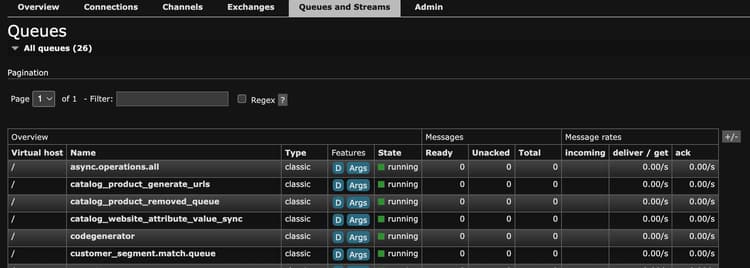
Before proceeding, verify that all messages in RabbitMQ have been processed. Use one of the following methods:
Method A: Using RabbitMQ Management Dashboard
-
Access the RabbitMQ Management UI at
http://<host>:15672 -
Default credentials:
guest/guest -
Navigate to the Queues tab
-
Verify all queues show 0 messages
Method B: Using rabbitmqctl command line
-
Check all queues and their message counts:
code language-shell rabbitmqctl list_queues name messages consumers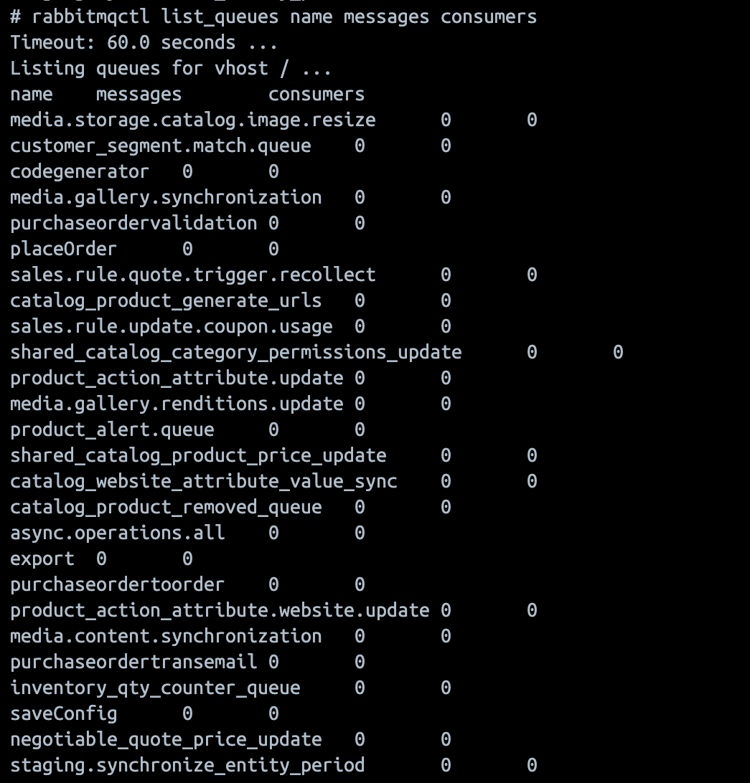
-
Check detailed queue information:
code language-shell rabbitmqctl list_queues name messages messages_ready messages_unacknowledged consumers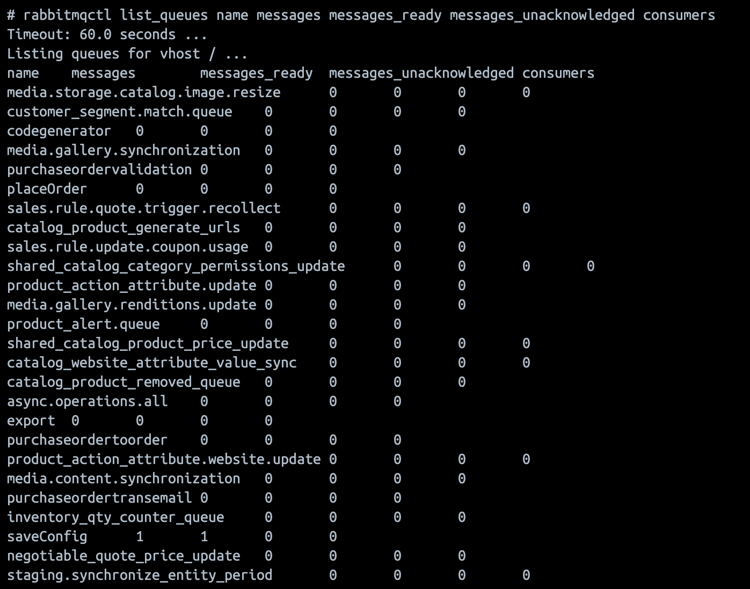
Step 3: Process pending messages
If messages are pending in any queues, process them before proceeding.
-
Get the list of available consumers:
code language-shell bin/magento queue:consumers:list -
Process consumers as a group, or by individual message queue:
-
Process consumers as a group
code language-shell bin/magento cron:run --group=consumersnote NOTE If cron is already running in your system, you do not need to run bin/magento cron:run --group=consumersmanually. Instead, verify that messages are getting processed by checking the message counts using the commands from Step 2. -
Process a specific message queue
code language-shell bin/magento queue:consumers:start <consumer_name> --max-messages=<number>For example, to process async operations:
code language-shell bin/magento queue:consumers:start async.operations.all --max-messages=1000note NOTE The --max-messagesparameter limits the number of messages to process before the consumer stops. Adjust this value based on your queue size. -
Monitor message processing
Continuously check message counts until all queues are empty:
code language-shell # Check every few seconds until 0 messages remain watch -n 5 "rabbitmqctl list_queues name messages | grep -v '^Listing' | grep -v '0$'"
-
Step 4: Verify that all messages are processed
Before proceeding to the next step, ensure all queues show 0 messages. Run the verification commands from Step 2 again.
Step 5: Stop consumers and cron jobs
-
Stop all running message queue consumers:
code language-shell # If using supervisor supervisorctl stop all # Or manually kill consumer processes pkill -f "queue:consumers:start" -
Disable cron jobs:
code language-shell bin/magento cron:remove -
Verify cron jobs are removed:
code language-shell crontab -l
Step 6: Backup current configuration
Create a backup of your current configuration:
cp app/etc/env.php app/etc/env.php.backup.rabbitmq
Step 7: Optionally uninstall RabbitMQ
You can uninstall RabbitMQ if it is not required anymore.
Step 8: Install and configure ActiveMQ in Adobe Commerce
To complete ActiveMQ installation and configuration tasks such as configuring the STOMP protocol and verifying the connection, see the Installation and Configuration Guide.
Step 9: Reinstall cron jobs
-
After testing completes successfully, reinstall cron jobs:
code language-shell bin/magento cron:install -
Verify that cron jobs are scheduled:
code language-shell crontab -l
Step 10: Disable Maintenance Mode
-
After verifying everything is working correctly, disable maintenance mode:
code language-shell bin/magento maintenance:disable -
Verify that maintenance mode is disabled:
code language-shell bin/magento maintenance:status
Step 11: Monitor the system
Monitor your system for 24-48 hours after migration to ensure that all queue operations are functioning correctly:
- Check the ActiveMQ Web Console regularly for message throughput
- Monitor application logs for queue-related errors
- Verify that async operations (config saves, exports, and so on) are working
- Check cron logs to ensure that consumers are running
# Monitor system logs for queue activity
tail -f var/log/system.log | grep -i queue

# Monitor cron logs
tail -f var/log/cron.log

# Check running consumer processes
ps aux | grep "queue:consumers:start"
Rollback
If issues occur during or after migration, you can rollback to RabbitMQ:
-
Enable maintenance mode:
code language-shell bin/magento maintenance:enable -
Stop all consumers and disable cron:
code language-shell pkill -f "queue:consumers:start" bin/magento cron:remove -
Restore the previous configuration:
code language-shell cp app/etc/env.php.backup.rabbitmq app/etc/env.php -
Start RabbitMQ (if stopped):
code language-shell sudo systemctl start rabbitmq-server -
Clear cache:
code language-shell bin/magento cache:flush -
Reinstall cron:
code language-shell bin/magento cron:install -
Disable maintenance mode:
code language-shell bin/magento maintenance:disable
No further configuration value changes are necessary after completing the migration.