Custom VCL for blocking requests
You can use the Fastly CDN module for Magento 2 to create an Edge ACL with a list of IP addresses that you want to block. Then, you can use that list with a VCL snippet to block incoming requests. The code checks the IP address of the incoming request. If it matches an IP address included in the ACL list, Fastly blocks the request from accessing your site and returns a 403 Forbidden error. All other client IP addresses are allowed access.
Prerequisites:
-
Your environment must be configured to use the Fastly CDN. See Configure Fastly services.
-
Ensure that you are running the latest version of the Fastly CDN module for Magento 2. See Upgrade the Fastly Module.
-
Verify the environment configuration for the Fastly service. See Check Fastly caching.
-
You must have Admin credentials to access the Staging and Production environments.
-
List of client IP addresses to block
Create Edge ACL for blocking client IP addresses
You create an Edge ACL to define the list of IP addresses to block. After creating the ACL, you can use it in a custom VCL snippet to manage access to your Staging or Production site.
Manage access for both Staging and Production sites by creating the Edge ACL with the same name in both environments. The VCL snippet code applies to both environments.
- Log in to the Admin.
- Navigate to Stores > Settings > Configuration > Advanced > System > Full Page Cache > Fastly Configuration.
- Expand the Edge ACL section.
- Click Add ACL to create a list. For this example, name the list “blocklist”.
- Enter IP address values in the list. Any client IP addresses added to this list are blocked and cannot access the site.
- Optionally, select the Negated checkbox if needed.
You reference the Edge ACL by name in your VCL snippet code.
Create the custom VCL for the blocklist
After you define the Edge ACL, you can use it to create the VCL snippet to block access to the IP addresses specified in the ACL. You can use the same VCL snippet in both Staging and Production environments, but you must upload the snippet to each environment separately.
The following custom VCL snippet code (JSON format) shows the logic to block incoming requests with a client IP address that matches an address in the blocklist ACL.
{
  "name": "blocklist",
  "dynamic": "0",
  "type": "recv",
  "priority": "5",
  "content": "if ( client.ip ~ blocklist) { error 403 \"Forbidden\"; }"
}
Before creating a snippet based on this example, review the values to determine whether you need to make any changes:
-
name: Name for the VCL snippet. For this example, we used the nameblocklist. -
priority: Determines when the VCL snippet runs. The priority is5to immediately run and check whether an Admin request is coming from an allowed IP address. The snippet runs before any of the default Magento VCL snippets (magentomodule_*) assigned a priority of 50. Set the priority for each custom snippet higher or lower than 50 depending on when you want your snippet to run. Snippets with lower priority numbers run first. -
type: Specifies the type of VCL snippet that determines the location of the snippet in the generated VCL code. In this example, we userecv, which inserts the VCL code in thevcl_recvsubroutine, below the boilerplate VCL and above any objects. See the Fastly VCL snippet reference for the list of snippet types. -
content: The snippet of VCL code to run, which checks the client IP address. If the IP is in the Edge ACL, it is blocked from access with a403 Forbiddenerror for the entire website. All other client IP addresses are allowed access.
After reviewing and updating the code for your environment, use either of the following methods to add the custom VCL snippet to your Fastly service configuration:
-
Add the custom VCL snippet from the Admin. This method is recommended if you can access the Admin. (Requires Fastly version 1.2.58 or later.)
-
Save the JSON code example to a file (for example,
blocklist.json) and upload it using the Fastly API. Use this method if you cannot access the Admin.
Add the custom VCL snippet
-
Log in to the Admin.
-
Click Stores > Settings > Configuration > Advanced > System.
-
Expand Full Page Cache > Fastly Configuration > Custom VCL Snippets.
-
Click Create Custom Snippet.
-
Add the VCL snippet values:
-
Name —
blocklist -
Type —
recv -
Priority —
5 -
Add the VCL snippet content:
code language-conf if ( client.ip ~ blocklist) { error 403 "Forbidden"; }
-
-
Click Create to generate the VCL snippet file with the name pattern
type_priority_name.vcl, for examplerecv_5_blocklist.vcl -
After the page reloads, click Upload VCL to Fastly in the Fastly Configuration section to add the file to the Fastly service configuration.
-
After the uploads, refresh the cache according to the notification at the top of the page.
Fastly validates the updated version of the VCL code during the upload process. If the validation fails, edit the custom VCL snippet to fix the issue. Then, upload the VCL again.
Additional VCL examples for blocking requests
The following examples show how to block requests using inline condition statements instead of an ACL list.
- Name:
<name of the VCL> - Dynamic:
<0/1> - Type:
<type> - Priority:
<priority> - Content:
<content>
See Using dynamic VCL snippets in the Fastly VCL documentation.
VCL code sample: Block by country code
This example uses the two-character ISO 3166-1 country code for the country associated with the IP address.
{
  "name": "blockbycountrycode",
  "dynamic": "0",
  "type": "recv",
  "priority": "5",
  "content": "if ( client.geo.country_code == \"HK\" ) { error 405 \"Not allowed\";}"
}
VCL code sample: Block by HTTP User-Agent request header
{
  "name": "blockbyuseragent",
  "dynamic": "0",
  "type": "recv",
  "priority": "5",
  "content": "if ( req.http.User-Agent ~ \"(UCBrowser|MQQBrowser|LieBaoFast|Mb2345Browser)\" ) {error 405 \"Not allowed\";}"
}
$MAGENTO_CLOUD_APP_DIR/var/vcl_snippets_custom directory in your environment. Snippets in this directory upload automatically when you click upload VCL to Fastly in the Commerce Admin. See Automated custom VCL snippets deployment in the Fastly CDN module for Magento 2 documentation.Modify the custom VCL snippet
-
Log in to the Admin.
-
Click Stores > Settings > Configuration > Advanced > System.
-
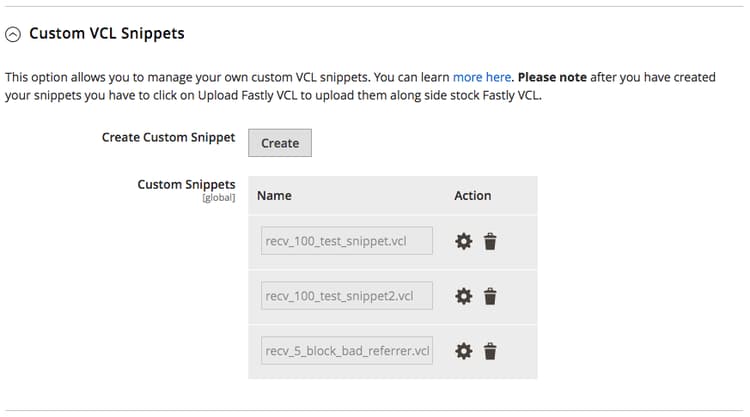
Expand Full Page Cache > Fastly Configuration > Custom VCL Snippets.
-
In the Action column, click the settings icon next to the snippet to edit.
-
After the page reloads, click Upload VCL to Fastly in the Fastly Configuration section.
-
After the upload completes, refresh the cache according to the notification at the top of the page.
Delete the custom VCL snippet
-
Log in to the Admin.
-
Click Stores > Settings > Configuration > Advanced > System.
-
Expand Full Page Cache > Fastly Configuration > Custom VCL Snippets.
-
In the Action column, click the trash icon next to the snippet to delete.
-
On the next modal window, click DELETE and activate a new version.