Block referral spam
The following example shows how to configure Fastly Edge Dictionary with a custom VCL snippet to block referral spam from your Adobe Commerce on cloud infrastructure site.
Prerequisites:
-
Your environment must be configured to use the Fastly CDN. See Configure Fastly services.
-
Ensure that you are running the latest version of the Fastly CDN module for Magento 2. See Upgrade the Fastly Module.
-
Verify the environment configuration for the Fastly service. See Check Fastly caching.
-
You must have Admin credentials to access the Staging and Production environments.
-
Review your site logs for fake referral URLs, and make a list of domains to block.
Create a referrer blocklist
Edge Dictionaries create key-value pairs accessible to VCL functions during VCL snippet processing. In this example, you create an edge dictionary that provides the list of referrer websites to block.
-
Log in to the Admin.
-
Click Stores > Settings > Configuration > Advanced > System.
-
Expand Full Page Cache > Fastly Configuration > Edge dictionaries.
-
Create the Dictionary container:
-
Click Add container.
-
On the Container page, enter a Dictionary name—
referrer_blocklist. -
Select Activate after the change to deploy your changes to the version of the Fastly service configuration that you are editing.
-
Click Upload to attach the dictionary to your Fastly service configuration.
-
-
Add the list of domain names to block to the
referrer_blocklistdictionary:-
Click the Settings icon for the
referrer_blocklistdictionary. -
Add and save key-value pairs in the new dictionary. For this example, each Key is the domain name of a referrer URL to block and Value is
true.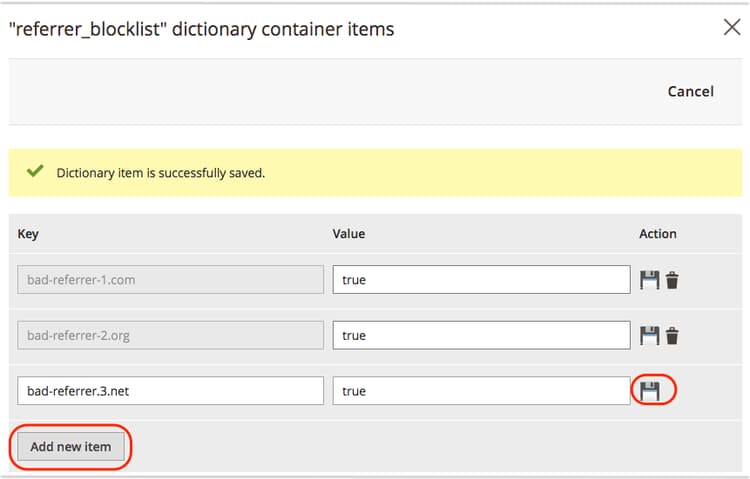
-
Click Cancel to return to the system configuration page.
-
-
Click Save Config.
-
Refresh the cache according to the notification at the top of the page.
For more information about Edge Dictionaries, see Creating and using Edge Dictionaries and custom VCL snippets in the Fastly documentation.
Create a custom VCL snippet to block referrer spam
The following custom VCL snippet code (JSON format) shows the logic to check and block requests. The VCL snippet captures the host of a referrer website into a header, and then compares the host name to the list of URLs in the referrer_blocklist dictionary. If the host name matches, the request is blocked with a 403 Forbidden error.
{
  "name": "block_bad_referrer",
  "dynamic": "0",
  "type": "recv",
  "priority": "5",
  "content": "if (req.http.Referer ~ \"^(.*:)//([A-Za-z0-9\-\.]+)(:[0-9]+)?(.*)$\") {set req.http.Referer-Host = re.group.2;}if (table.lookup(referrer_blocklist, req.http.Referer-Host)) {error 403 \"Forbidden\";}"
}
Before creating a snippet based on this example, review the values to determine whether you need to make any changes:
-
name— Name for the VCL snippet. For this example, we usedblock_bad_referrer. -
dynamic— Value 0 indicates a regular snippet to upload to the versioned VCL for the Fastly configuration. -
priority— Determines when the VCL snippet runs. The priority is5to run this snippet code before any of the default Magento VCL snippets (magentomodule_*) assigned a priority of 50. Set the priority for each custom snippet higher or lower than 50 depending on when you want your snippet to run. Snippets with lower priority numbers run first. -
type— Specifies a location to insert the snippet in the VCL version. In this example, the VCL snippet is arecvsnippet. When the snippet is inserted into the VCL version, it is added to thevcl_recvsubroutine, below the default Fastly VCL code and above any objects. -
content— The snippet of VCL code to run in one line, without line breaks.
After reviewing and updating the code for your environment, use either of the following methods to add the custom VCL snippet to your Fastly service configuration:
-
Add the custom VCL snippet from the Admin. This method is recommended if you can access the Admin. (Requires Fastly version 1.2.58 or later.)
-
Save the JSON code example to a file (for example,
allowlist.json) and upload it using the Fastly API. Use this method if you cannot access the Admin.
Add the custom VCL snippet
-
Log in to the Admin.
-
Click Stores > Settings > Configuration > Advanced > System.
-
Expand Full Page Cache > Fastly Configuration > Custom VCL Snippets.
-
Click Create Custom Snippet.
-
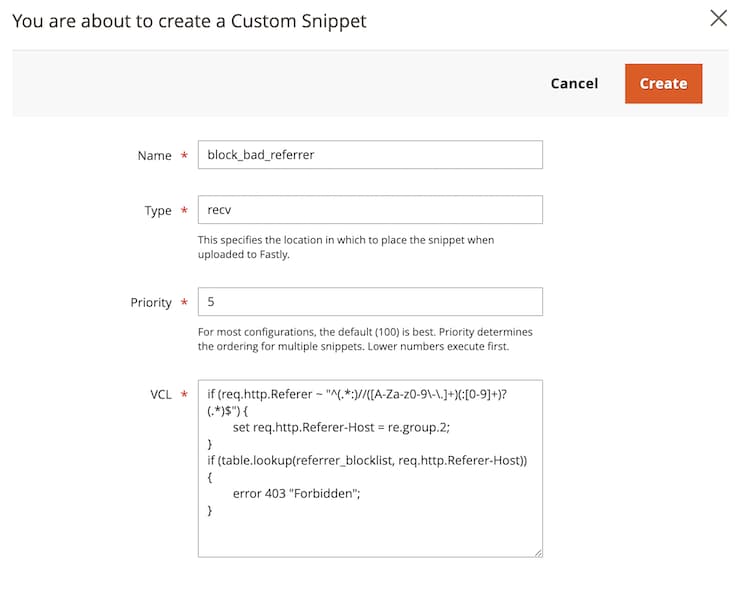
Add the VCL snippet values:
-
Name —
block_bad_referrer -
Type —
recv -
Priority —
5 -
VCL snippet content —
code language-conf if (req.http.Referer ~ "^(.*:)//([A-Za-z0-9\-\.]+)(:[0-9]+)?(.*)$") { set req.http.Referer-Host = re.group.2; } if (table.lookup(referrer_blocklist, req.http.Referer-Host)) { error 403 "Forbidden"; }
-
-
Click Create.
-
After the page reloads, click Upload VCL to Fastly in the Fastly Configuration section.
-
After the upload completes, refresh the cache according to the notification at the top of the page.
Fastly validates the updated VCL version during the upload process. If the validation fails, edit your custom VCL snippet to fix any issues. Then, upload the VCL again.
$MAGENTO_CLOUD_APP_DIR/var/vcl_snippets_custom directory in your environment. Snippets in this directory upload automatically when you click upload VCL to Fastly in the Commerce Admin. See Automated custom VCL snippets deployment in the Fastly CDN module for Magento 2 documentation.Modify the custom VCL snippet
-
Log in to the Admin.
-
Click Stores > Settings > Configuration > Advanced > System.
-
Expand Full Page Cache > Fastly Configuration > Custom VCL Snippets.
-
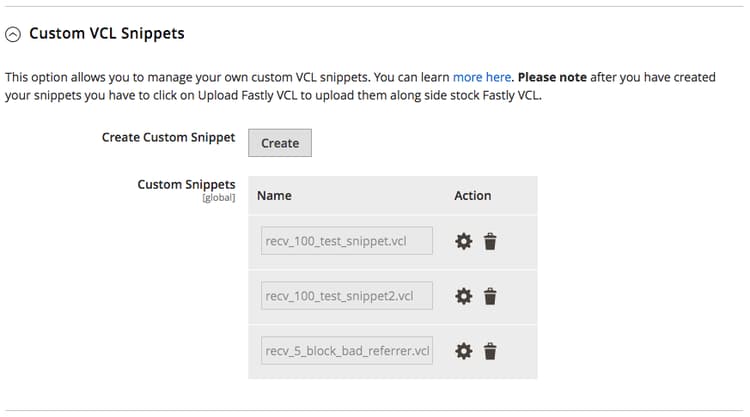
In the Action column, click the settings icon next to the snippet to edit.
-
After the page reloads, click Upload VCL to Fastly in the Fastly Configuration section.
-
After the upload completes, refresh the cache according to the notification at the top of the page.
Delete the custom VCL snippet
-
Log in to the Admin.
-
Click Stores > Settings > Configuration > Advanced > System.
-
Expand Full Page Cache > Fastly Configuration > Custom VCL Snippets.
-
In the Action column, click the trash icon next to the snippet to delete.
-
On the next modal window, click DELETE and activate a new version.