Select the audience of your SMS delivery sms-audience
Before selecting your audience, learn more about audience here.
In most cases, the main target of a delivery is extracted from the Adobe Campaign database (default mode). However, the audience can also be stored in an external file. Learn more in this section.
Audience in Adobe Campaign
To select the audience of your delivery, follow the steps below:
-
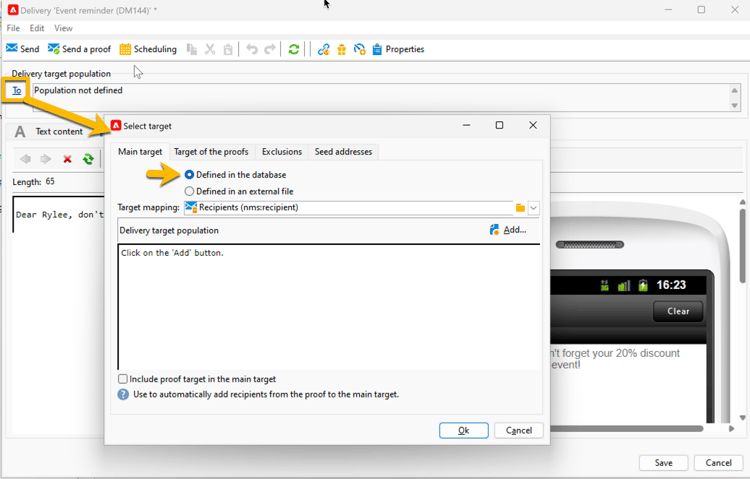
In the delivery editor, click the To link. You will have a Select target window opened
-
Because the audience is stored in the Adobe Campaign database, in the Main target tab, choose Defined in the database option.
-
Select the Target mapping in the drop-down list. Adobe Campaign default target mapping is Recipients, based on nms:recipient schema.
Other target mappings are available, and some can be related to your specific configuration. For more on target mappings, refer to Work with target mappings.
-
Click the Add button to define restriction filters.
You can then select the type of filtering to apply:
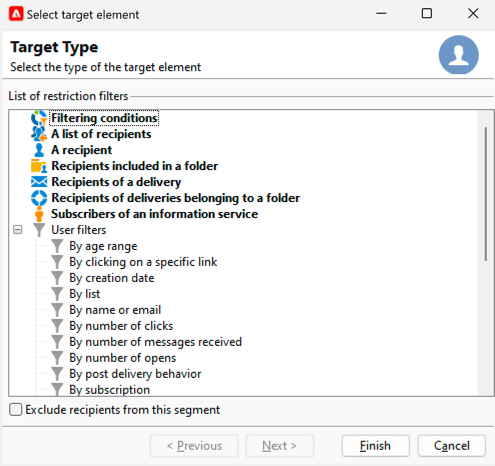
To use a target type, select it and click Next button.
Here are the target types offered by default:
- Filtering conditions: lets you define a query and display the result.
- A list of recipients: lets you select a list that you prepared containing your audience
- A recipient: lets you select directly a recipient in the table.
- Recipients included in a folder: lets you select a folder in the explorer navigation tree
- Recipients of a delivery: lets you select the audience of a previous delivery
- Recipients of deliveries belonging to a folder: lets you select the audience of all the deliveries in a given folder
- Subscribers of an information service: this option lets you select a newsletter to which the recipients must be subscribed to be targeted by the delivery being created.
- User filters: lets you use the predefined filters.
The option Exclude recipients from this segment lets you target on recipients who do not satisfy the defined target criteria. To use this option, select the appropriate box and then apply targeting, as defined earlier, to exclude the resulting profiles.
-
Enter the name of your audience in the label field, and click the Finish button to validate your audience.
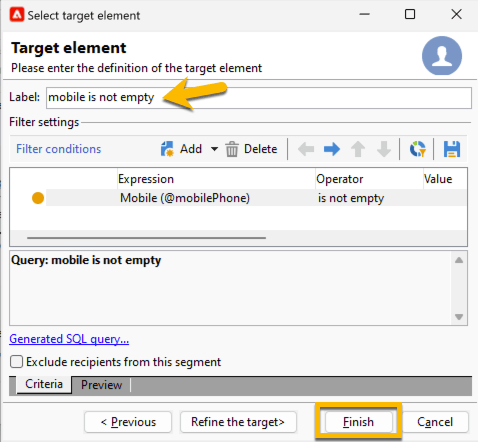
You can add as many target populations as you need by clicking again on Add button. You can also delete some of them by clicking on the cross located after their label.
Audience in an external file external-audience
You can use Adobe Campaign to send a delivery on an audience that is not in its database, but in an external file.
Here are the steps for this:
-
In the delivery editor, click on To link. You will have a Select target window opened
-
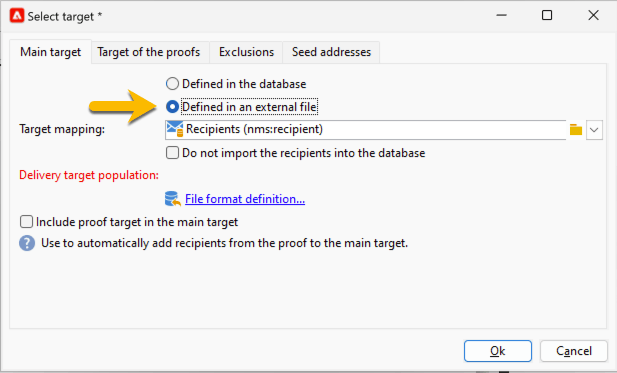
Choose the Defined in an external file option.
-
By default, recipients are imported in the database. You need to select the Target mapping in that case. For more on target mappings, refer to Work with target mappings.
Otherwise, you can also choose Do not import the recipients into the database.
-
When importing your file, click the File format definition… link to select and configure the external file.
-
Click on Finish button to validate your audience.