Configure a multilingual delivery multilingual-delivery
In Campaign Web UI, you can set up your deliveries as multilingual, which allows you to send messages based on a profile’s preferred language. When no preference is defined, the message is sent in the default language.
In a multilingual delivery, the language management is based on variants. Each variant represents one language. During delivery creation, you can add multiple language variants to match the number of required languages in your message. You can also change the default language at any time after adding these variants.
The multilingual capability is currently available for email, push notifications, transactional messages and SMS.
To set up multilingual deliveries, follow these main steps:
Add a language variant add-variant
To create language variants, follow these steps:
-
From the delivery dashboard, click the pencil icon to access the delivery content edition screen, then click Add language.
note important IMPORTANT The Add language button is only available if the target dimension contains the Language schema. To learn more about schemas and target dimensions, please refer to the detailed documentation. 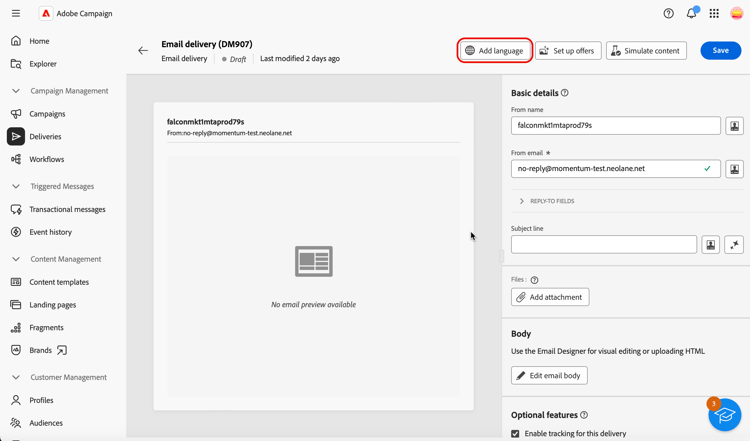
-
From the Add language drop-down, select the language to add, then confirm. For push notifications, you can also upload a CSV file to import all language variants at once.
The first language you add is automatically set as the default, and the existing content becomes the default version. When additional languages are added, their content is initially copied from the default language.
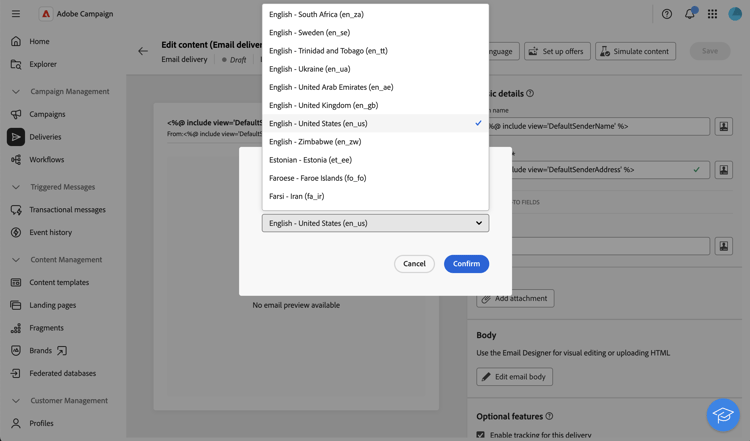
note NOTE The languages available through this list depend on the values that have been defined by the Language attribute (values such as: system, user, dbenum, etc.). Learn more about enumeration management in this section. -
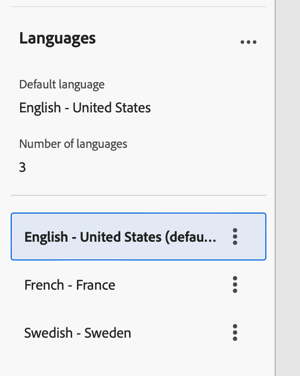
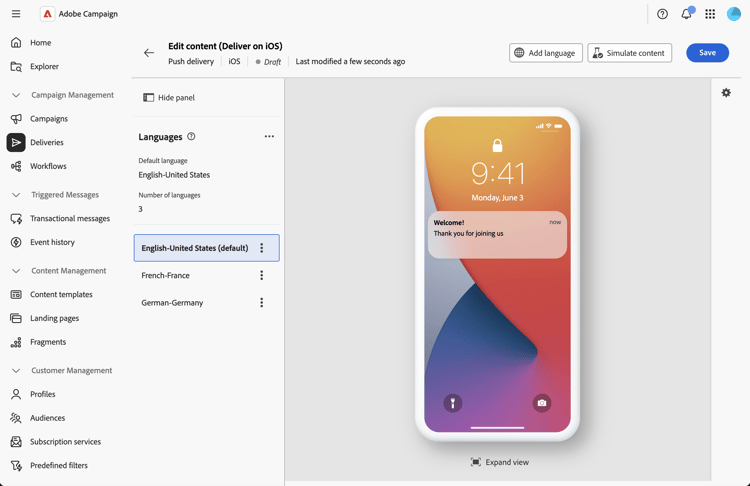
Repeat this operation to add other languages. The Languages panel, on the left, shows the list of languages you have chosen, the number of languages and the default language.
For example, if you have chosen English, French, and Swedish, you can see these 3 languages as shown below:
To learn how to manage language variants, refer to this section.
Define the content for each variant define-content
Once languages are set, define the content of the delivery for each language.
-
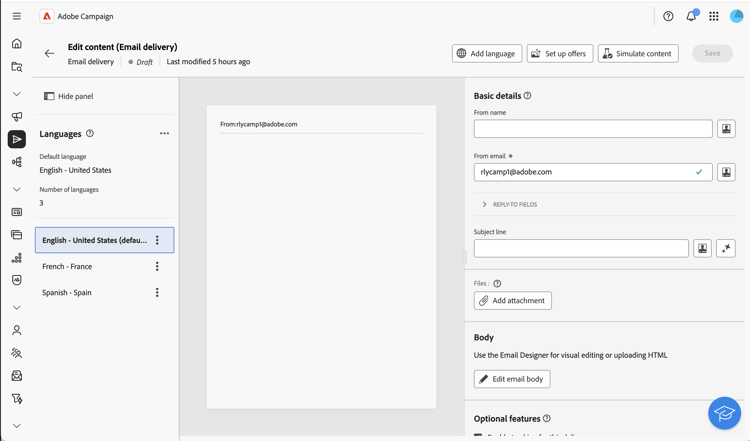
From the delivery content edition screen, select a language from the Languages panel, on the left.
-
Define the content of your message for this language. Learn more in this section.
-
Repeat this operation for each language.
To preview the delivery, click the Simulate content button, and choose profiles. Make sure the right content is displayed for each profile.
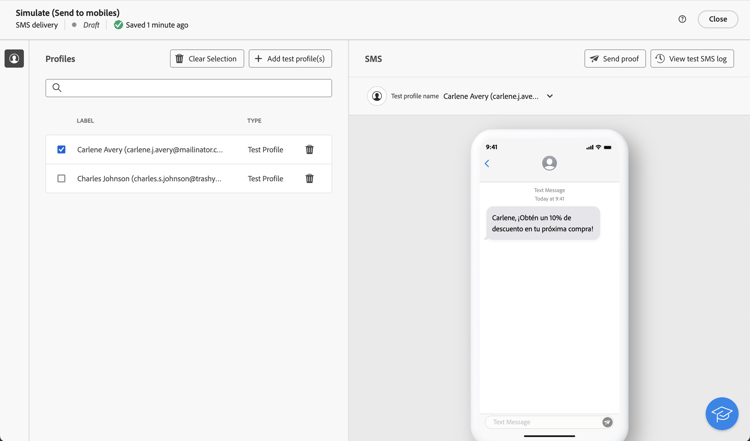
Manage language variants manage-variant
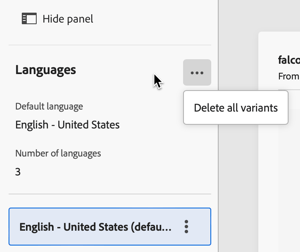
In the left panel, all language variant information is displayed. To delete all languages, click the expand button, and click Delete all variants.
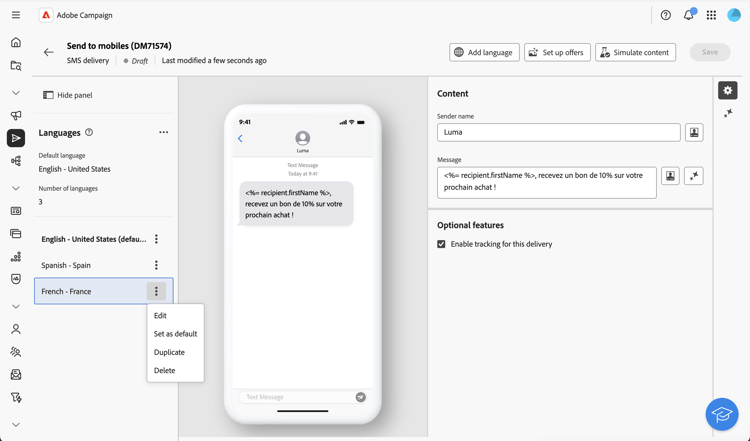
In the list of language variants, you can perform the following actions:
- Edit: change the language while keeping the associated content.
- Set as default: set the language as the default one. When a profile has no language defined, the message is sent in the default language.
- Duplicate: duplicate the content defined for this language and choose a different variant.
- Delete: delete the variant and its associated content.
Import language variants from CSV (Push notifications) csv-upload
For push notifications, you can quickly populate all language variants by uploading a CSV file containing your multilingual content. This feature streamlines the creation of multilingual campaigns by allowing you to prepare content offline and import it in bulk.
- Efficiency: add multiple languages and their content in a single operation
- Consistency: ensure uniform messaging across all language variants
- Collaboration: enable content teams to prepare translations in familiar spreadsheet tools
- Bulk management: easily manage and update large numbers of language variants
Prerequisites csv-best-practices
Follow these best practices to ensure successful CSV import:
- Use the exact column structure: All 14 columns must be present in your CSV file, even if you leave some blank. Missing columns will cause import failure. You can use a different order but all colums must be present.
- Match column names exactly: Column names are case-sensitive. Use
titlenotTitle,badgenotBbadge,localenotLocale. - Use lowercase locale codes: Format locale codes as
en_us,fr_fr,de_de(lowercase with underscore), noten_USoren-us. - Fill mandatory columns: The
localeandlanguagecolumns must contain values for every row. Empty values will cause import failure. - Keep locales unique: Each locale code must appear only once in your CSV file. Duplicate locales will be rejected.
- Save as UTF-8: Always save your CSV file with UTF-8 encoding to support international characters correctly.
- Quote comma-containing content: If your title or message body contains commas, enclose the entire field in double quotes:
"Hello, welcome!". - Use numeric values correctly: For flag columns (isContentAvailable, isMutableContent, silentPush), use
1for true,0for false, or leave blank for default. - Validate JSON format: If using the customFields column, ensure your JSON is properly formatted:
{"key":"value"}with correct quotes and brackets. - Test with minimal data first: Start with a simple 2-3 language CSV to verify your format before creating large files.
Import the CSV file csv-steps
To import language variants from a CSV file, follow these steps:
-
From the delivery content editor, click Add language.
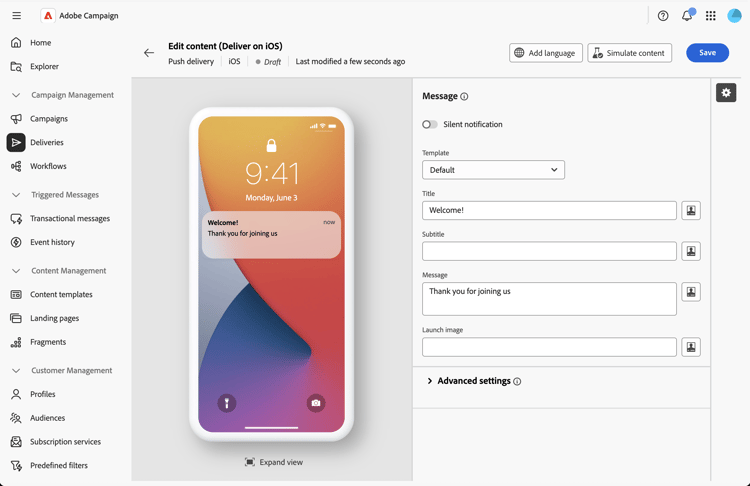
-
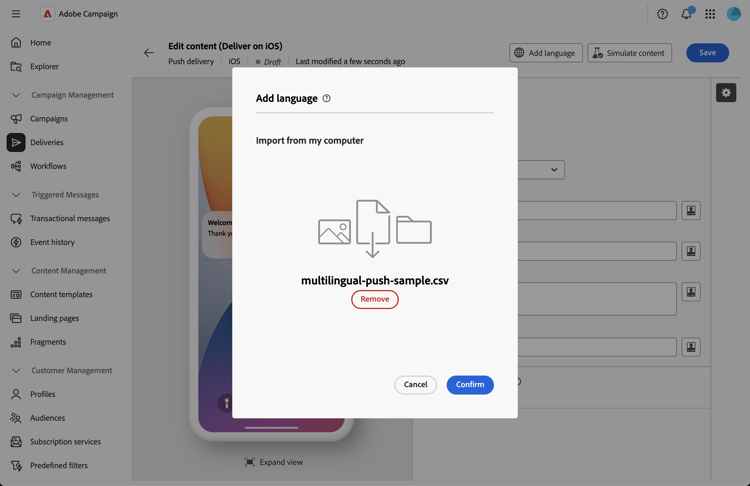
Select your CSV file by dragging and dropping it into the upload area, or click to browse your computer.
The system validates your file format and content. If validation fails, error messages indicate which columns or data are incorrect. Fix the issues in your CSV file and upload again. See this section.
-
Review the imported content in the language variants panel to confirm all translations loaded correctly.
Column structure csv-columns
Here is the correct column structure to be used:
- title: Notification title (required)
- messageBody: Notification message body (required)
- sound: Sound file name (e.g.,
default,custom_sound.mp3) - leave blank for default - badge: Badge number to display on app icon (iOS) - use numbers only
- deeplinkURI: Deep link URL to open when notification is tapped - leave blank if not used
- category: Notification category identifier for custom actions (iOS) - leave blank if not used
- iosMediaAttachmentURL: URL of media attachment for iOS notifications - leave blank if not used
- androidMediaAttachmentURL: URL of media attachment for Android notifications - leave blank if not used
- isContentAvailable: Content available flag (iOS) - use
1for true,0for false, leave blank for default (0) - isMutableContent: Mutable content flag (iOS) - use
1for true,0for false, leave blank for default (0) - customFields: Custom data in JSON format (e.g.,
{"key1":"value1","key2":"value2"}) - leave blank if not used - locale: Language code (required) - e.g.,
en_us,fr_fr,de_de- mandatory, must be unique per row - language: Language name (required) - e.g.,
English-United States,French-France- mandatory - silentPush: Silent push flag - use
1for silent push,0for regular, leave blank for default (0)
Example of CSV file csv-examples
Here is a basic example with the mandatory fields:
title,messageBody,sound,badge,deeplinkURI,category,iosMediaAttachmentURL,androidMediaAttachmentURL,isContentAvailable,isMutableContent,customFields,locale,language,silentPush
Welcome!,Thank you for joining us,,,,,,,,,, en_us,English-United States,0
Bienvenue !,Merci de nous avoir rejoint,,,,,,,,,,fr_fr,French-France,0
Willkommen!,Vielen Dank für Ihre Anmeldung,,,,,,,,,, de_de,German-Germany,0
¡Bienvenido!,Gracias por unirte a nosotros,,,,,,,,,, es_es,Spanish-Spain,0
Here is an example with optional fields:
title,messageBody,sound,badge,deeplinkURI,category,iosMediaAttachmentURL,androidMediaAttachmentURL,isContentAvailable,isMutableContent,customFields,locale,language,silentPush
Welcome!,Thank you for joining us,default,1,,,https://example.com/welcome-en.jpg,https://example.com/welcome-en.jpg,,,, en_us,English-United States,0
Bienvenue !,Merci de nous avoir rejoint,default,1,,,https://example.com/welcome-fr.jpg,https://example.com/welcome-fr.jpg,,,, fr_fr,French-France,0
Willkommen!,Vielen Dank für Ihre Anmeldung,default,1,,,https://example.com/welcome-de.jpg,https://example.com/welcome-de.jpg,,,, de_de,German-Germany,0
¡Bienvenido!,Gracias por unirte a nosotros,default,1,,,https://example.com/welcome-es.jpg,https://example.com/welcome-es.jpg,,,, es_es,Spanish-Spain,0
Here is an example with custom fields
title,messageBody,sound,badge,deeplinkURI,category,iosMediaAttachmentURL,androidMediaAttachmentURL,isContentAvailable,isMutableContent,customFields,locale,language,silentPush
New Collection,Discover our latest products,default,1,,,,,,,"{"campaign":"summer2025","segment":"premium"}",en_us,English-United States,0
Nouvelle Collection,Découvrez nos derniers produits,default,1,,,,,,,"{"campaign":"summer2025","segment":"premium"}",fr_fr,French-France,0
Personalization in CSV files csv-personalization
To use personalization fields in your CSV content, you need to use <span> tags:
title,messageBody,sound,badge,deeplinkURI,category,iosMediaAttachmentURL,androidMediaAttachmentURL,isContentAvailable,isMutableContent,customFields,locale,language,silentPush
"Hello <span class=""nl-dce-field nl-dce-done"" data-nl-expr=""recipient.firstName"">recipient.firstName</span>","Your order has shipped!",,,,,,,,,,en_us,English-United States,0
"Bonjour <span class=""nl-dce-field nl-dce-done"" data-nl-expr=""recipient.firstName"">recipient.firstName</span>","Votre commande a été expédiée !",,,,,,,,,,fr_fr,French-France,0
During delivery, Campaign replaces these placeholders with actual recipient data.
Troubleshooting csv-troubleshooting
{"key":"value"} or leave blankbadge, not Badge or BADGE)Best practices are listed in this section. Column structure is detailed in this section.