Send a LINE message send-line
You can create and send LINE messages to your subscribers, using text, image, or video content. LINE deliveries can be created as standalone deliveries or added to a workflow.
This page walks through creating a standalone LINE delivery, but the same steps apply when configuring a LINE channel activity in a workflow.
Create a LINE delivery create-line-delivery
-
Browse to the Deliveries menu, and click Create delivery.
-
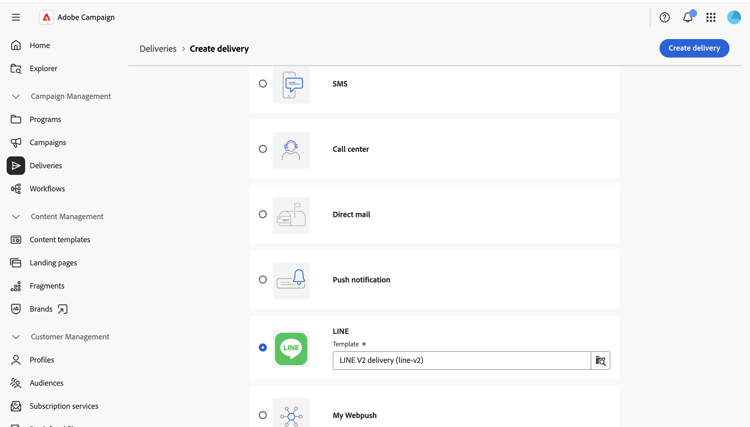
Choose LINE and select a delivery template, such as the default LINE V2 delivery template. Learn more about templates.
-
Click Create delivery to confirm and display the delivery configuration screen.
-
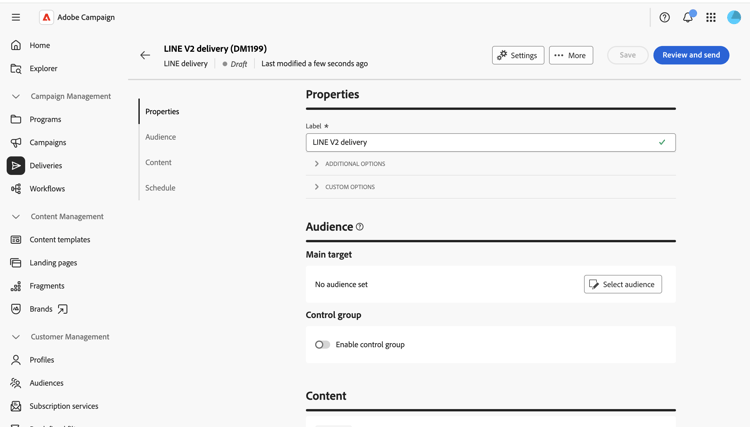
Enter a Label for the delivery, and define additional or custom options, if needed. Learn more.
Select the audience audience
-
Click Select audience to target an existing audience or build one. Targeting for LINE deliveries is based on Visitor subscriptions. Learn more about audiences.
-
Switch on the Enable control group option to set a control group and measure the impact of your delivery. Messages are not sent to that control group, so you can compare the behavior of the population that received the message with the behavior of contacts that did not. Learn more
Define the content content
Click Edit content.
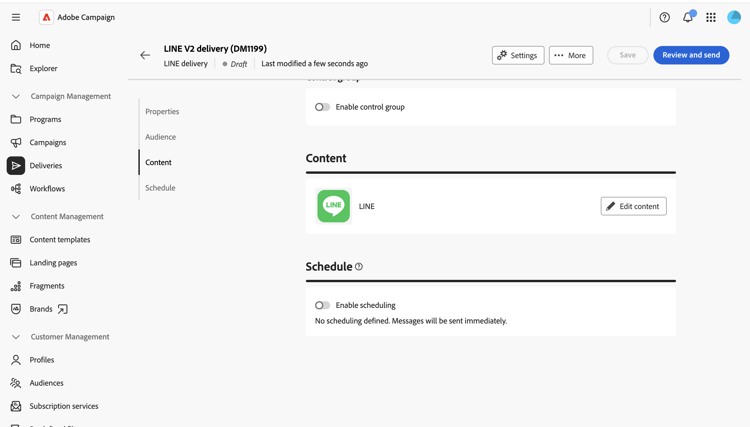
The LINE content editor displays.
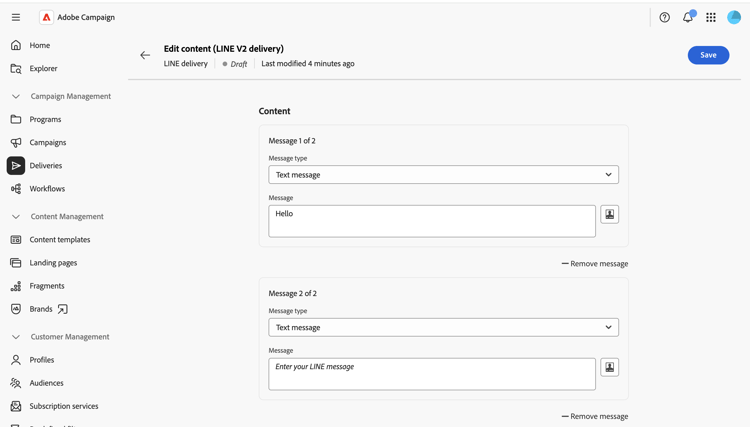
A LINE delivery can contain up to five messages. Click Add message to add another message to the delivery, or Remove message to delete one.
You can use, when available, the personalization editor to insert dynamic content. Learn more.
Each message uses one of the following types.
Text message text-message
A text message is a simple message sent in text form. Simply type the message in the related field and use personalization fields, if needed.
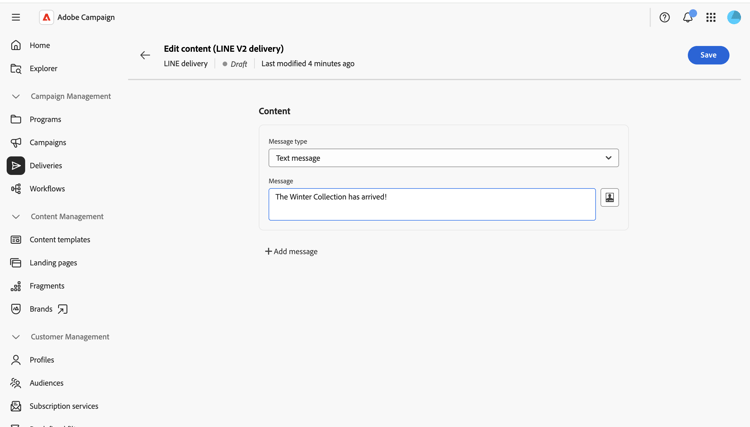
Image message image-message
An image message lets you send an image, optionally divided into clickable regions, each linking to a different URL.
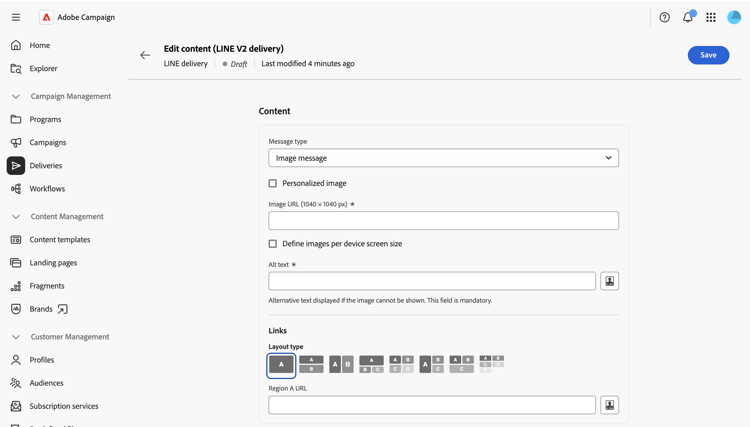
- Personalized image: define the image dynamically per recipient.
- Image URL: provide the URL of your image. The recommended size is 1040 x 1040 px. Enable Define images per device screen size to provide different image resolutions optimized for different screen sizes.
- Alt text: mandatory alternative text, displayed if the image cannot be loaded.
- Links: choose a layout to divide your image into one or more clickable regions, then assign a URL to each region.
Video message video-message
A video message lets you send a video to your recipients.
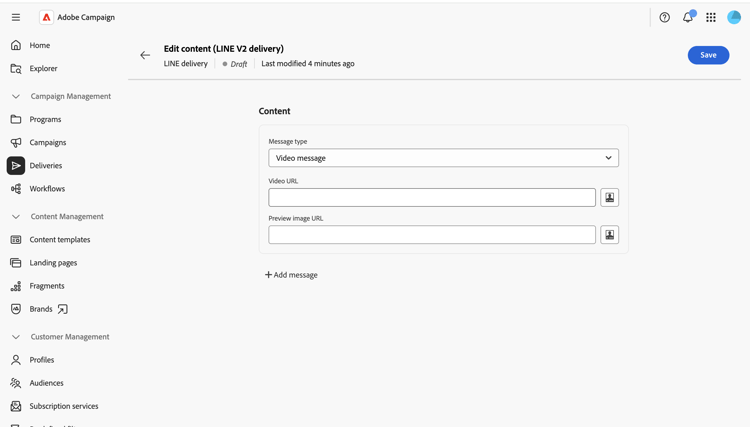
- Video URL: the URL of your video. Only MP4 format is supported.
- Preview image URL: the URL of an image displayed before the video is played.
Schedule and send schedule-send
-
After defining the content, click Save then click the back icon to return to the delivery configuration screen.
-
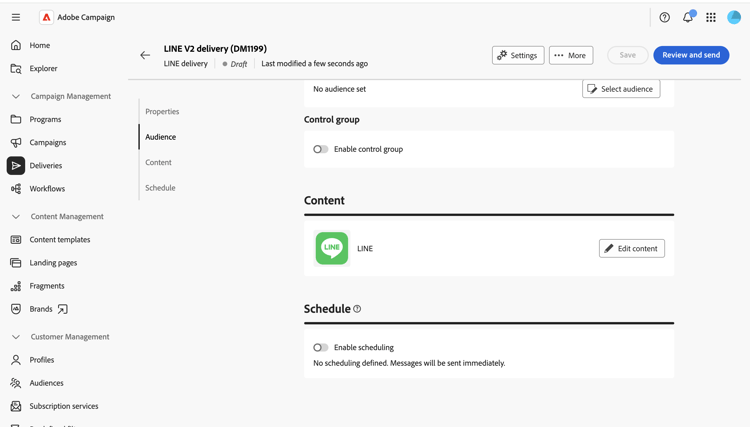
Enable Enable scheduling to send on a specific date and time. Learn more.
-
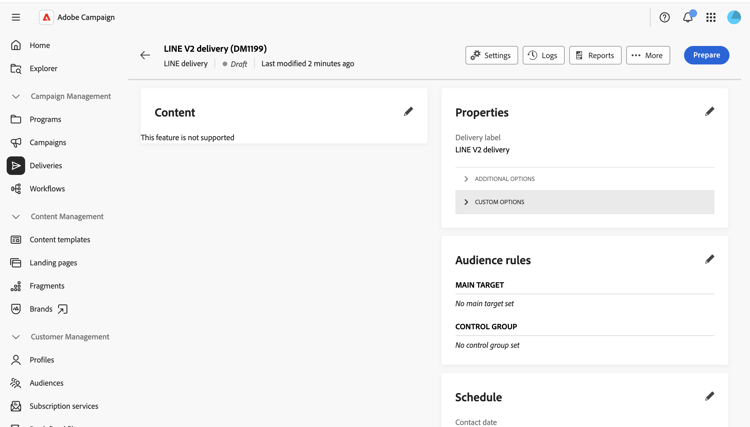
Once your content is ready, click Review and send. This opens the delivery dashboard.
-
Click Prepare, then confirm. If there are any errors, fix them and click Prepare again.
-
Click Send. You can then track results from the delivery Reports and Logs entry points.