Create a WhatsApp message create-whatsapp
The Adobe Campaign Web user interface lets you design WhatsApp messages that use Meta-approved templates, personalize them for each profile, and test them before send.
The following message types are supported in WhatsApp:
| table 0-row-2 1-row-2 2-row-2 3-row-2 4-row-2 5-row-2 | |
|---|---|
| Message Feature | Description |
| Headers | Optional text that appears above the body of your message. |
| Text | Supports dynamic content through parameters. |
| Header image | Optional image that appears above the body of your message. |
| Body Text | Supports dynamic content through parameters. |
| Footer Text | Supports dynamic content through parameters. |
Create a WhatsApp delivery create-whatsapp-journey-campaign
In the Adobe Campaign Web user interface, follow the steps below to create a standalone WhatsApp delivery.
-
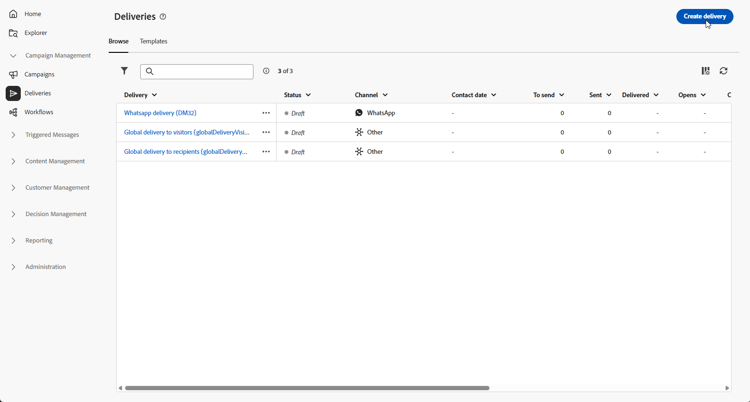
Browse to the Deliveries menu, and click Create delivery.
-
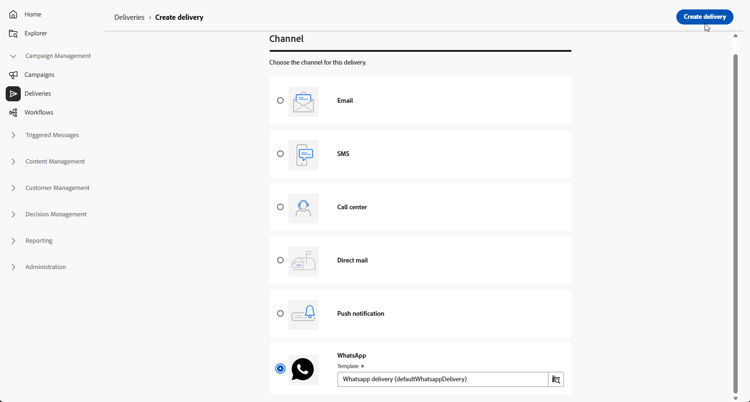
Cchoose WhatsApp and select a delivery template. Learn more about templates.
-
Click Create delivery to confirm.
-
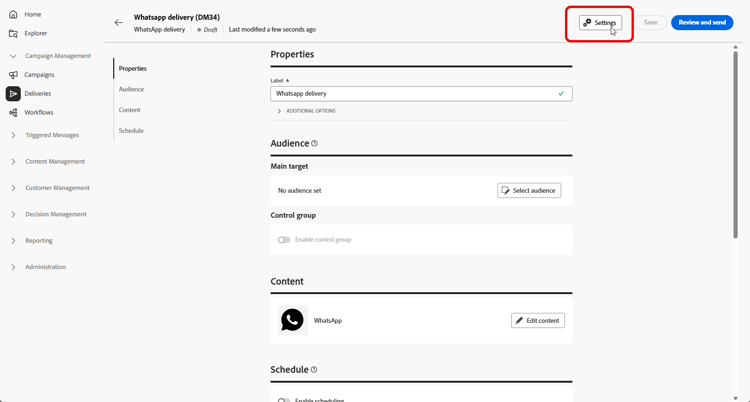
Click Settings for advanced options tied to your template. Learn more
-
Enter a Label for the delivery. Use Additional options if you need internal name, folder, delivery code, description, or nature, same pattern as other channels.
-
Click Select audience to target an existing audience or build one. Learn more about audiences.
-
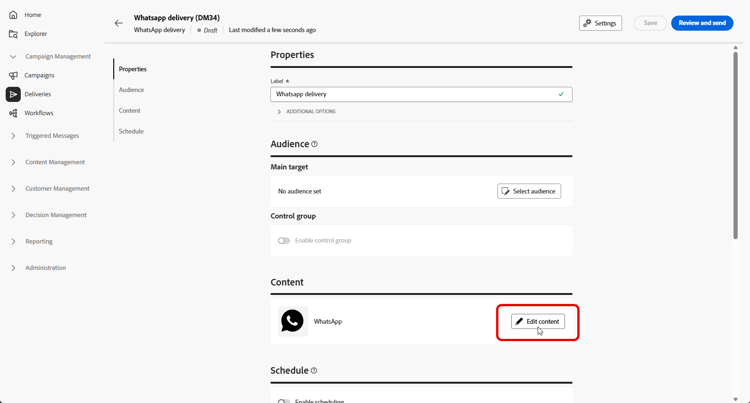
Click Edit content to open the WhatsApp content editor, refer to Define your WhatsApp content).
-
You can enable Enable scheduling to send on a specific date and time. Learn more.
Define your WhatsApp content whatsapp-content
Before designing your WhatsApp message in the Adobe Campaign Web user interface, create and submit your template in Meta. Learn more
Your WhatsApp template must be approved by Meta before use. Approval often takes a few hours but can take up to 24 hours. Learn more
-
From the delivery configuration page in the Adobe Campaign Web user interface, click Edit content to configure the WhatsApp message.
-
Choose Marketing as your Template category:
Learn more about Template categories
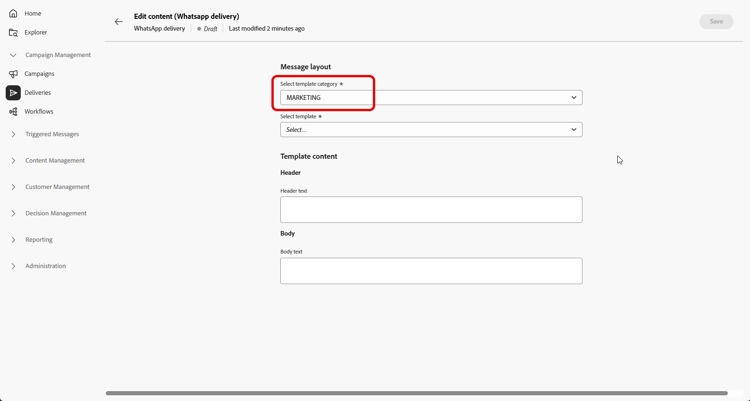
-
From the WhatsApp template drop-down, select your Meta-approved template.
Learn more about how to create WhatsApp templates
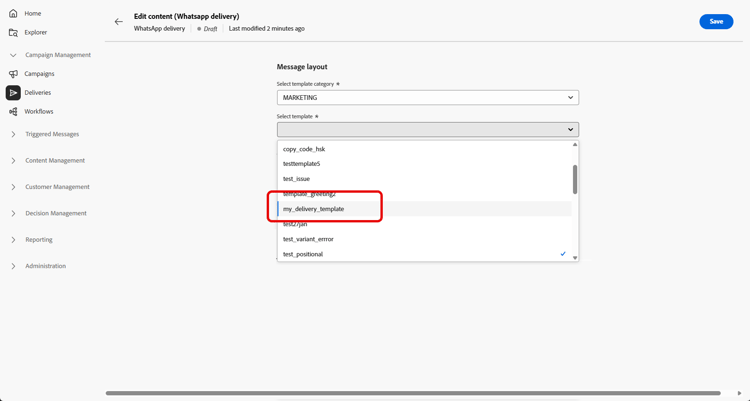
-
If your Meta-approved template includes an image, provide the Image URL.
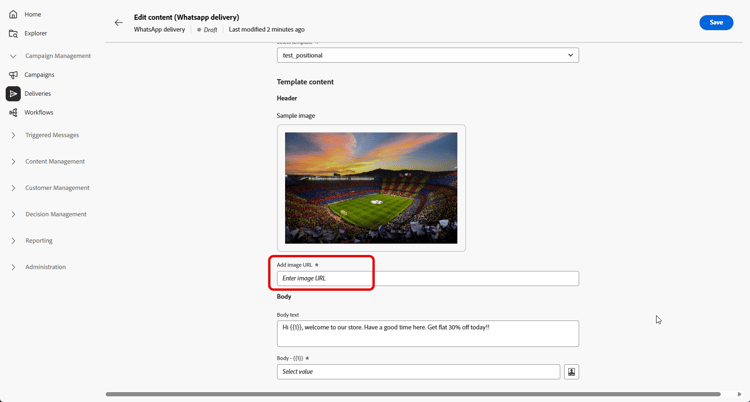
-
In the Personalization placeholder field, use the personalization editor to map profile fields and expressions to the template parameters. Learn more.
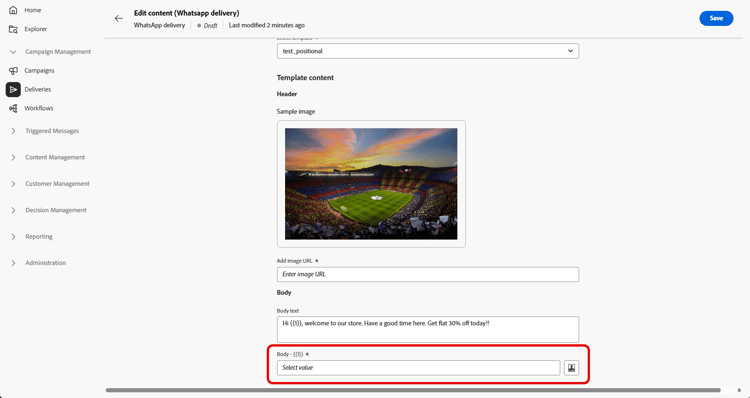
When the message is ready:
-
Standalone or campaign delivery: Use Review & send and Send on the delivery dashboard.
-
Workflow: Open the delivery from the workflow activity when the execution makes it available, then use the delivery dashboard in the same manner. Learn more
You can then track results from the delivery Reports entry points and delivery reporting.