Work with schemas schemas
About schemas about
Adobe Campaign uses XML-based schemas to define the physical and logical structure of data within the application. A schema is an XML document linked to a database table that defines:
- The SQL table structure, including table name, fields, and relationships.
- The XML data structure, including elements, attributes, hierarchy, types, default values, and labels.
Schemas play a key role in:
- Mapping application data to database tables.
- Defining relationships between data objects.
- Specifying the structure and properties of each field.
Each entity in Adobe Campaign has a dedicated schema, ensuring data consistency and organization.
Detailed information on schemas is available in the Campaign console documentation.
Access schemas in the Web User Interface access
Schemas are accessible from the Administration > Schemas menu.
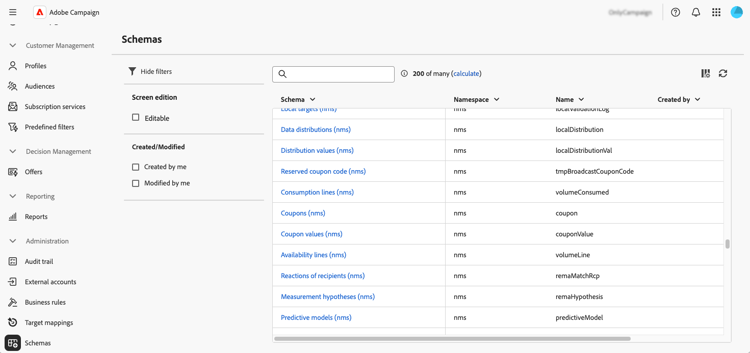
From this screen, you can view all existing schemas. Filters are available to help refine the list, such as displaying only editable schemas.
To open a schema, select its name. A detailed schema view displays.
Schema overview overview
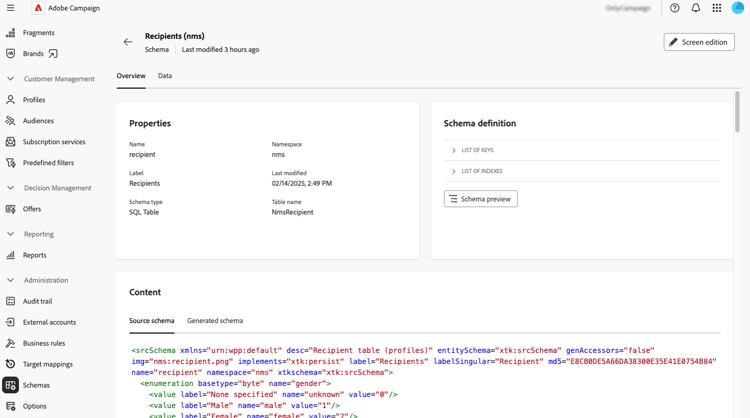
The Overview tab provides a general view of the schema:
-
The Properties section displays key information, such as the schema name, namespace, and associated table name.
-
The Schema definition section shows details about the schema definition, including the primary key used for data reconciliation and its links with other tables.
Click the Schema preview button to view the different fields and links composing the schema. This allows you to check the complete structure of a schema. If the schema has been extended with custom fields, you can visualize all its extensions.
-
The Content section displays the XML content of the schema, allowing you to switch between the source and the generated syntax.
Schema data data
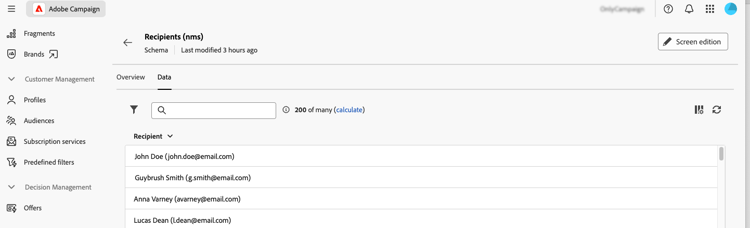
The Data tab provides information on the schema data.
Configure the screen definition screen-definition
Edit custom fields fields
Custom fields are additional attributes added to out-of-the-box schemas through the Adobe Campaign console. They allow you to customize schemas by including new attributes to suit your organization’s needs.
Custom fields can be displayed in various screens, such as profile details in the Campaign Web interface. You can control which fields are visible and how they appear in the interface. To do this, click the Screen edition button in the Schemas menu.
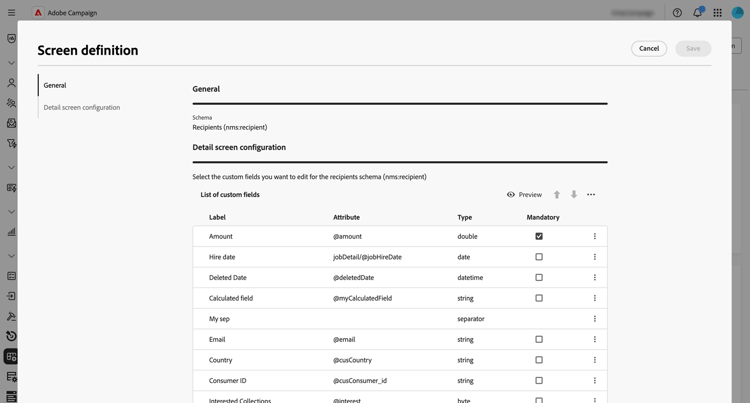
Click Preview to display the custom fields in a sample screen.
For detailed information on how to edit custom fields in a schema, refer to this section: Configure custom fields.
Add collection lists collection-lists
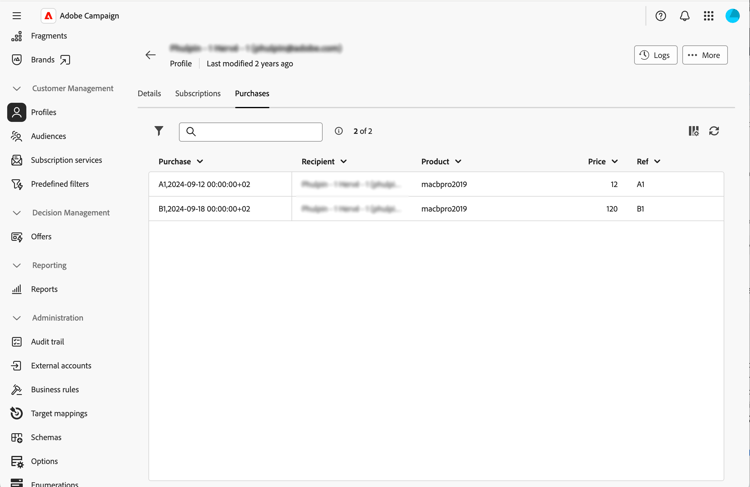
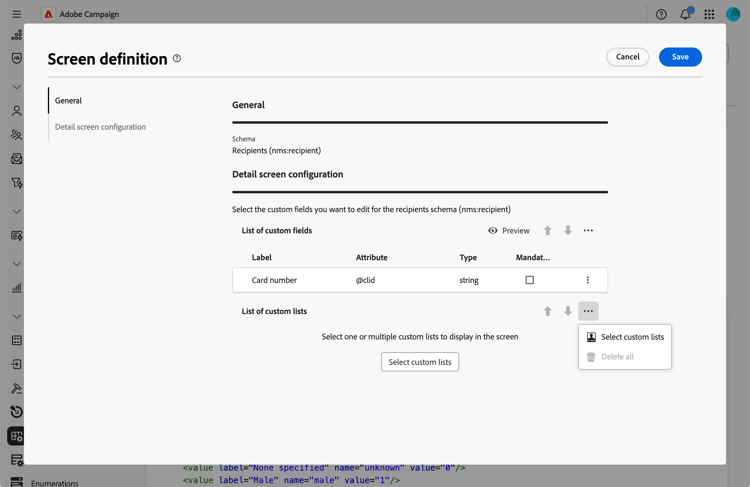
This List of custom lists section allows you to define collection links, such as purchases. The related data is then displayed in profile screens through a dedicated tab.
-
To add a collection list to the interface, click the ellipsis button and choose Select custom lists.
-
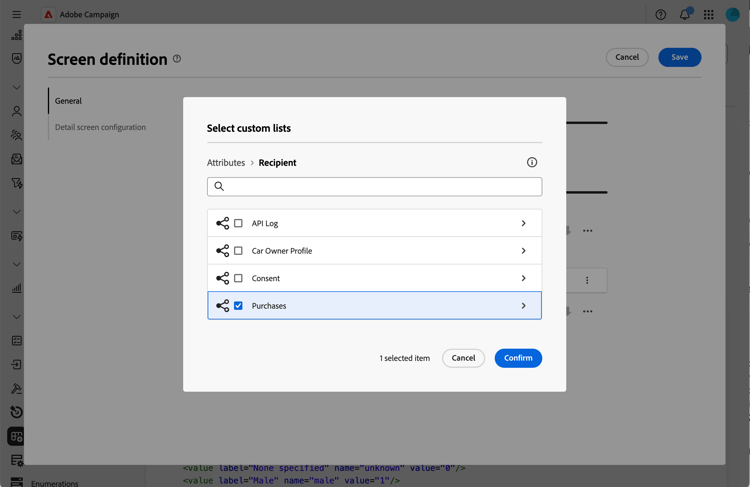
Select one of the available custom lists, for example purchases, then click Confirm.
-
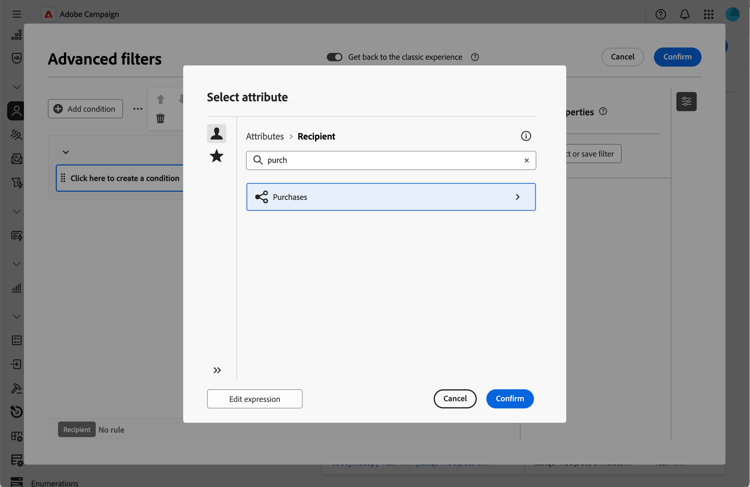
Browse to the Profiles menu and filter profiles that have made purchases.
-
Click on a profile. You notice that the new tab is displayed. You can add more columns if needed.