Manage the approval process campaign-approvals
The approval process helps coordinate multiple stakeholders and ensures quality control before deliveries are sent. Use approvals when your organization requires validation from different teams, such as marketing managers reviewing content or data analysts validating target audiences.
When approvals are enabled, you must submit content or target for approval. Designated reviewers receive email notifications requesting validation and can approve or reject directly from the Web UI interface. Deliveries cannot be sent until all required approvals are granted. You can enable:
- Content approval: validate message content, design, and personalization. You can add an editing step before content approval, handled by a designated operator, and an approval step for an external reviewer once the content is internally approved.
- Target approval: validate the audience and targeting criteria
- Budget approval: validate the delivery budget
- Delivery start: restrict who can start sending the delivery to a specific reviewer
- Delivery confirmation: require a final confirmation before sending
Configure approval settings configure-approvals
Approval settings are inherited from the campaign template and can be modified for individual campaigns. The same Approvals section is also available in the settings of a delivery created inside a campaign, letting you override the campaign-level configuration for that delivery only.
Follow these steps to configure approval settings at the campaign level:
-
Open your campaign or campaign template, or create a new one, from the Campaigns menu.
-
Click the Settings button at the top right of the campaign dashboard.
-
In the Approvals section, configure the following options:
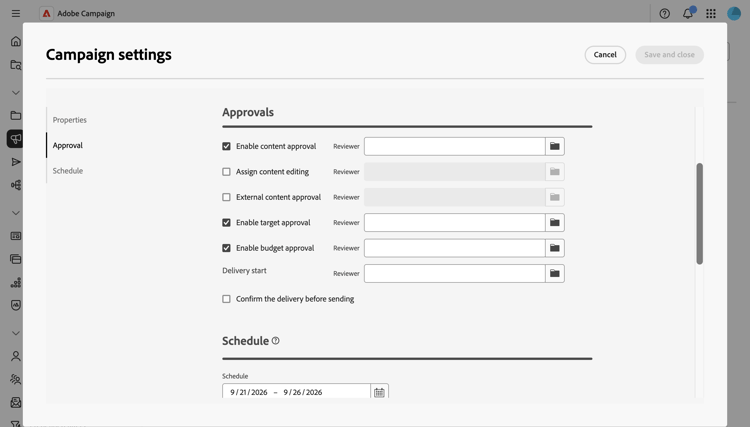
note NOTE If you decide to enable an approval option, click the folder icon in the Reviewer field to select an operator or operator group. -
Configure Content approval: when enabled, the delivery content must be approved before sending. When this option is enabled, two fields are displayed:
- Assign content editing: adds an editing step before content approval. A designated operator, such as a webmaster, is notified to edit the content, then makes it available for approval.
- External content approval: adds an approval step for an external reviewer, such as a partner or supplier, who validates the rendering of the delivery (for example brand consistency) once the content is internally approved.
-
Define the Target approval: when enabled, the delivery target audience must be approved.
-
Set the Budget approval: when enabled, the delivery budget must be approved. This option requires a budget to already be assigned to the campaign, which is currently done from the Client Console.
-
Set the Delivery start: restrict the delivery start to a specific operator or operator group. If a non-authorized operator tries to send the delivery, they see an error indicating they are not authorized to perform this action.
-
Set the Confirm the delivery before sending: requires a final manual confirmation before sending, even after all other approvals are complete.
- If no reviewer is specified, the campaign owner is assigned as reviewer.
- Reviewers need appropriate permissions to approve deliveries. Only users identified in the reviewer list can approve.
Submit for approval submit-approval
After creating your delivery, follow these steps to submit content and target for approval.
-
From the delivery dashboard, click the Submit content button. Designated reviewers can approve or reject. See this section.
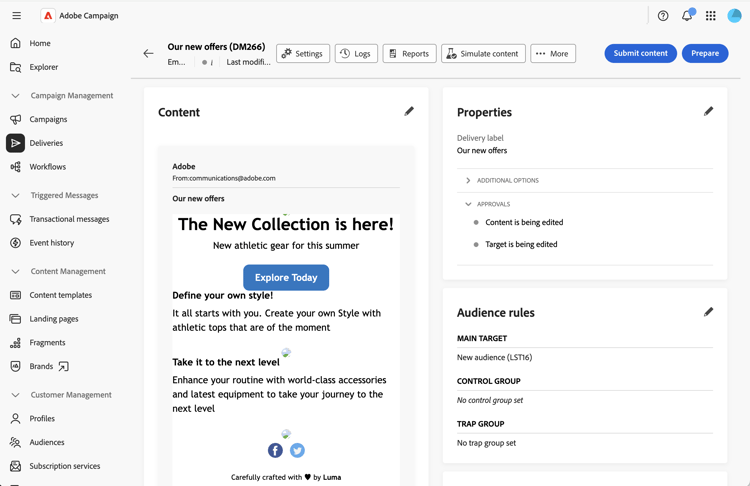
The approval status changes to pending in the Properties section of the delivery dashboard. See this section.
-
Once content is approved, click the Prepare button to prepare the delivery target. The system prepares the audience and targeting criteria.
-
Click the Submit target button. Designated reviewers can then approve or reject. See this section.
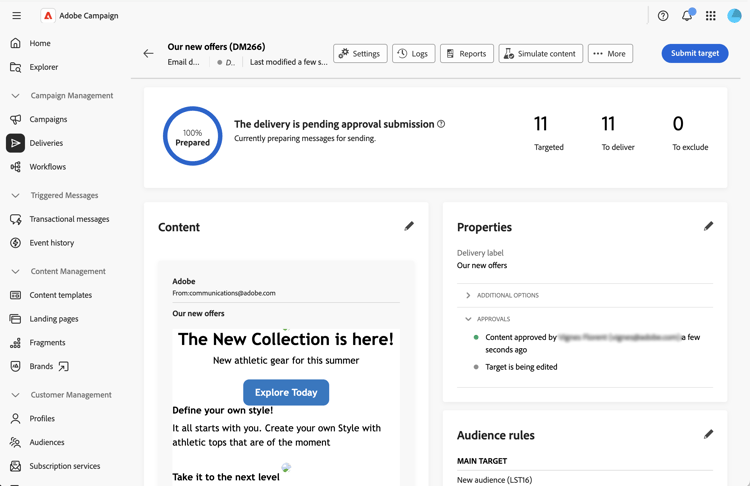
The approval status changes to pending. See this section.
-
If budget approval is enabled, submit the budget for approval following the same principle. Designated reviewers can approve or reject. See this section.
-
Once the target and, if applicable, the budget are approved, the preparation resumes and the delivery can be sent.
Approve or reject approve-reject
Designated reviewers can approve or reject content, target, and budget submissions. See this section.
-
When you receive the notification email, open the delivery that requires approval directly from the Web UI interface.
-
Review the content or target information.
-
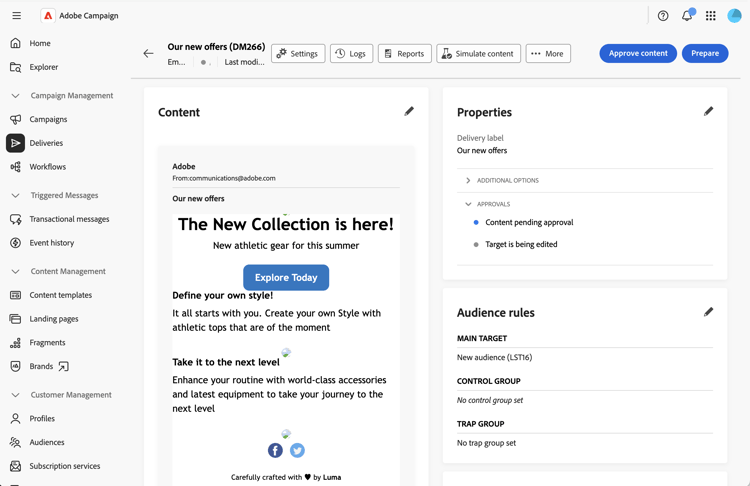
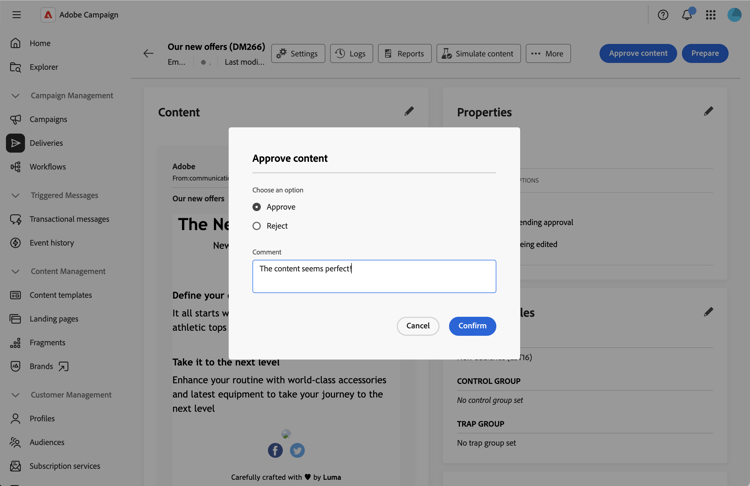
Click the Approve content, Approve target, or Approve budget button.
-
Click Approve or Reject.
-
Optionally, add a Comment to explain your decision.
-
Confirm your decision. The approval status updates immediately in the delivery dashboard. See this section.
Track approval status track-approvals
Approval status is visible in the Properties section of the delivery dashboard. The status displays which approvals are waiting and their current state:
- Being edited: the content or target has not been submitted for approval yet
- Pending approval: the content or target is awaiting review
- Approved: the content or target has been approved by the reviewer
- Rejected: the content or target has been rejected by the reviewer
The approval section shows all enabled approvals and updates in real-time as reviewers validate or reject each step.