Get started with message tracking get-started-tracking
Tracking features
Tracking configuration configure-tracking
For Campaign Classic v7 hybrid/on-premise deployments, you need to configure tracking at the instance level before using it.
Operating principle
Before using tracking, you need to first configure it for your instance. The configuration needs to be performed on the Adobe Campaign application server(s) and web server(s).
In Campaign, there are two types of tracking:
- Web tracking: this mode lets you track visits to your website pages
- Message tracking: this mode lets you track message deliveries and recipient behavior
The tracking mode is selected during installation. For on-premise installations, tracking configuration must be defined at the instance level. Learn more
Tracking server
To configure tracking, your instance must be declared and registered with the tracking server(s). The tracking server is used to record and retrieve information about URLs clicked by recipients.
For on-premise installations, the tracking server is typically a web server running the Adobe Campaign web application. The tracking server URL must be defined in your instance configuration. Learn more
Saving tracking
Once tracking is configured and your URLs populated, the tracking server must be registered. The registration allows Adobe Campaign to save tracking information and provide reports and statistics on tracked activities.
For on-premise installations, tracking information is stored in the database and retrieved through technical workflows. The Tracking technical workflow processes and stores the tracking data collected from the redirection server. Learn more
Web application tracking web-application-tracking

Tracking a web application
You can also track and measure visits on Web application pages with tracking tags. This functionality can be used for all Web application types such as forms and landing pages. Learn more
Web application tracking opt-out
The Web application tracking opt-out enables you to stop tracking web behaviors of end-users who opt-out of behavioral tracking. You can include the ability to display a banner into web applications or landing pages to allow users to opt-out. Learn more
Tracking troubleshooting tracking-troubleshooting

The following troubleshooting tips apply to Campaign Classic v7 hybrid/on-premise deployments. Some information may also apply to Campaign v8 on-premise deployments. For Campaign v8 Managed Cloud Services, contact your Adobe representative for assistance.
For basic tracking troubleshooting steps in Campaign v8, refer to the Troubleshooting tracking in Campaign v8 documentation.
Basic checks basic-checks
Check that the trackinglogd process is running
This process reads from the IIS/Web Server shared memory and writes the redirection logs.
You can access it from the Homepage by selecting the Monitoring tab in your instance. You can also execute the following command on the instance: <user>@<instance>:~$ nlserver pdump
If the trackinglogd process doesn’t appear in the list, launch it with the following command on the instance: <user>@<instance>:~$ nlserver start trackinglogd
Check that the Tracking technical workflow has been running recently
You can locate the Tracking technical workflow in the folders Administration > Production > Technical workflows.
Advanced troubleshooting advanced-troubleshooting
| note |
|---|
| NOTE |
| Available for Windows only |
The corrupted tracking log file …/nl6/var/<instance_name>/redir/log/0x0000 log can stop the tracking workflow. To easily detect corrupted lines and remove them to resume the tracking workflow, you can use the commands below.
I know in which file the corrupted line is
In that case, corrupted lines can be found in the 0x00000000000A0000.log file but the same process can be applied to a set of files - one by one.
| code language-none |
|---|
|
You can then stop the tracking workflow, delete the corrupted line(s) and restart the workflow.
I do not know in which file the corrupted line is
-
use the following command line to check in all the tracking files.
code language-none $ cd {install directory}/var/{instance name}/redir/log $ cat *.log | sed -nE '/^[[:alnum:]]{2}x[[:alnum:]]*\t[0-9T:\.-]*\t[0-9a-fA-F]*\t[0-9a-fA-F]*\t[0-9a-fA-F]*\t[[:alnum:]]*\t[[:alnum:]-]*\t[[:print:]]*\t[[:print:]]*\t[[:print:]]*\t([0-9a-fA-F\.:]*|[0-9a-fA-F\.:]*\t[[:print:]]*|[0-9a-fA-F\.:]*,[[:print:]]*)$/!p' -
The command lists all the corrupted line(s). For example:
code language-none 50x000000000FD7EC86 2017-06-24T21:00:50.96 1f506d71 1aeab4b6 1af77020 0 e5155671-4ab7-4ce4-a763-3b82dda6d881 h Mozilla/5.0 (Macintosh; Intel Mac OS X 10_12_4) AppleWebKit/537.36 (KHTML, like Gecko) Chrome/55.0.2883.95 Safari/537.36 52.46.20.64note NOTE Carriage return has been added before User Agent to allow better reading and does not reflect effective rendering. -
Run a grep command to find the corresponding file.
code language-none $ grep -Rn <Log Id> # for example: $ grep -Rn 50x000000000FD7EC86 -
Find the faulty log with the filename and line number. For example:
code language-none ./0x000000000FD7E000.log:3207:50x000000000FD7EC86 2017-06-24T21:00:50.96 1f506d71 1aeab4b6 1af77020 0 e5155671-4ab7-4ce4-a763-3b82dda6d881 h Mozilla/5.0 (Macintosh; Intel Mac OS X 10_12_4) AppleWebKit/537.36 (KHTML, like Gecko) Chrome/55.0.2883.95 Safari/537.36 52.46.20.64note NOTE A carriage return has been added before User Agent to allow better reading and does not reflect effective rendering.
You can then stop the tracking workflow, delete the corrupted line(s) and restart the workflow.
When trying to access the tracking links, the following message displays:
Requested URL '/r/ id=h787bc0,281a4d8,281a4da&p1=1' cannot be found
-
Access <redirection_server>/r/test URL and check if the build number and localhost were returned by the request.
-
Check the spareServer configuration in the serverConf.xml file for the tracking server. This configuration should be in redirection mode.
code language-none <redirection> <spareServer _operation="update" enabledIf="$(hostname)!='test-rt1'" id="1" url="http://test-rt1:8080"/> <spareServer _operation="insert" enabledIf="$(hostname)!='test-rt4'" id="4" url="http://test-rt4:8080"/> <spareServer _operation="insert" enabledIf="$(hostname)!='test-rt3'" id="3" url="http://test-rt3:8080"/> <spareServer _operation="insert" enabledIf="$(hostname)!=test-rt2'" id="2" url="http://test-rt2:8080"/> </redirection> -
Check manually whether the <deliveryID>.xml file exists on the machine in …/nl6/var/<instance_name>/redir/url/<YYYY> directory (YYYY represents delivery year).
-
Check manually whether <trackingUrlId> can be found in the <deliveryID>.xml file.
-
Check manually existence of broadlogID in related deliveryID delivery.
-
Check <deliveryID>.xml files permissions in …/nl6/var/<instance_name>/redir/url/year directory.
They should have at least 644 permission so that Apache can read tracking urls to redirect requested link.
Follow these steps when updating the NmsTracking_Pointer option:
-
Stop the tracking workflow.
-
Stop the trackinglogd service.
-
Update the NmsTracking_Pointer option to the desired value.
-
Restart the trackinglogd service.
-
Restart the tracking workflow.
You can customize click tracking formula and specify a custom Adobe Analytics tracking formula.
That kind of customization needs to be done with caution to avoid adding extra linefeed characters. All linefeed characters present outside of the JavaScript expression will be present in the final formula.
This kind of extra linefeed character in the tracking URL will lead to issue in some webMail (AOL, GMail, etc.).
First example:
-
Incorrect syntax
code language-none <%@ include option='NmsTracking_ClickFormula' %><% // Parameters expected by Adobe Analytics var pattern = new RegExp("(nl611\.test15|google\.com)", 'i') if( $(urlstring).match(pattern) && delivery.FCP == false ) { %> &cid=<%= message.delivery.internalName %>&bid=<%= message.id.toString().toLowerCase() %><% } %> -
Correct syntax
code language-none <%@ include option='NmsTracking_ClickFormula' %><% // Parameters expected by Adobe Analytics var pattern = new RegExp("(nl611\.test15|google\.com)", 'i') if( $(urlstring).match(pattern) && delivery.FCP == false ) { %>&cid=<%= message.delivery.internalName %>&bid=<%= message.id.toString().toLowerCase() %><% } %>
To understand where the extra linefeed is you can replace JavaScript expression by a fixed string STRING.
| code language-none |
|---|
|
Second example
-
Incorrect syntax
code language-none <%@ include option='NmsTracking_ClickFormula' %> <% // Parameters expected by Adobe Analytics var pattern = new RegExp("(vistaprint|entryUrl)", 'i') if( $(urlstring).match(pattern) && delivery.FCP == false ){%>&cid=<%= message.delivery.internalName%>&bid=<%= message.id.toString().toLowerCase()%>&SHPID=<%= message.recipient.factShopper.shopper_id %><% } %> -
Correct syntax
code language-none <%@ include option='NmsTracking_ClickFormula' %><% // Parameters expected by Adobe Analytics var pattern = new RegExp("(vistaprint|entryUrl)", 'i') if( $(urlstring).match(pattern) && delivery.FCP == false ){%>&cid=<%= message.delivery.internalName%>&bid=<%= message.id.toString().toLowerCase()%>&SHPID=<%= message.recipient.factShopper.shopper_id %><% } %>
To understand where the extra linefeed is you can replace JavaScript expression by a fixed string STRING.
| code language-none |
|---|
|
When the instance does not retrieve directly tracking logs but from a distant Adobe Campaign Classic server, the logs are retrieved through the GetTrackingLogs SOAP call which is defined in the remoteTracking schema.
An option in the serverConf.xml file enables you to set the number of logs that are retrieved at once through this method: logCountPerRequest.
The default value of logCountPerRequest being 1000, it may prove in some case to be too small. The accepted values must be between 0 and 10.000.
In Adobe Campaign Classic, a target mapping is supposed to be unique in term of recipient schema vs broadlog / trackinglog schemas.
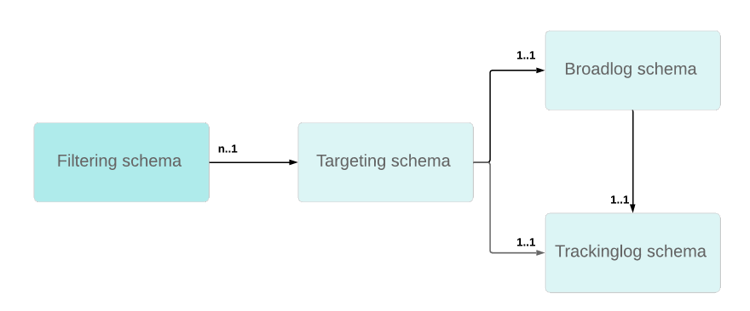
It is not possible to use multiple targeting schemas with the same trackinglog schema since tracking workflow will be unable to reconciliate data with targeting id.
If you do not want to use the out-of-the-box target mapping with nms:recipient, we recommend the following approaches:
-
If you want to use custom targeting dimension, you need to create custom broadLog/trackingLog schema using nms:broadlog as template (e.g. nms:broadLogRcp, nms:broadLogSvc,etc.).
-
If you want to use OOB trackingLogRcp/broadLogRcp, the targeting dimension needs to be nms:recipient and filtering dimenstion could be a custom schema.