Customer Journey Analytics Integration
The Customer Journey Analytics (CJA) integration connects Adobe Brand Visibility with your organization’s CJA data so you can measure how AI-driven discovery translates into real website engagement, conversions, and business outcomes. After the integration is configured, data is available in the Referral Traffic dashboard under the Business Impact tab.
By connecting CJA, you can understand:
- Engagement on pages reached from AI platforms.
- Traffic and conversion trends associated with AI referrals.
- Revenue and commerce outcomes, when those fields are available in the selected data view.
- The downstream impact of GEO and AI-visibility optimization work.
Availability availability
The CJA integration is available once it has been enabled for your organization. When available, Customer Journey Analytics appears alongside Adobe Analytics and GA4 in the analytics-provider picker under Brands Management > Analytics.
CJA access is separate from Adobe Brand Visibility access. The signed-in Adobe user must have an active CJA entitlement and access to the required data view in the same IMS organization as the selected Adobe Brand Visibility site.
Before you begin before-you-begin
To complete the connection, you need:
- An Adobe ID with active Customer Journey Analytics access.
- Access to the CJA data view you want to connect.
- Access in the same IMS organization as the selected Adobe Brand Visibility site.
- Permission to manage configuration in Adobe Brand Visibility (otherwise the configuration is visible but its actions are disabled).
You do not need to create an Adobe Developer Console project, configure a Server-to-Server credential, provide a technical account, or enter a Client ID or Client Secret. Adobe Brand Visibility uses your existing Adobe sign-in to discover the CJA data views you already have access to — no separate OAuth window or consent round-trip is required.
Connect Customer Journey Analytics to the Referral Traffic dashboard connect
The connection flow starts from the Referral Traffic dashboard as follows:
-
Open Referral Traffic in Adobe Brand Visibility. The default view is Traffic Insights.
-
Select the Business Impact tab. If no analytics provider is connected, a banner appears: Connect to See Business Impact, with Connect to Analytics.

-
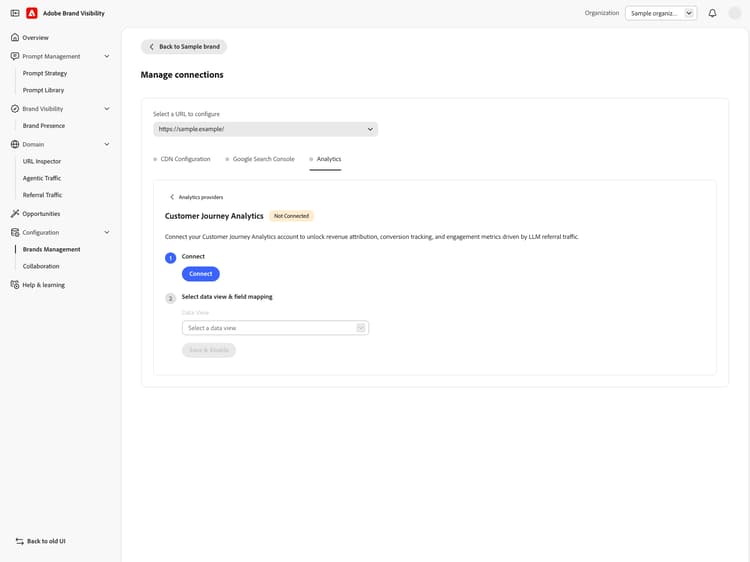
Select Connect to Analytics, which will automatically route you to Brands Management > Analytics. In the Analytics Provider picker, select Connect Customer Journey Analytics.

-
If prompted, select Sign in and authenticate with the Adobe ID that has CJA access in the site’s IMS organization, then select Connect. Adobe Brand Visibility discovers the CJA data views available through your existing Adobe access and groups them by CJA connection when that information is available.
-
Review the suggested Data View. Adobe Brand Visibility preselects a recommended data view when possible; you can select a different one.

-
Review the suggested Field mapping. CJA component IDs vary by data view, so Adobe Brand Visibility maps the selected data view’s dimensions and metrics to the fields used by Business Impact. Confirm every required mapping:
- Required dimensions: Page URL, Referring Domain, Country, and Device Type.
- Required metrics: Page Views, Visits, and Visitors.
- Optionally include additional fields available in the data view, such as Revenue, Orders, Units, Carts, Checkouts, Time Spent, Entries, Exits, and Bounces.

-
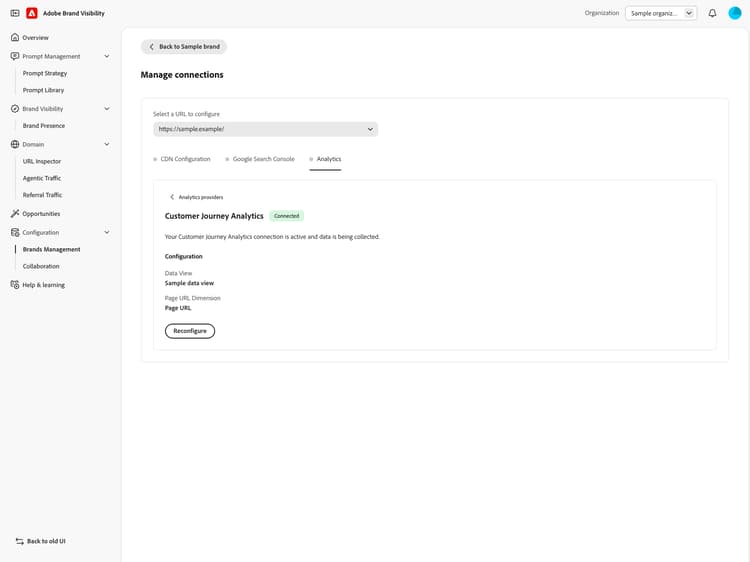
Select Save & Enable. After saving, the configuration shows the Connected status. Select Go to Referral Traffic Dashboard to return to Referral Traffic > Business Impact.
After you connect after-connect
- On first enablement, Adobe Brand Visibility backfills the last four full calendar weeks and the current calendar week through the prior day.
- After backfill, data is refreshed daily with a pull of the full prior day.
- When an existing CJA configuration is updated (for example, to change the data view), Adobe Brand Visibility refreshes the current calendar week while preserving previously loaded historical weeks.
How it works how-it-works
Connection model
The connection uses your existing Adobe IMS sign-in to confirm active CJA access in the selected site’s IMS organization and to discover the data views you’re eligible to use. Adobe-managed credentials perform the scheduled CJA API reads on Adobe Brand Visibility’s backend; you never create or submit credentials, and your Adobe access token is not persisted in the ingestion schedule. The connection does not grant new CJA access — it only exposes data views already available to you.
Data view and field mapping
CJA data views can expose the same business concept under different XDM component IDs, so Adobe Brand Visibility suggests a mapping from the selected data view’s components to a stable Business Impact schema during setup. Required mappings must be confirmed before the integration can be enabled.
Optional mappings (Revenue, Orders, Units, Carts, Checkouts, Time Spent, Entries, Exits, Bounces, and similar fields) are included only when enabled and available in the selected data view.
How LLM traffic is identified
Adobe Brand Visibility uses the mapped Referring Domain dimension to identify traffic from supported AI platforms. Unlike the Adobe Analytics integration, this flow does not depend on Adobe Analytics’ Referrer type classification. The list of supported referrer domains is maintained by Adobe and may expand over time.
Data ingested data-ingested
Each scheduled pull retrieves aggregated CJA report data for the configured field mapping.
Required dimensions
- Selected Page URL dimension
- Referring domain
- Country
- Device type
Required metrics
- Page views
- Visits
- Visitors
Optional metrics, when mapped and enabled
- Entries
- Exits
- Bounces
- Single-page visits
- Time spent
- Carts
- Cart additions
- Cart removals
- Cart views
- Checkouts
- Orders
- Revenue
- Units
Field availability depends on the selected CJA data view. An optional field that isn’t mapped is never requested from CJA.
How Adobe Brand Visibility uses this data
This dataset powers Business Impact insights for:
- Page-level LLM referral performance.
- Referrer performance across AI sources.
- Country and device trends.
- Engagement and commerce outcomes, when those fields are mapped.
- Daily and weekly traffic trends.
Frequently asked questions faq
Q: Do I need a technical account, Client ID, or Client Secret?
No. Use your existing Adobe sign-in. Adobe Brand Visibility manages the credentials used for scheduled CJA API reads.
Q: Does the connection open a separate OAuth window?
No. CJA onboarding uses the Adobe session already active in Adobe Brand Visibility.
Q: Why is Customer Journey Analytics missing from the provider picker?
The integration must be enabled for your organization. If it should be available but isn’t shown, contact your Adobe representative or support team.
Q: Why is my data view missing?
Confirm that the signed-in Adobe ID has active CJA access, that the data view belongs to the same IMS organization as the selected Adobe Brand Visibility site, and that you can access that data view directly in CJA. After access changes, sign out and back in if needed, then select Connect again.
Q: Why is Save & Enable disabled?
Every required dimension and metric must have a mapping, and you need permission to manage configuration in Adobe Brand Visibility.
Q: Can I change the suggested field mapping?
Yes. Suggestions are prefilled for convenience — select a different compatible CJA component for any field before saving. Required fields can’t be omitted; optional fields can be enabled or disabled.
Q: What data is collected or stored?
See Data ingested above. Adobe Brand Visibility retrieves aggregated CJA report results for the dimensions and metrics selected during setup — it does not request raw event-level rows through this integration.
Q: Are user identifiers ingested?
No. Adobe Brand Visibility does not request ECID, IP address, cookie ID, or device ID through this integration.
Q: Are full URLs, query strings, or page content ingested?
The value returned for the selected Page URL dimension depends on how your CJA data view is configured — it may contain a full URL, path, page name, or another page identifier. Page content itself is never ingested.
Q: How often is data refreshed?
Data is refreshed daily (full prior day after backfill completes).
Q: Is historical data backfilled?
Yes. First-time setup backfills the last four full calendar weeks and the current calendar week through the prior day. See also After you connect.
Q: Can I change the data view later?
Yes. Select Reconfigure from the connected summary, choose a different data view, review its field mapping, and save again.