Meeting Booking meetings
Get to know all of your Meeting settings in Adobe Brand Concierge. Connect your calendar, set availability, view analytics, and more.
Configuration configuration
Connect to your Outlook or Google account and determine various settings such as day of the week, time zone, and meeting duration.
Connect your calendar connect
-
Log in to Adobe Experience Platform.
-
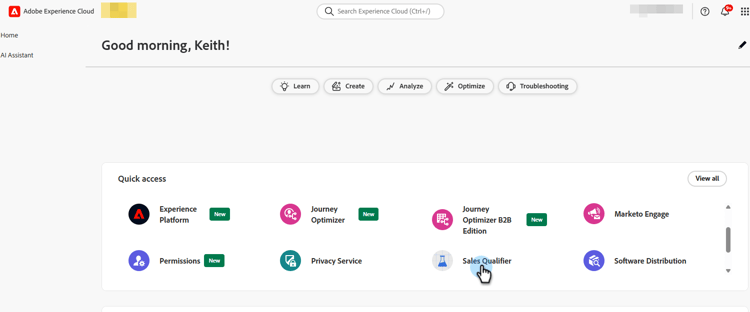
Select Sales Qualifier.
-
Under Configuration, click Profile settings. In the Calendar configuration tab, choose your desired calendar.

-
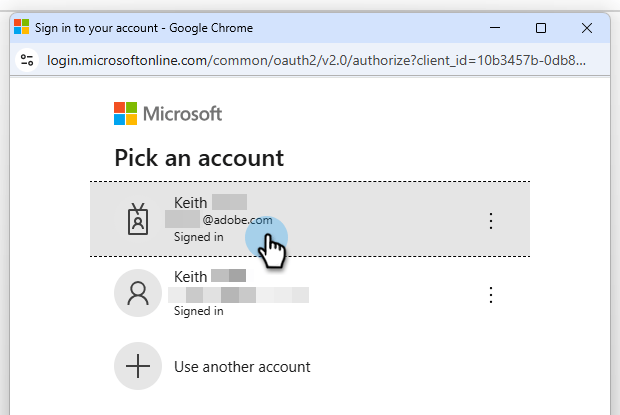
Choose an already signed-in account, or add a new one.
-
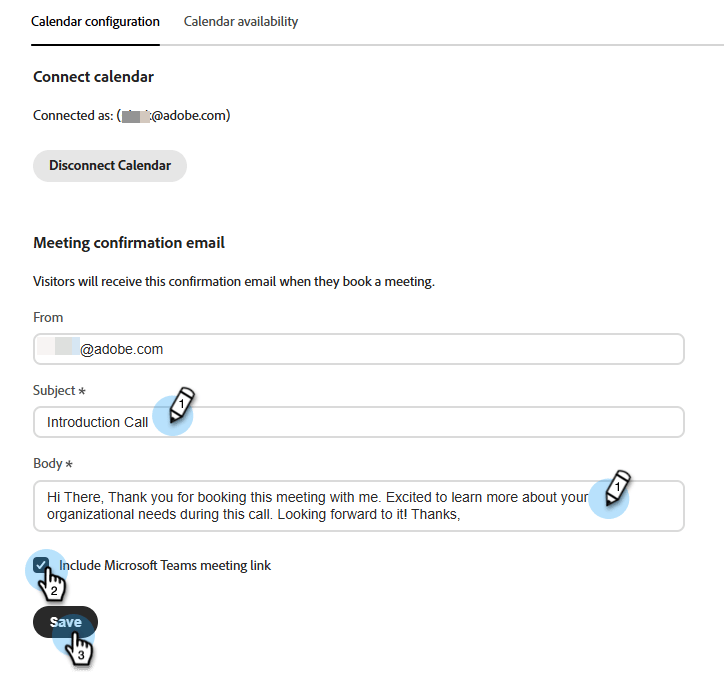
After the connection is complete, specify your desired email content.
This is the content that is sent to the recipient when they book a meeting with you. You can also include a Microsoft Teams meeting link (optional).
-
Click Save.
Set calendar availability calendar-availability
-
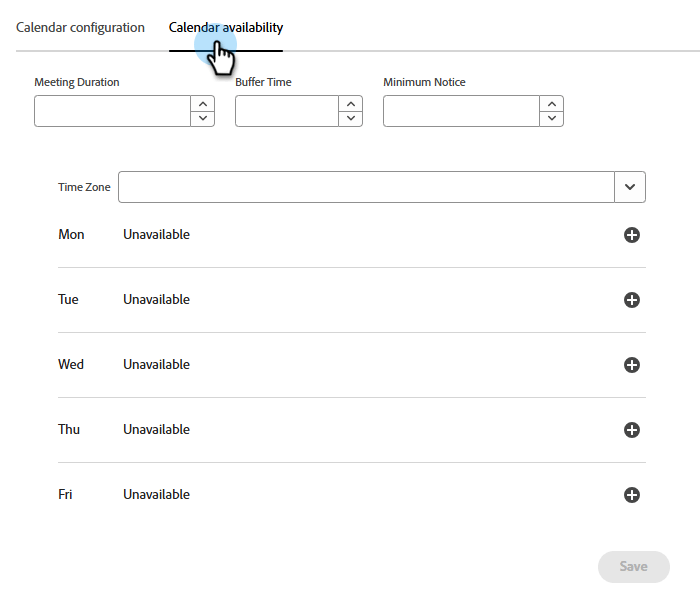
Click the Calendar availability tab.
-
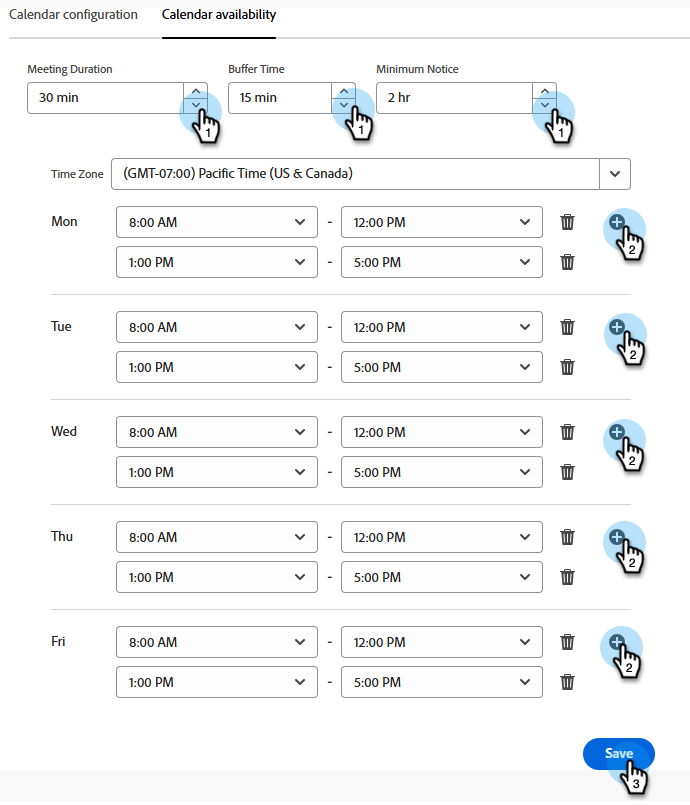
Choose your desired settings.
note NOTE To add more time options, click the plus sign ( 
-
Click Save.
Set live chat availability chat-availability
-
Click the Live chat availability tab and choose your desired settings. Click Save when done.

Manage members manage
Admins only. See which of your representatives have successfully connected their calendar.

Activities activities
Click Meeting bookings to review meetings that have been booked, see what information has been captured, learn when the meeting was scheduled, and more.
Meeting page bookings

Analytics analytics
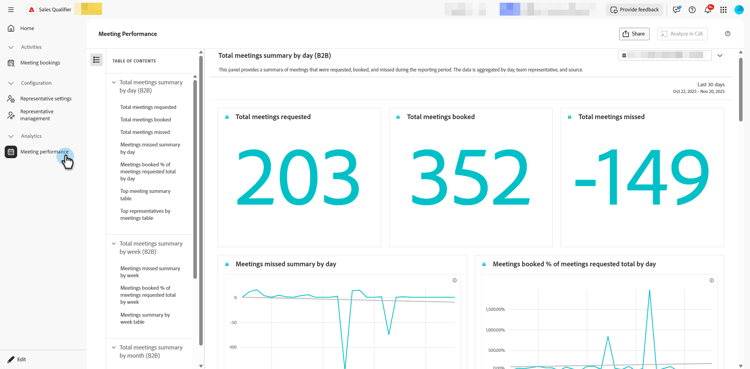
Click Meeting performance to review several different analytics categories, including how many visitors have requested meetings and how many have been missed. You can see what has been the trend of the meetings, who are the representatives who took the meetings, and so much more.
Meetings page performance