Import environment file
Objective
On this page, you import the Postman Environment File. This file contains a number of global variables that are used within various API calls you make during other labs throughout the bootcamp.
Import environment file
-
Download the AJO Bootcamp.postman_environment.json file:
Download File — AJO Bootcamp.postman_environment.json
-
Launch Postman on your local machine.
-
If necessary, switch to the Workspace you are using for these labs and click on the Import button.

-
Paste the local URL of the AJO Bootcamp.postman_environment.json file into the import modal text box or drop it into the import dialog box. This action triggers an automatic import


-
Once imported, validate that the environment exists by clicking on the Environments tab in the left sidebar. You see that the AJO Bootcamp environment is now available to you.

Set environment variables
Postman was designed for testing and interacting with APIs. However, this lab uses it to simulate AEP Web SDK hits from a browser or for server-side real-time data collection calls. While these requests are technically API calls, they aren’t typical API calls that require things like authorization tokens in the header. The environment variables in these labs are mainly used for variables in URL paths (with one being used in a header).
-
If necessary, click on the Environments tab in the left sidebar of Postman
-
Click on the AJO Bootcamp environment file. You see some values that you need to fill in

-
Skip the DATASTREAM_CONFIG value for now. You create a datastream configuration in a later lab.
-
Update the EDGE_REGION field with the region code that is closest to where you are physically located for this bootcamp, using the table below as a look-up.
table 0-row-2 1-row-2 2-row-2 3-row-2 4-row-2 5-row-2 6-row-2 Region Region Code Western US or2 Eastern US va6 Europe irl1 Australia aus3 Japan jpn3 Asia spg3 When done, your environment file looks similar to this:

-
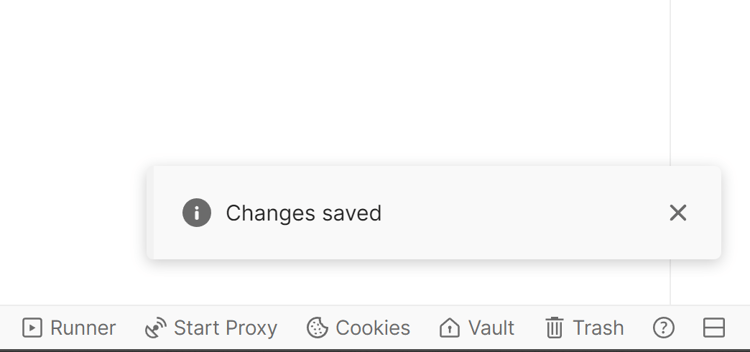
You now need to save your environment variables; however, there is no save button in the Postman UI. Use the Windows or Mac hot keys for saving (ctrl+s on Windows, for example). You know your changes have been saved when you see a Changes saved message in the bottom-right corner of the Postman UI: