Test journey
Learning objective
Use the journey testing tools to verify that the event trigger and journey logic are configured correctly.
Test the journey
-
Click on Journeys on the left rail and the Browse tab if you don’t see a list of Journeys
-
Click on your Journey to open it
-
Click on Alerts & ensure no errors (warnings are ok)

note NOTE What is CJMMAS - 2001-200 Indicates the opt-out link is missing in an email variant -
Click on the Simulate and on the left side, select Test Mode

note NOTE It might take a minute to get ready. During that time the Trigger an Event button will not be available. -
Click Trigger an Event and fill out these properties:
- Event Type:
orders.shipped - Personal Email:
henry.creel@emailsim.io - Order ID:
123
- Event Type:
-
Click Send (note, it takes a few seconds to respond after clicking send)

note warning WARNING Some students get errors and need to send this a few times. You may have to do this multiple times. Sometimes the first Send gives an error of: Inlet does not exist (Reference id: 3216a850-c40d-11f0-8fa5-73d1522cc9a2) If you get an error, Click Trigger an Event, then send again. You may have to do this multiple times. -
Under Results -> Click Show Log on left side

{"instances": []}. This is not a blocker, go ahead and move on to the next step.You should see something like this in the log:
{
  "actionsHistory": {
    "8919055f-1b00-4a43-8bd6-c8af894474b2": {
      "eta": "11/27/2025",
      "tracking_number": "091204404",
      "jo_status_code": "http_200"
    }
  },
  "transitionsHistory": {
    "orderShipped (1158856989)": {
      "eventType": "orders.shipped",
      "_id": "joTestModeEvent_5abbfdcd-561d-45a7-ba42-d0640539831a",
      "_dep": {
        "personalEmail": "henry.creel@emailsim.io"
      },
      "order": {
        "orderID": "123"
      },
      "timestamp": "2025-11-17T23:30:49.576289372Z"
    }
  }
}
-
Close the Browser tab
-
Close Test Mode in the top right
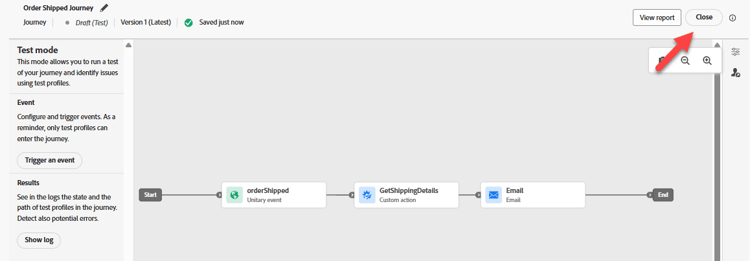
-
Click on Publish the Journey in the top right

- Close the Journey by clicking <- arrow in the top left

Next we will send a real Order Shipped Event into AEP
Recap
The journey has passed configuration validation and is ready to receive events