Browse schemas
Objective
In the next set of steps you will navigate the UI to view the Schemas and their relationships. This is important to familiarize with the schemas and relationships available when you are building your campaign.
View schemas
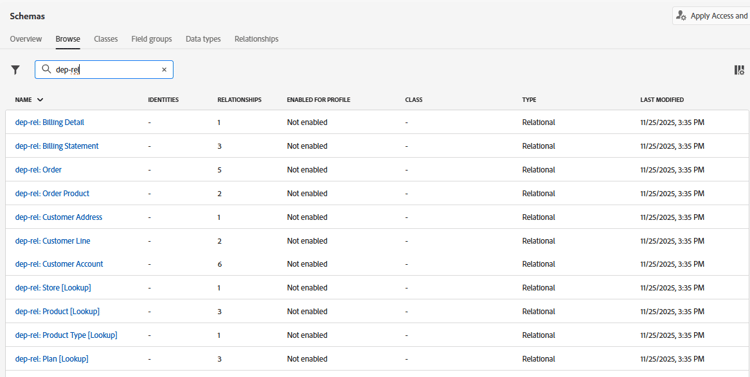
The Connection 5G relational data model has already been built for you. You can see the schemas for yourself by navigating to the Schemas -> Browse page in the UI.
In the search box enter dep-rel to see all the schemas.
View relationship diagram
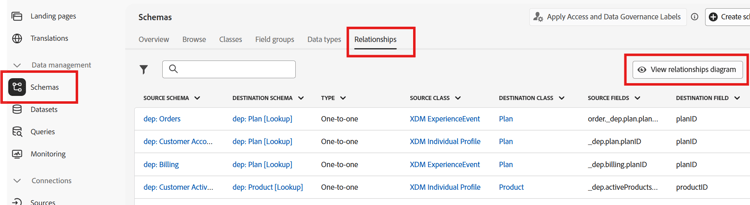
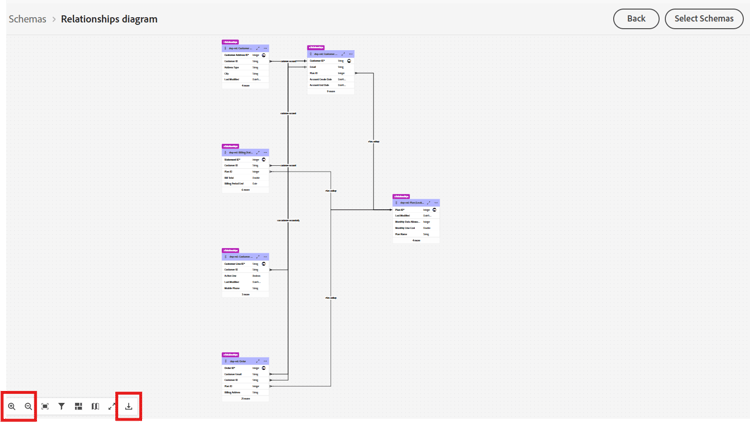
With relational XDM schemas you can easily view the entity relationship diagram (ERD) by selecting any schema and clicking on the View relationship diagram button.
Do the following:
-
Click on the Relationships tab and then click on the View relationship diagram button
-
Click Select Schemas
-
From the pop-up, select
dep-rel: Customer Accountand then click Confirm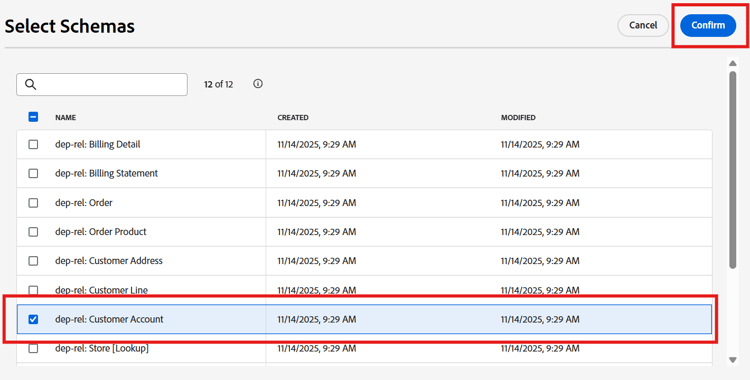
-
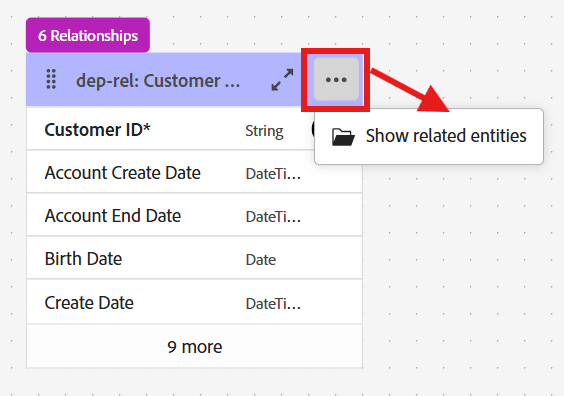
On the ERD click the 3 dots and select Show related entities
-
View the ERD with all tables directly related to dep-rel: Customer Account. Optionally you can download the ERD as a PNG file.
Recap
You have now seen how easy it is to navigate the Schema and Relationships UI. You can select a specific schema(s) and navigate to see the relationships to help understand and use the data in campaign orchestration.
You can read more here if you are interested.