Compose the SMS
Objective
In the next few steps you are going to compose a VERY simple SMS message. You’ll see how you can easily add some content at an EXTREMELY basic level and personalize the message based on the data in the relational store.
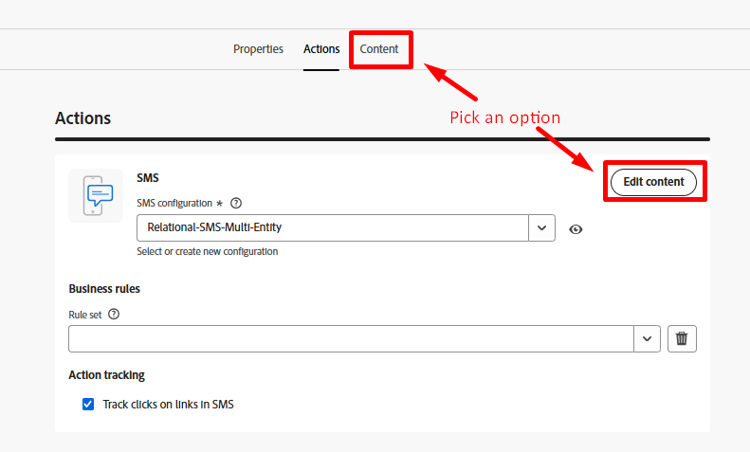
Navigate to content
Click the Edit content button, or navigate directly to the Content tab
Create the message
-
Click on the Personalization button to create your message.
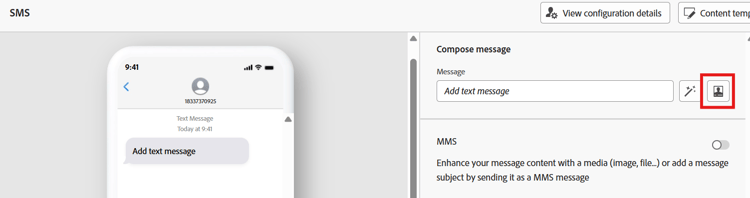
note NOTE The “magic wand” option uses AI to help you write a message. Check it out if you’d like but we won’t be covering it in this lab. -
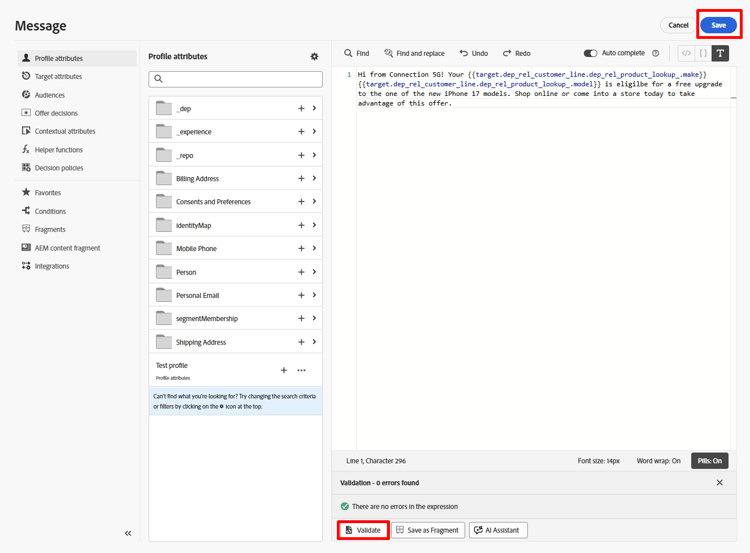
Copy and paste the text below into the SMS message body.
code language-none Hi from Connection 5G! Your phone_make phone_model is eligible for a free upgrade to one of the new iPhone 17 models. Shop online or come into a store today to take advantage of this offer.note NOTE Be sure to turn Word wrap to On in the message editor. You can find in the lower right pane of the window. -
Update the two fields in the message called phone_make and phone_model below using the Target attributes option in the left rail. When done your message should match the screenshot.

note NOTE Why are you doing this? Well you want to personalize the message with the customers phone make and model and this information lives within the Customer Line table in the relational store. This demonstrates how you can use data from Orchestrated Campaigns to personalize messages. -
Click the Validate on the editor and make sure there are no validation errors and if good click the Save button
-
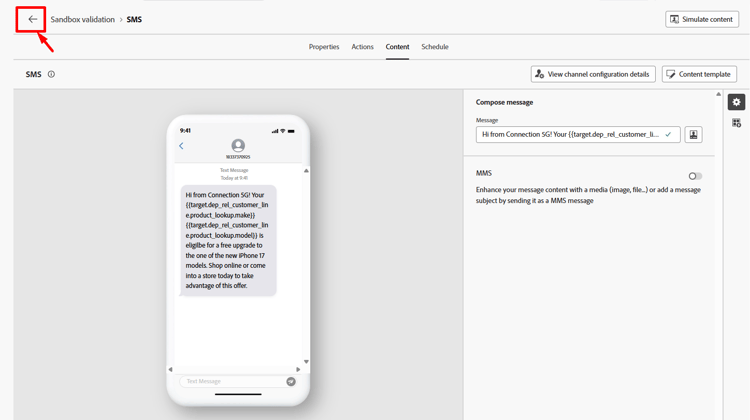
Click on the back arrow (<-) when you are done to return to the workflow canvas
Recap
You just created a message and hopefully are now a bit more familiar with how the message editor works. Remember you can personalize using data from the Relational Store but you can also personalize using data from the Real-Time Customer Profile too!