View schema
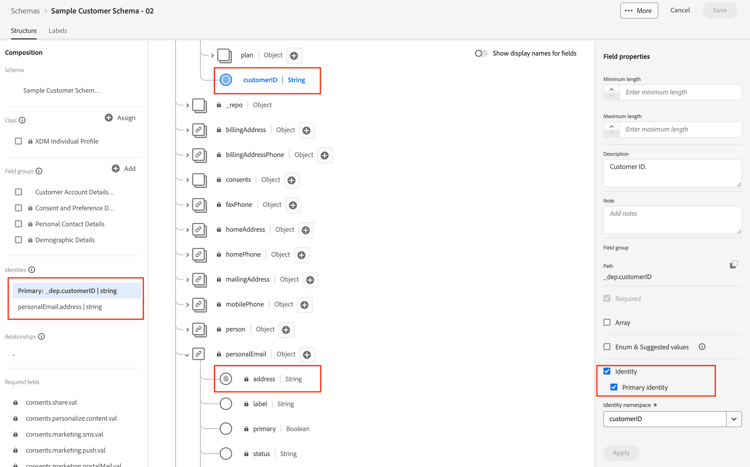
View via the UI
- Open your browser and navigate back to the
Schema -> Browsesection. - Search for the Customer Account schema
- Notice that the identities are added to the schema
View via the API
-
Select the
Step 3 - Get Customer Account Schema and its descriptorsAPI by clicking on it.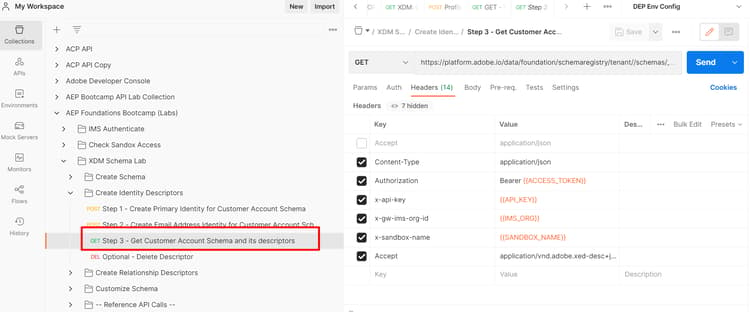
-
In the URL of the request replace the
<replace me>with the$meta:altIdyou saved from the previous section (Create Your Schema) to the end of the call like shown below
-
Save the edits you’ve made the request
-
Execute the request by clicking the
Sendbutton
You should now see a 200 OK response and you should be able to browse the schema you created through the lens of the XDM JSON structure
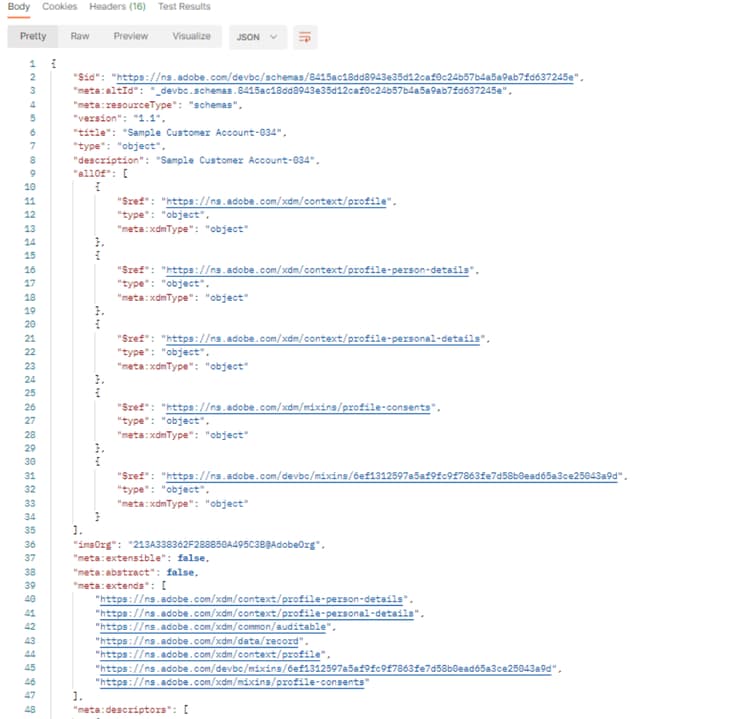
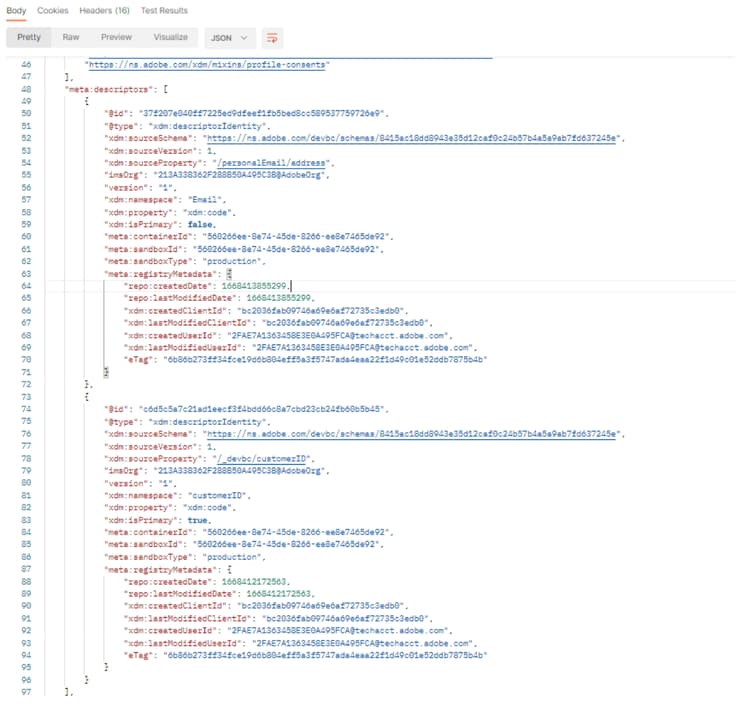
Browse further down in the API response to see the identity descriptors you created
Accept headers
Note the Accept header used in the request. This header tells the XDM schema registry to return the schema’s $refs unresolved (i.e. show the bare minimum amount of information) along with its associated descriptors in the API response. Adobe provides other Accept headers you can utilize to get various degrees of detail about the schema.
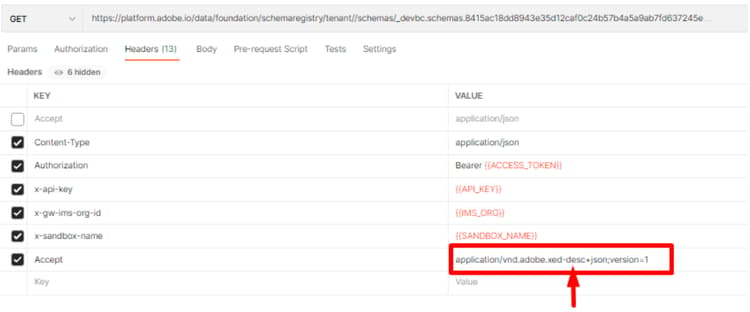
To see this in action, change the Accept header to tell the schema registry to respond with all the $ref and allOf fully resolved (i.e. exploded out) and any associated descriptors
- Update the
Acceptheader value to the following:application/vnd.adobe.xed-full-desc+json; version=1 - Save your request using the
Savebutton - Execute your request using the
Sendbutton
You should see a response now that looks like this:
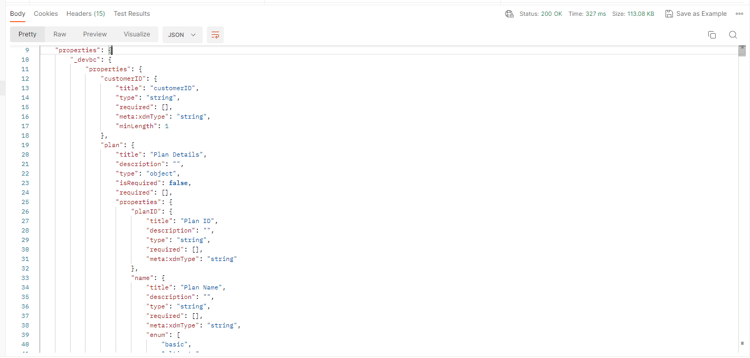
$ref values of the schema (i.e. what field groups it was referencing) and nothing was fully resolved down to each individual field/property.$id of the schema or simply checking its composition