Modify Schema - JSON Patch
Overview
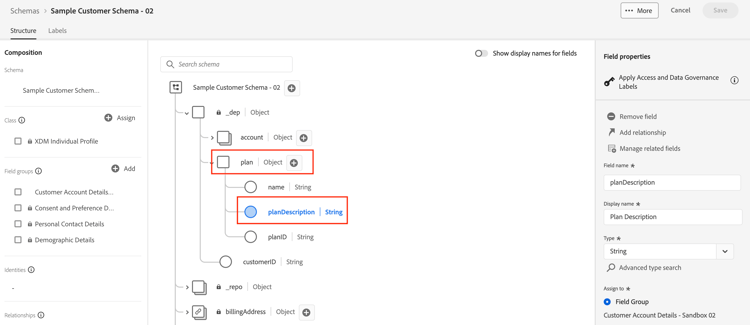
Assume for a minute that after building the schema you need to come back and add an additional field to the plan object called planDescription because either you forgot to add it at time of creation or it was a request that came in months later. To perform this task you can simply perform a PATCH operation which updates the schema with the new field.
You can learn more about JSON PATCH at the links below, but for the purposes of this lab, assume you have some concept of how this works 😄
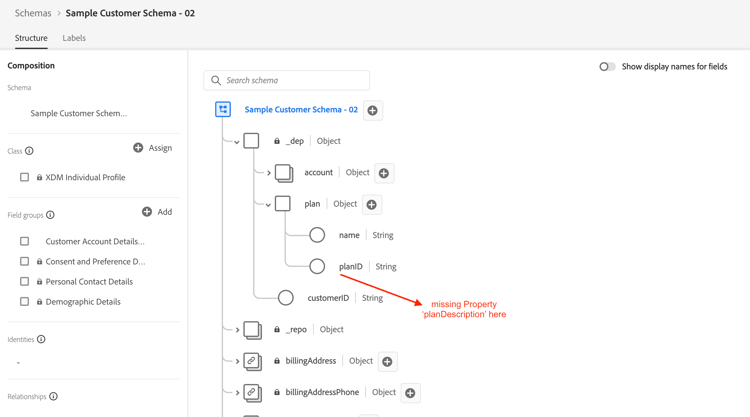
- A schema is composed of one (1) class and one (1) or more field groups
- You cannot add new fields directly to a schema without first adding to a field group. This ensures re-usability of a field across any schema that utilizes that field group.
To add a new field to a schema you need to perform the following operations in order. This is what you do in the following lab steps.
- Identify the field group where you would like to add the new property
- Construct a JSON PATCH call to update the field group
- Execute the JSON PATCH call to update the Field group (which the schema will inherit)
Locate & identify the field group to update
-
Select the
Step 1 - Get Tenant Field groupsAPI call located in theXDM Schema Lab -> Customize Schemafolder -
Execute the request by clicking the
Sendbutton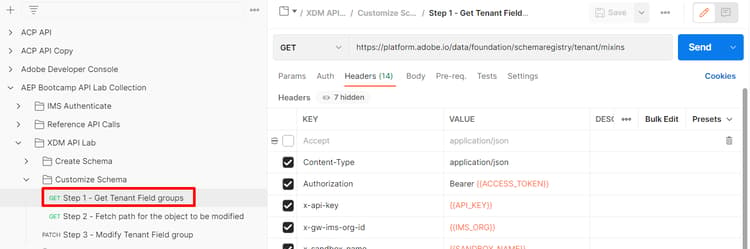
note NOTE Remember that you created the planobject within a custom field group. Custom created objects in the XDM schema registry are referred to as “tenant” hence the API call utilizing the/schemaregistry/tenant/mixins/path. -
In the response search for the schema ID for the custom field group you created previously titled
Customer Account Details - Sandbox <your number here> -
Copy the
$meta:altIdand save it somewhere safe as you will need it for the next step
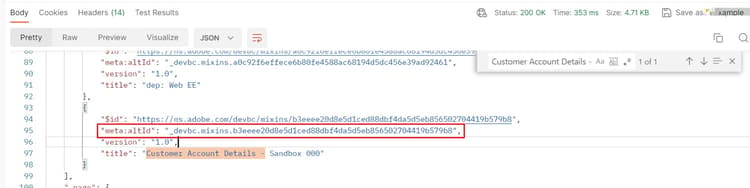
dep: Customer Account Details that you should not use$meta:altId somewhere. It will be required in future lab stepsLook up the field group by $meta:altId
- Select the
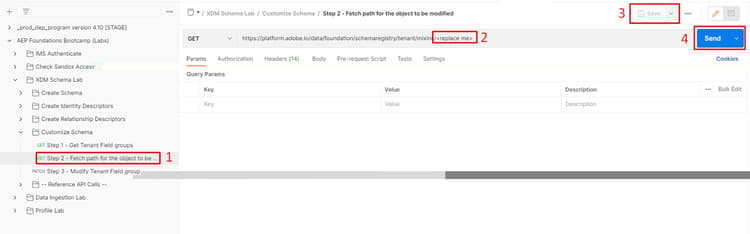
Step 2 - Fetch path for the object to be modifiedAPI call in theXDM Schema Lab -> Customize Schemafolder - In the URL of the request replace the
<replace me>with the$meta:altIdyou saved from the previous section step to the end of the call like shown below - Save the edits you’ve made to the request
- Execute the request by clicking the
Sendbutton
Review the response and note the JSON pointer path for the plan object is constructed using each of the properties highlighted below.
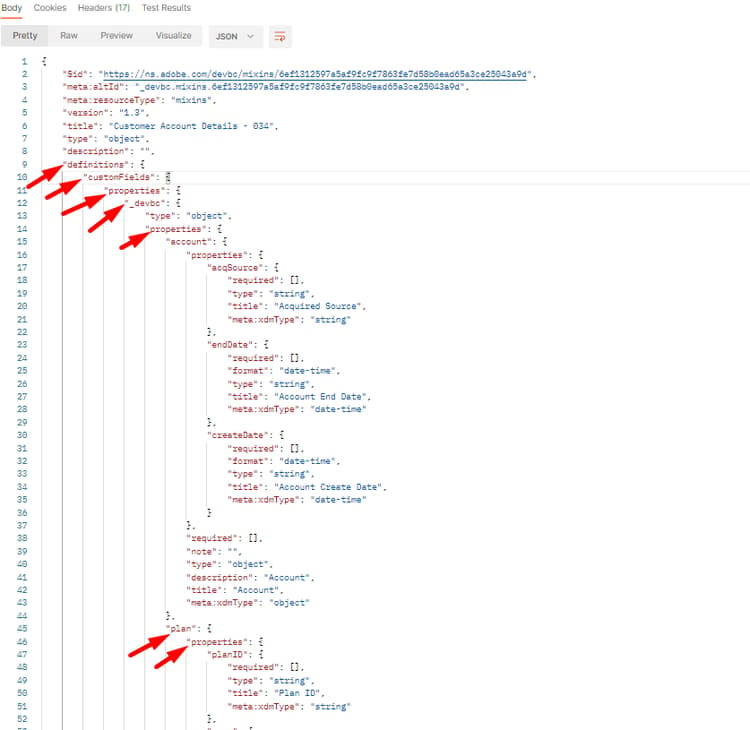
The fully composed path looks like what you see below. Copy this path and save somewhere for reference
/definitions/customFields/properties/_devbc/properties/plan/properties
PATCH the field group
JSON PATCH API body sample
[
    {
        "op": "",
        "path": "",
        "value": {
            "title": "",
            "type": "",
            "description": ""
        }
    }
]
- op (Operation) -> this provides the instruction for what action the PATCH should perform
- Path -> this is the path you want to create, update or delete (i.e. this is the JSON pointer to the location of the new field)
- Value -> this is an optional field and only used when creating or replacing an existing field
Execute the API request
-
Click on the
Step 3 - Modify Tenant Field groupAPI call in theXDM Schema Lab -> Customize Schemafolder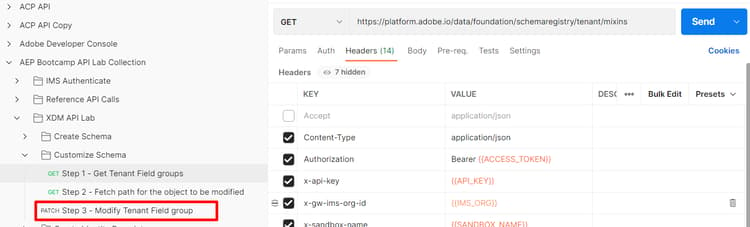
-
Update the body of the request with the following information
-
op ->
add -
path ->
path from previous step +`` the new field name -
value ->
- title ->
Plan Description - type ->
string - description ->
High-level details about the plan
- title ->
When you are done your API request should look something like this
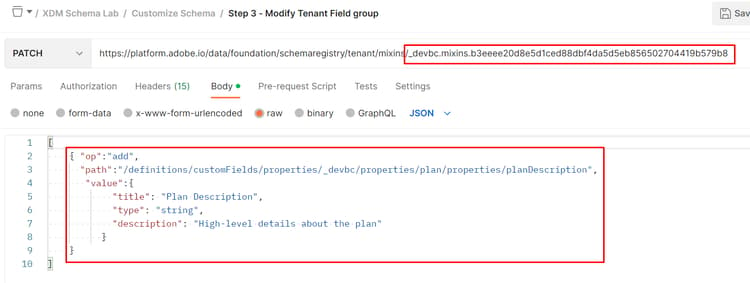
note warning WARNING Make sure you include the new field name, planDescription, in your path -
-
If everything looks good
Saveyour call -
Executethe call to perform the PATCH
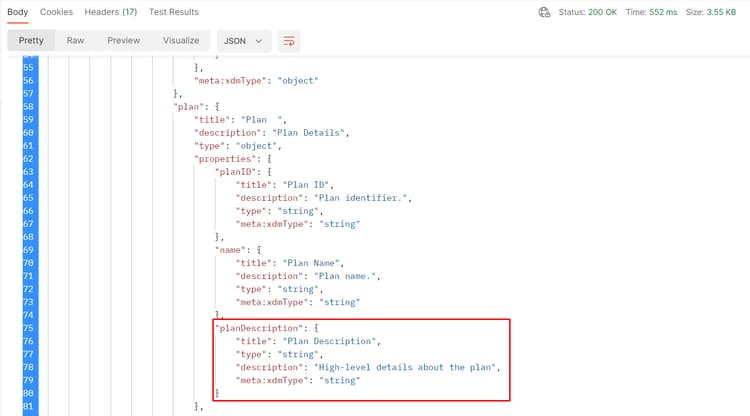
You should see a 200 OK response and should now see the planDescription field in your field group like so:
View the change in the UI
Browse your Schema through the UI and have a look at your newly added field. Pretty cool huh?