Send an Edge Event
Now that everything is configured, send in an event to the Edge to see it all work.
To do this, use Postman to send a Web Event to the Datastream you created.
This sends in an event with no OAuth Token to simulate a page view coming in from the web to the Edge. Ensure you have Postman open on your machine to perform this lab.
Lab expectations
-
Experience Event to hit the Edge
-
Datastream configuration to use Event Forwarding Service
-
Event Forwarding to send the Event to the webhook
-
Datastream configuration to use AEP Service
- Edge Audience to run
- Send Event to the Hub
-
Postman Response to include Edge Audience (but no attributes)
-
Profile Store to receive event and add an Event Profile Fragment
-
Identity Store to add a relationship
-
Dataset to receive data and store in Data Lake
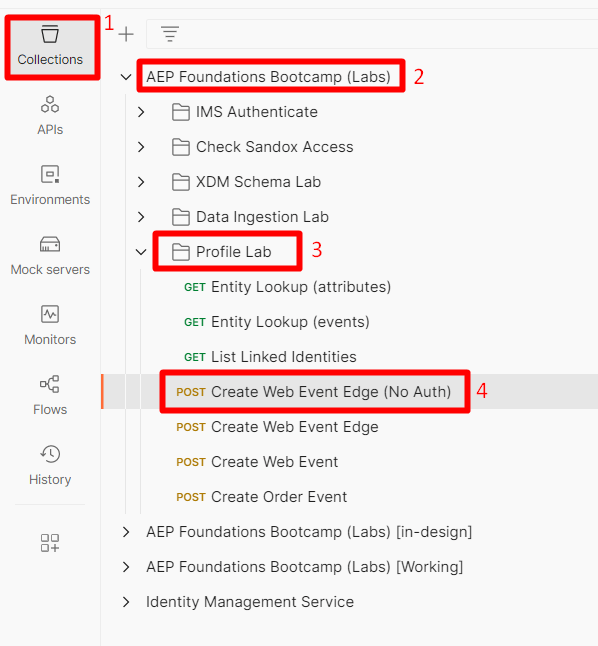
Navigate to the call
- Postman Left Sidebar -> Collections
- Collection -> AEP Foundations Bootcamps (Labs)
- Folder -> Profile Lab
- API Request -> Create Web Event Edge (No Auth)
Modify API request
Before you can execute the API request you need to add some additional pieces of information to the request. Start by gathering the following values:
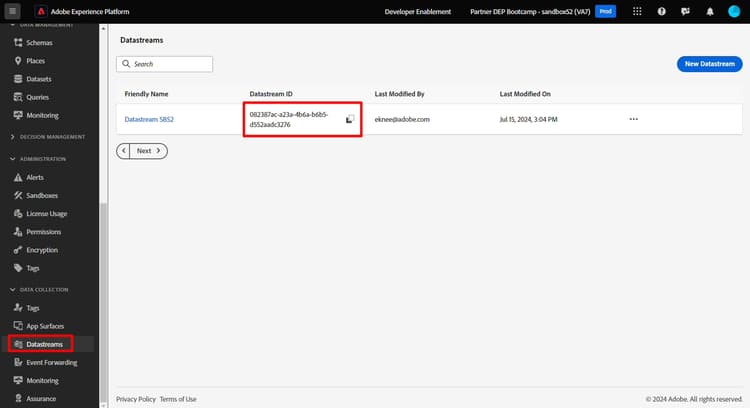
Gather the datastream ID
- In the left rail click on Datastreams (under the Data Collection heading)
- Select your Datastream and copy the Datastream ID value
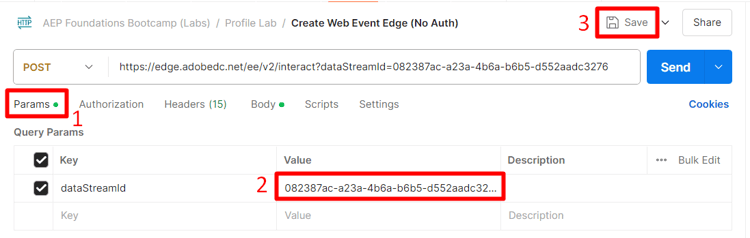
Update Postman query param
- In the request itself click on Params
- Update the Value with the datastream ID from the previous step
- Click the Save button to save your update
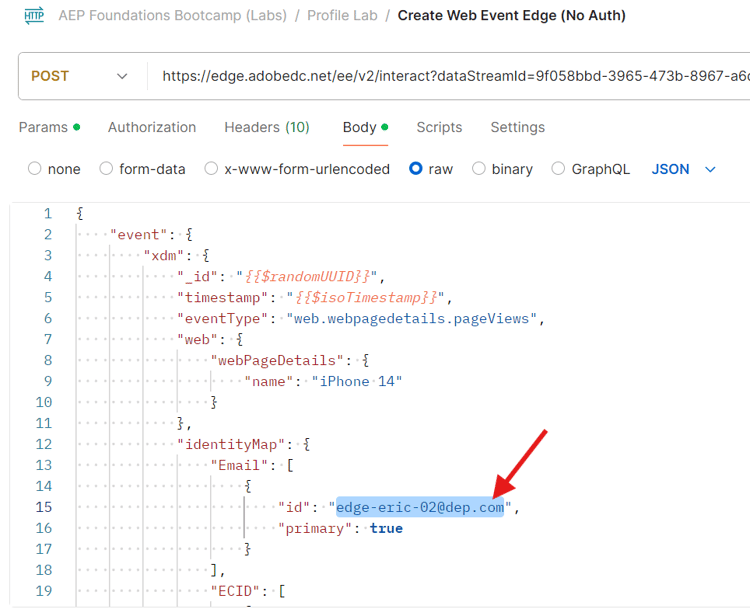
Change email to your email
Execute the API
Execute your request by clicking the Send button.
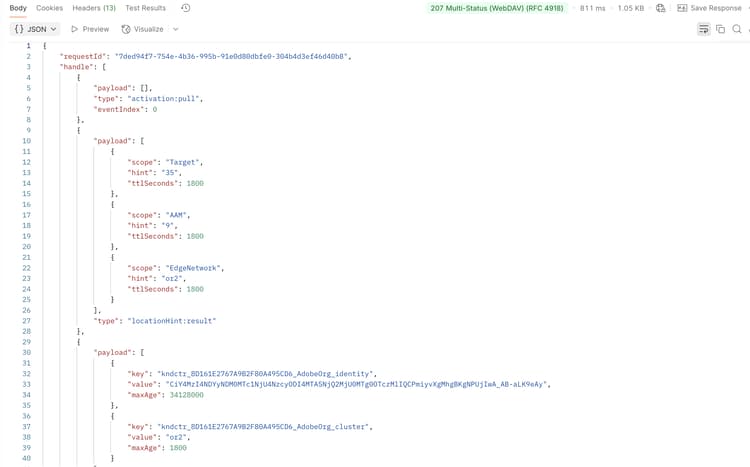
What you should see coming back in the response is this core thing:
- A 200 OK response means the data was successfully sent and accepted by the Edge Network
Validate event forwarding
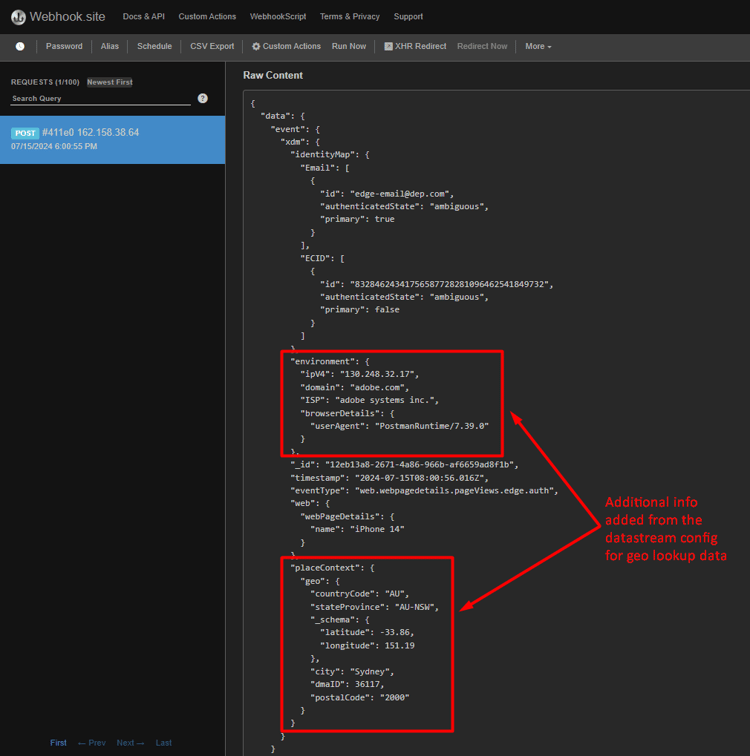
On webhook.site you should immediately see the same payload body you sent via your Postman request appear.
Look up the profile
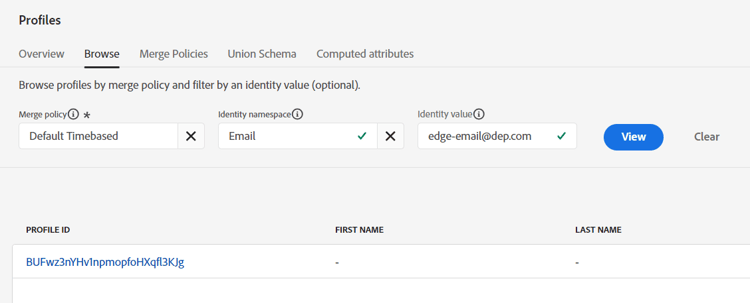
In Adobe Experience Platform look up the profile you just sent in from the event you just sent into the Edge Network. Navigate to Profiles -> Browse to perform the lookup using the following information:
- Merge policy -> Default Time-based
- Identity Namespace -> Email
- Identity Value -> edge-email@dep.com
- Note: change this to match the email you used in the Update Postman Query Param step above
-
Click View to look up the profile
-
Click on the Profile ID to open the profile
-
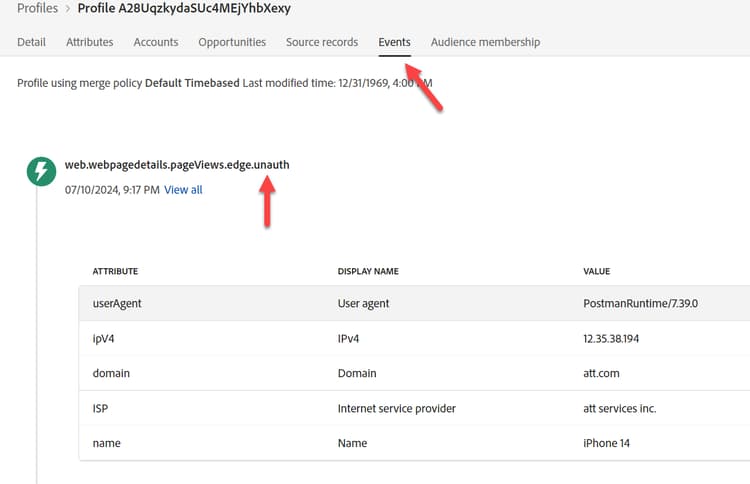
Click on Events in the top nav and you can see the event you just sent in
-
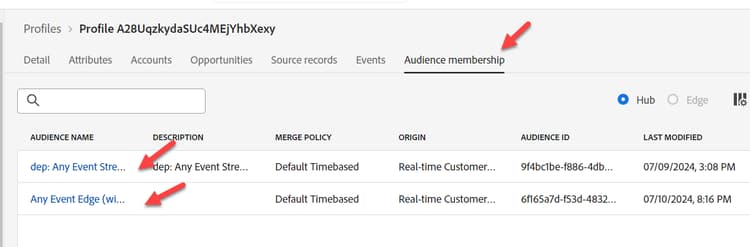
Validate the Profile has qualified for the Audiences by reviewing the Audience Membership tab in the top nav. You should see the following:
- Any Event Edge (within 15 minutes)
- dep: Any Event Streaming (within the hour)
How to interpret the checks
- Check for 200 response in Postman (properly formatted payload)
- Check if the webhook has the event (properly configured Event Forwarding)
- Check if the Profile has the events (properly configured AEP Service, event received and processed event on the Hub)
- Check if the Profile has two identities (Identity Graph has linked on the Hub) after a few minutes
- Check if the Profile qualified for the audiences (properly defined audience)
- Check if Data Lake has the event.