Postman installation
Install Postman
Navigate to the Postman website and either download the Postman app or utilize the Web Version --> https://www.postman.com/download/
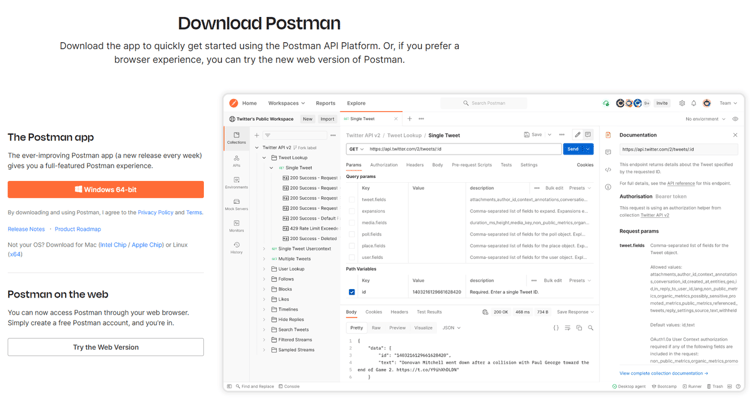
Postman interface
Open Postman and quickly familiarize yourself with a few areas of the application. For the purposes of working with Experience Platform we really only need to focus on a few key areas of the application.
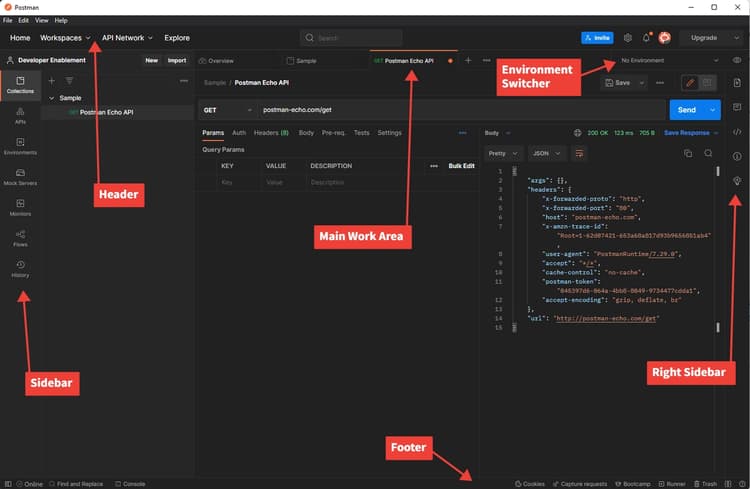
Sidebar
The sidebar is what allows you to navigate quickly across the different Postman elements. During the labs you will only use the two items below:
Collections - groups of saved requests that can be imported from an external location or created by yourself.
Environments - a set of variables that you can reference in your Postman requests. In Experience Platform you can think of Postman Environments as synonymous with Adobe IMS Orgs. We will use the Environments feature in Postman
Header
Workspaces - enable you to organize your work into various groupings (i.e. projects, teams, etc.)
Main work area
The main work area is where you will perform a majority of your work when working in Postman. All API requests are exposed in a specific tab within the main work area.
Right sidebar - provides additional access to tools based on the current tab selected. Examples are documentation for the request, comments and code snippets to name a few features.
Environment selector - allows you to quickly switch between different environments to access pre-configured variables when working with APIs. When working with Experience Platform you will leverage this when working in a specific Adobe IMS Org.
Footer
At the very bottom of the Postman application you will find a set of functions that allow you to quickly see the logs for the calls you made, quick access to find and replace and various other functions.