Configure mapping
Import mapping set
If you completed the Batch Ingestion lab you can re-use the mapping set you created there 😄🎉
Perform the following steps:
-
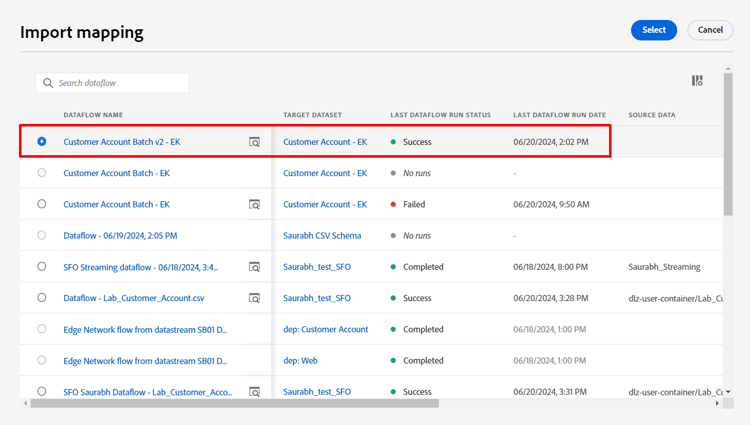
Click on the Import Mapping button on the mapping screen

-
Choose the dataflow you created in the Batch Ingestion section and select it. It should be named like Customer Account Batch v2 - <your initials>.
After import you are going to see errors appear. This is because the date format used for the birth_Date field in the sample file has changed.
- Batch Sample file used -> mm/dd/yyyy
- Stream Sample file used -> yyyy-mm-dd
The calculated fields that use date functions will need to be updated to account for the change in the date format used.

Update calculated fields
Update each calculated field by simply clicking on the arrow icon next to each calculated field and then validate your mappings
