Check final mapping set
Passthrough mappings
NOTE
Ensure your final mapping matches what is shown below before continuing.
NOTE
Replace the <tenant-name> with the value from your sandbox
Source Field
Target Field
account_create_date
<tenant-name>.account.createDate
account_end_date
<tenant-name>.account.endDate
customer_id
<tenant-name>.customerID
plan_name
<tenant-name>.plan.name
plan_id
<tenant-name>.plan.planID
billing_city
billingAddress.city
billing_zip_code
billingAddress.postalCode
billing_state
billingAddress.state
billing_street_address
billingAddress.street1
email_optIn
consents.marketing.email.val
mobile_phone
mobilePhone.number
firstName
person.name.firstName
lastName
person.name.lastName
email
personalEmail.address
createDate
repo.createDate
modifyDate
repo.modifyDate
shipping_city
shippingAddress.city
shipping_zip_code
shippingAddress.postalCode
shipping_state
shippingAddress.state
shipping_street_address
shippingAddress.street1
Calculated mappings
NOTE
Be aware that the mappings for
birth_Date are different from the batch ingestion lab mappings due to how the date is formatted. Batch is using slashes / whereas streaming is using dashes -Calculated fields
XDM Field
iif(sms_optIn == null or sms_optIn == “”, ‘n’, sms_optIn)
consents.marketing.sms.val
concat(date_part(“mm”, date(birth_Date, “yyyy-M-d”)).toString(), “-”, date_part(“dd”, date(birth_Date, “yyyy-M-d”)).toString())
person.birthDayAndMonth
date_part(“yyyy”,date(birth_Date,“yyyy-M-d”))
person.birthYear
NOTE
Ensure your final mapping matches what is shown below before continuing
Finalize dataflow
When you are done click the Next button and then click the Finish button to update the dataflow with the new mapping logic.
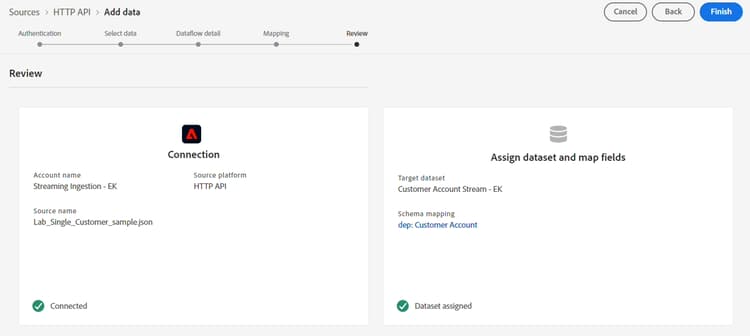
You should now see a screen that displays the HTTP API account you created with all the associated dataflows using that account. The dataflow you created should be shown as well.
recommendation-more-help
blueprints-learn-help-blueprints