Using Data Landing Zone
Prerequisites
If you haven’t downloaded Azure Storage Explorer do so now as it’s a requirement for this lab. Find the download at the link below:
Download Azure Storage Explorer
- Install the application
- The first time you open the application, accept the End User License Agreement

Configure Azure Storage Explorer with Experience Platform
-
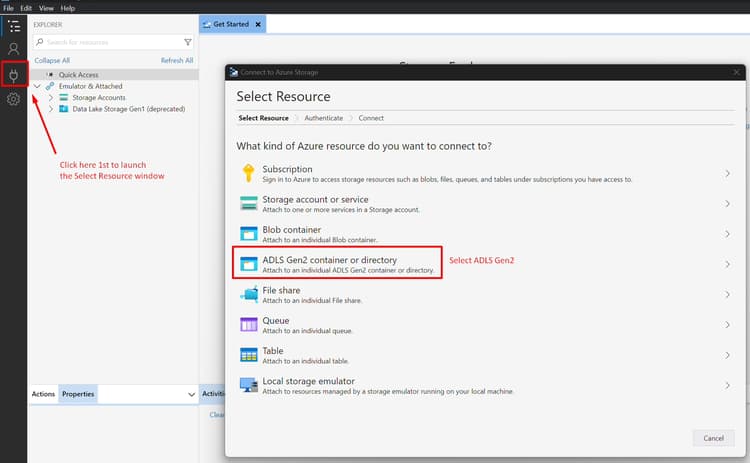
Open Azure Storage Explorer and click on the Select Resource icon and then select ADLS Gen2 Container or directory
-
Select Shared access signature URL (SAS) and click Next

-
Enter the Display name as Data Landing Zone
note NOTE You cannot continue at this step until you provide the SAS URL. You get this from the Experience Platform, which you see in the next step. 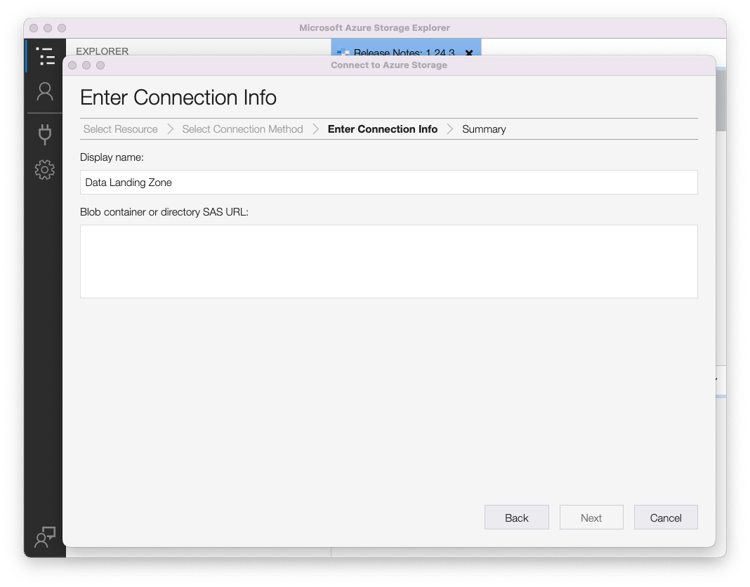
-
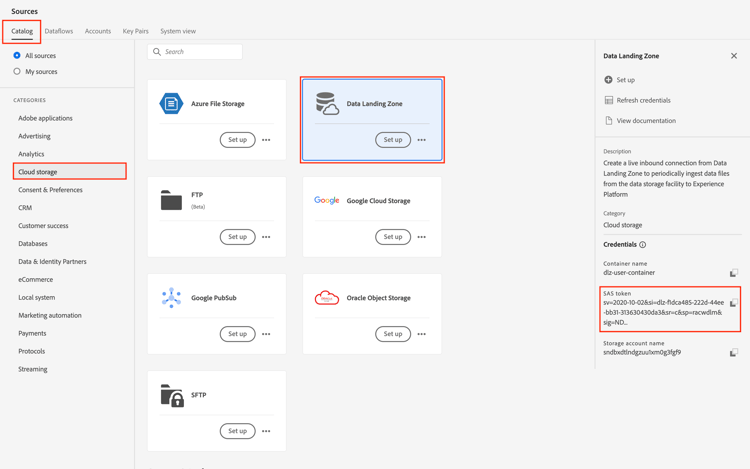
Go to Adobe Experience Platform and navigate to the Data Landing Zone by doing the following:
- Navigate to Sources -> Catalog
- Select Cloud Storage under the sources
- Next locate the Data Landing Zone card
- Click on the Data Landing Zone Card and then click View Credentials on the right rail
-
Copy the SASUri from the modal that displays.
Navigate back to Azure Storage Explorer and paste the SASUri value into the Blob container or directory SAS URL you left blank from the previous step

-
Click Next to continue

-
On the Summary screen click Connect
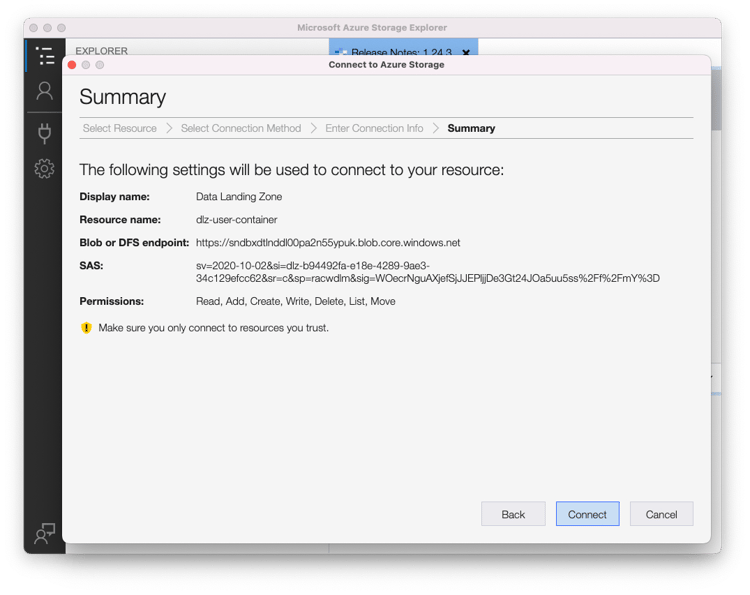
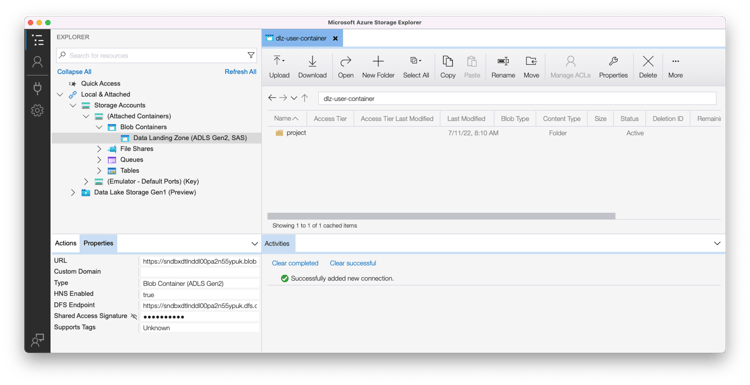
You should now see a screen that looks like below