Send an Edge event
Now that everything is configured, send in an event to the Edge to see it all work. To do this, use Postman to send a Web Event to the Datastream you created. This sends in an event with no OAuth Token to simulate a page view coming in from the web to the Edge. Ensure you have Postman open on your machine to perform this lab.
Lab expectations
-
Experience Event to hit the Edge
-
Datastream configuration to use Event Forwarding Service
-
Event Forwarding to send the Event to the webhook
-
Datastream configuration to use AEP Service
- Edge Audience to run
- Send Event to the Hub
-
Postman Response to include Edge Audience (but no attributes)
-
Profile Store to receive event and add an Event Profile Fragment
-
Identity Store to add a relationship
-
Dataset to receive data and store in Data Lake
-
Streaming Audiences to evaluate and store results on Profile on Hub
-
Custom Personalization Destinations to send any Streaming Audiences “entries” back to Edge
-
HTTP API Destinations to send any Streaming Audiences “entries” to the webhook
-
Eventually HTTP API Destinations to send any Streaming Audiences “exits” to the webhook
-
Eventually Custom Personalization Destinations to send any Streaming Audiences “exits” to the Edge
Navigate to the call
- Postman Left Sidebar -> Collections
- Collection -> AEP Foundations Bootcamps (Labs)
- Folder -> Profile Lab
- API Request -> Create Web Event Edge (No Auth)

Modify API request
If you have already done this, you can skip down to Execute the API.
Before you can execute the API request you need to add some additional pieces of information to the request. Start by gathering the following values:
Gather the datastream ID
- In the left rail click on Datastreams (under the Data Collection heading)
- Select your Datastream and copy the Datastream ID value

Update Postman query param
- In the request itself click on Params
- Update the Value with the datastream ID from the previous step
- Click the Save button to save your update
- Change email to your email

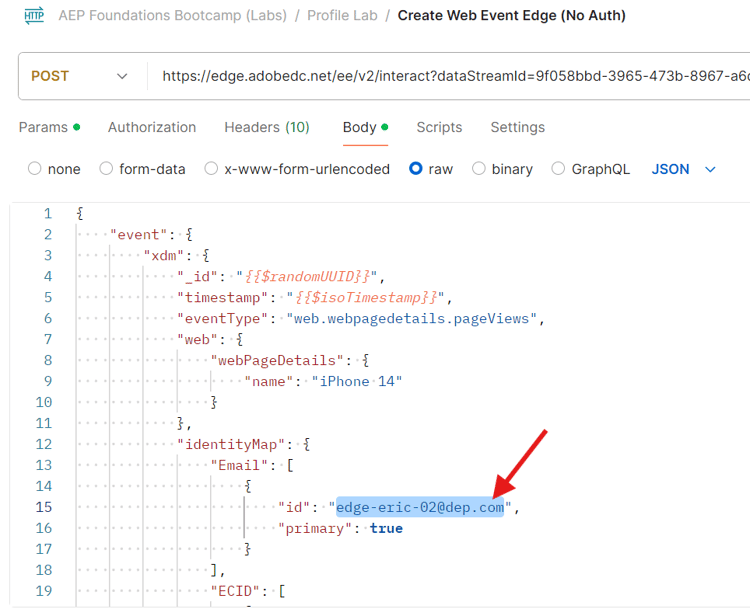
Execute the API
Execute your request by clicking the Send button.
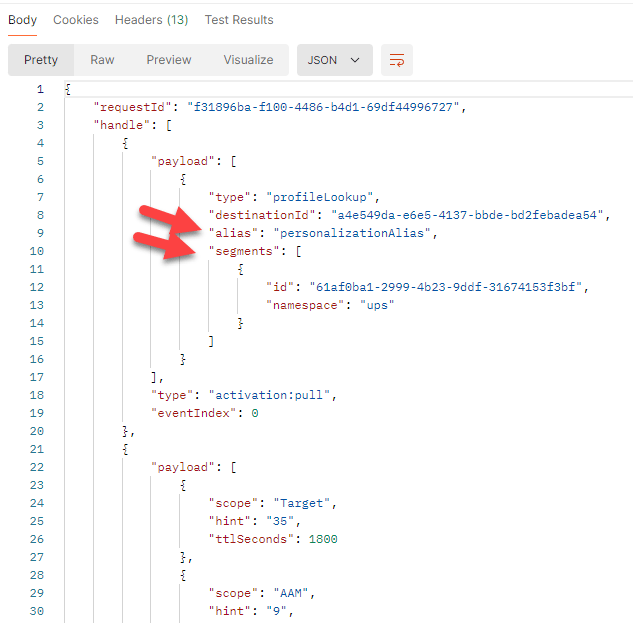
What you should see coming back in the response are these core things:
-
A 200 OK response means the data was successfully sent and accepted by the Edge Network
-
In the payload response you should also see the following:
- the destinationId of the Custom Personalization destination you set up
- the alias name of that destination (yours was called customPersonalization)
- any of the segments the profile qualified for that exist on the edge
Errors you might encounter
Below is an example of an error you may encounter. This means the edge segmentation evaluation is not yet available to evaluate the data being sent into the edge network.
"errors": [
        {
            "type": "https://ns.adobe.com/aep/errors/EXEG-0203-502",
            "status": 502,
            "title": "The service call has failed.",
            "detail": "An error occurred while calling the 'com.adobe.experience_platform.edge_segmentation' service for this request. Try again.",
            "report": {
                "eventIndex": 0
            }
        }
    ]
Validate event forwarding
On webhook.site you should immediately see the same payload body you sent via your Postman request appear.

Look up the Profile
In Adobe Experience Platform look up the profile you just sent in from the event you just sent into the Edge Network. Navigate to Profiles -> Browse to perform the lookup using the following information:
- Merge policy -> Default Time-based
- Identity Namespace -> Email
- Identity Value -> edge-email@dep.com
-
Click View to look up the profile
-
Click on the Profile ID to open the profile

-
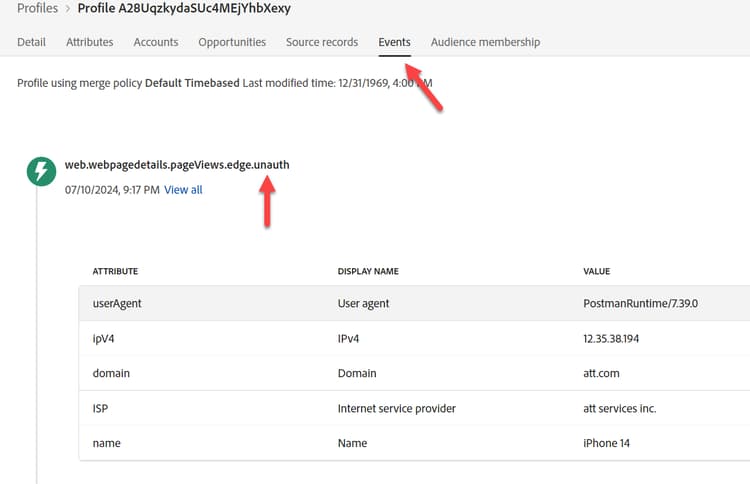
Click on Events in the top nav and you can see the event you just sent in
-
Validate the Profile has qualified for the Audiences by reviewing the Audience Membership tab in the top nav. You should see the following:
-
Any Event Edge (within last 15 minutes)
-
Any Event Streaming (within the last hour)
-
From use case #1 you should also see the audiences of:
- Visited iPhone 14 Page but Not Owns/Ordered it
- Visited iPhone 14 Page

Validate streaming destination activation
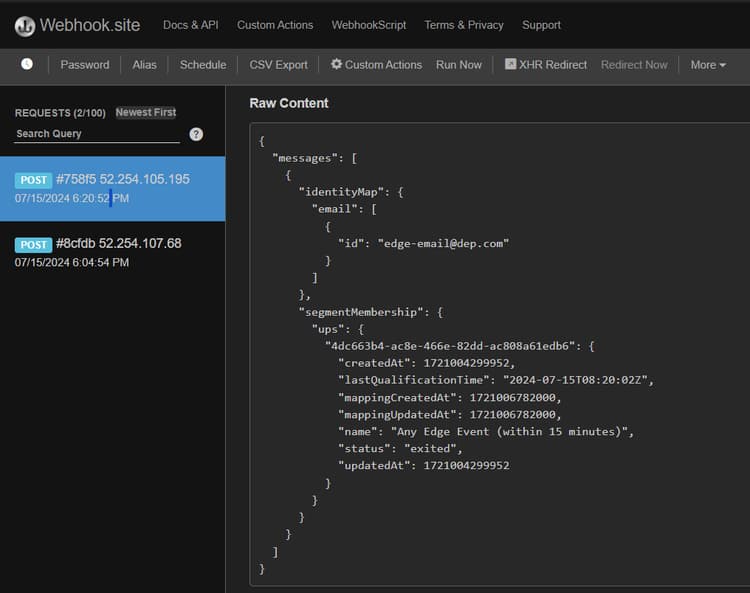
Check your webhook to see if the streaming destination you configured has activated any segments. They should appear in ~5 minutes.
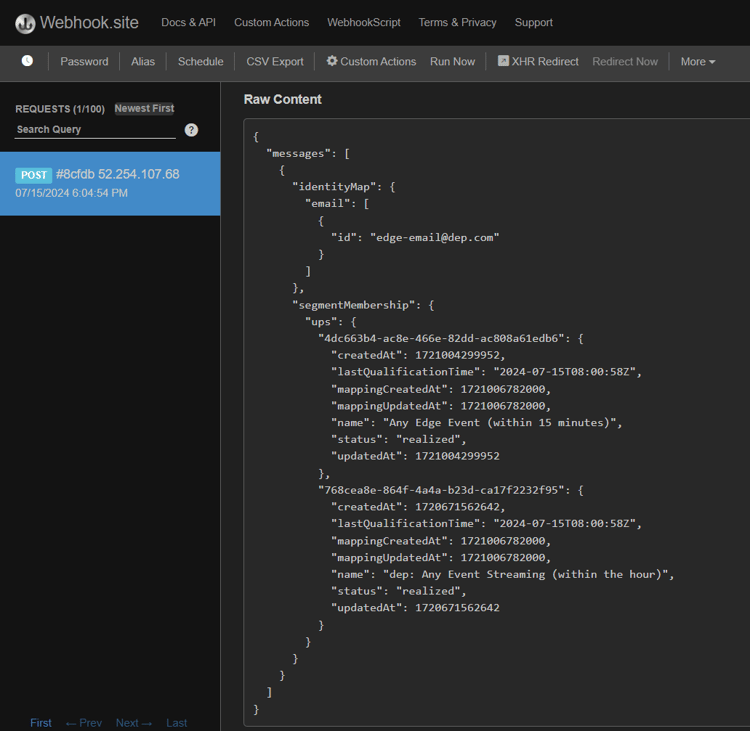
If ECID and email have not yet linked, a few minutes after that, another payload may appear with the same values except identityMap will now have two identities (email & ecid)
Over time you should begin to receive more payloads out to the webhook for “exited” status.
How to interpret all the checks
- Check for 200 response in Postman (properly formatted payload)
- Check if the webhook has the event (properly configured Event Forwarding)
- Check if the Profile has the events (properly configured AEP Service, event received and processed event on the Hub)
- Check if the Profile has two identities (Identity Graph has linked on the Hub)
- Check if the Profile qualified for the audiences (properly defined audience)
- Check if the webhook received the Streaming Audiences (properly configured HTTP API Destination)
- Check if Postman response includes segments (properly configured Custom Personalization Destination)
- Check if Data Lake has log of sending (properly configured and sent Audience Qualification and Streaming Destination). See Below.
Data Lake “Log” of destinations
After at least 60 minutes you can even check your dataset has the event you sent. To do so perform the following query using Query Service.
Change the table name below to the one from your sandbox. To find it, go to your dataset list and filter on “dest”, open the dataset and copy the table name on the right rail.
SELECT * FROM profile_export_for_destination_merge_policy_xxx
WHERE extSourceSystemAudit.LASTREFERENCEDDATE >= CURRENT_DATE
AND identitymap['email'][0].ID in ('edge-email@dep.com')
ORDER BY extSourceSystemAudit.LASTREFERENCEDDATE DESC
LIMIT 10