Build Audience #2
Lab objective
Build an audience that finds all profiles who do not have an active line that is an iPhone 14
Analysis tasks
This Audience is “those who do not have an active iPhone 14”
-
How do we know someone does not “have an active iPhone 14”? Ideas:
- Include those who purchased an iPhone 14
- Include those who have Billing data for an iPhone 14
- Include those who have any web data coming from an iPhone 14
- Any others?
In the end, this boils down to a business choice on who they want to market to. In our case, the company has deemed this so important we built a schema that defines Active Lines, so use that.
Create a new Audience (Owns iPhone 14)
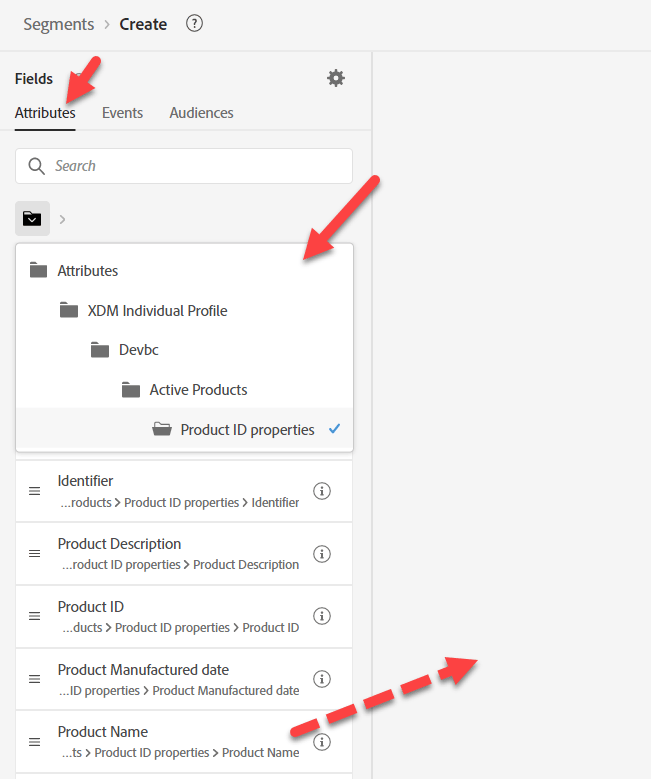
- On the Attributes tab in the left rail, navigate down to Product Name (or search for it).
- XDM Individual Profile --> <tenant name> --> Active Products --> Product ID properties --> Product Name
- Drag Product Name onto the canvas
Save the Audience
- Type iPhone 14 (keep as Batch evaluation)
- Provide a Description
- Save Audience as “Owns iPhone 14”
- Go through the same steps above for the Pixel 7 (if you have time).

- If we use the Purchase Event:
- What if they didn’t buy from us, but have an active line?
- What if they purchased 2 years ago, my rule has to look back N number of years and we only kept 1 year of Events on Profile?
- The Billing Event seems like a better fit:
- But now the data is up to a month old.
- What if the last Billing Event was 2 years ago, this could include people who aren’t customers
- What if my data load failed, my count might drop to zero if I’m only looking back one month in order to exclude old data
- Do we even capture the Device for a Billing Event? No, so we would have to change our data feed
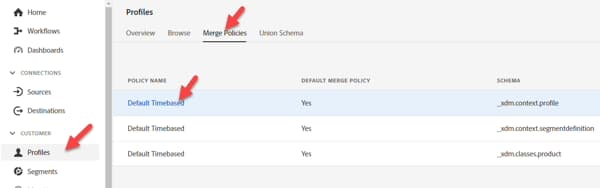

Rebuild the Audience
Marketing walked in today and gave us a requirement to have this Streaming and unfortunately the way we have this built is Batch. Fix that:
-
Open the “Owns iPhone 14” Audience and change the name to “Owns iPhone 14 Batch”.
note warning WARNING Today we cannot change the Evaluation Method in the UI. Any Audiences that reference this Audience also have to be deleted. Keep this in mind when deciding on your building strategy of using Segments within Segments. -
Create a new Audience. Add the “Owns iPhone 14 Audience Batch” Audience to the canvas and click Convert to Rules.


-
Update the Description, Name and Evaluation Method to Streaming on the bottom right corner, then click on the folder icon next to the Evaluation Method. You should see this:
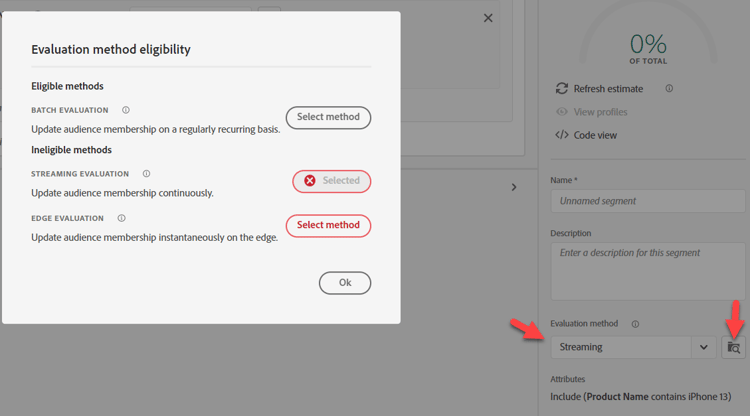
While not obvious, the reason for this is we are using Product Name on a lookup schema
note NOTE Whenever we use a lookup, our evaluation method is forced to Batch. You can tell this if you look at the path and it has “properties” in it anywhere 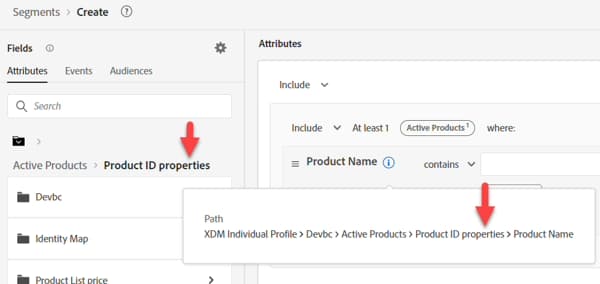
-
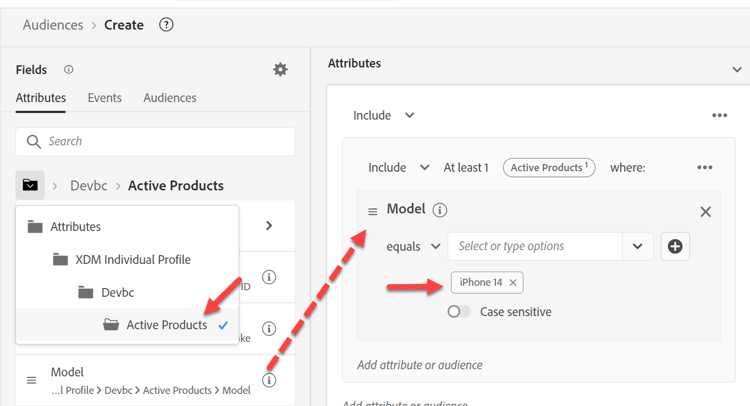
Replace the existing value for product name to now come from the XDM Individual Profile schema
Replace the following path:
- XDM Individual Profile > Dep > Active Products > Product ID properties > Product Name
Add the new path:
- XDM Individual Profile > Dep > Active Products > Model

-
Change the Evaluation Method to Streaming and click the folder icon

-
For your new Streaming eligible Audience, provide a description.
- Save the Audience as “Owns iPhone 14” Audience.
- Click the blue button Activate Audience to Destination

-
Select the Streaming DEP Webhook Destination and click Next
-
Click Next and Finish