Build Audience #1
Lab objective
Build an audience that only finds profiles who placed an order for an iPhone 14
Breaking down the Audience
Start by creating your first audience. It is composed of many pieces that we need to incorporate. Click on Audience on the left rail and click the Create Audience button in the top right.
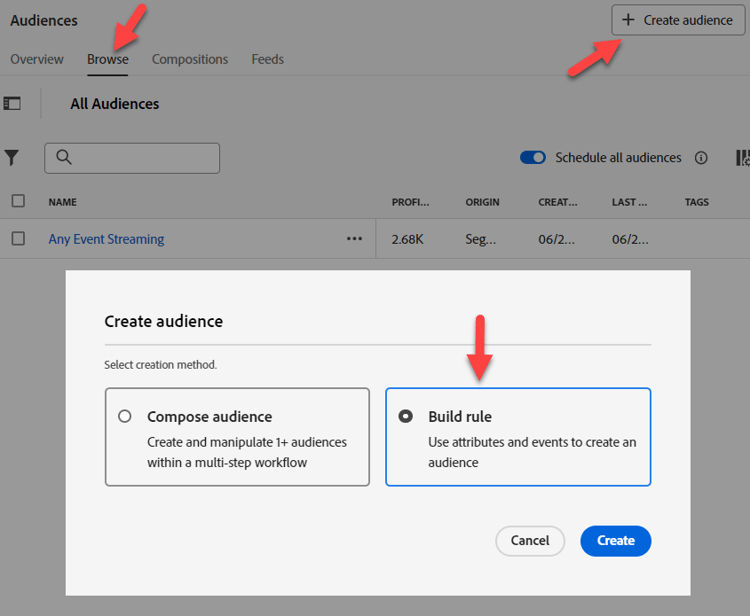
We are going to break this Use Case up into pieces and solve them with multiple Audiences. The reason for this is we are trying to make this a streaming and two things are preventing this:
- The exclude clause “no order exists for iPhone 14/Pixel 7”
- The exclude clause “no active iPhone 14/Pixel 7”. We will go over the ramifications of this at the end.
Part 1 - discovery
The first part of our Audience is to look for “no order exists for an iPhone 14”. Imagine we are a new Marketer to AEP and did not design the Schema. Do a search for “Order” in the Events tab on the left rail

You get a lot of objects related to an order
- Attributes: e.g. Order ID, Order Date
- Folders: e.g. Order, Plan Order Details
- Event Types: e.g. Order Placed, Order Shipped, etc.
- There is no “i” for the Order “folder”. Even though our description has been populated, it does not have it and this may be a source of confusion for your Marketer as they may try and use that or want to know what it is.
- The “i” for Event Cards just repeats what the type is since the Event Type is one field, not many.
- Summary data will only show if the value is present in more than 2% of merged profiles. This also drives any autocomplete when filtering on a String.
Use the Order Placed Event Type card and drag it onto the canvas.

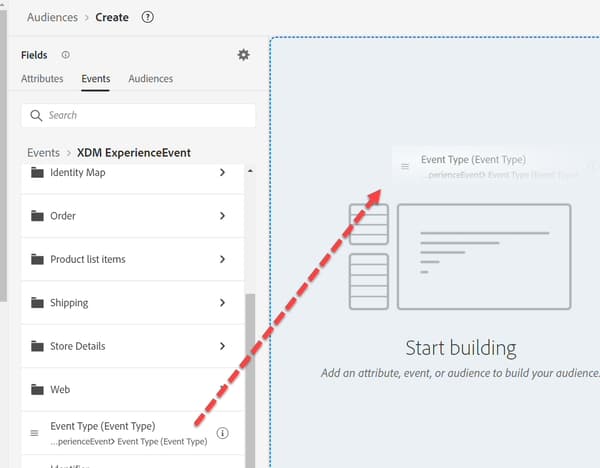
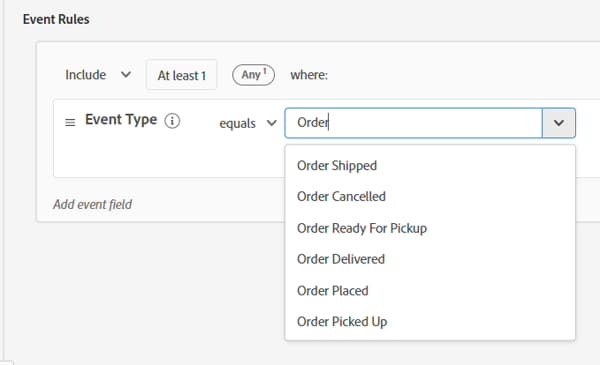
- It shows the name of the Event Type in the Audience making it easy and quick to understand
- It is quick and requires less steps
- It allows selecting multiple Event Types (e.g. “Order Picked Up” or “Order Delivered”) if we wanted to include multiple types in one criteria
- It supports case sensitivity
- Order Placed but Picked up or Shipped
- Order Placed but Cancelled
- Multiple Orders Placed but one Cancelled
Our Marketer knows from their training that more than one data source was loaded:
- Orders (captured by the Order system across all channels)
- Web (client side tracking of what people are clicking on, including Orders placed on the site)
- eCommerce (captured by the eCommerce system on the site)
Which source should we use? They all logically represent the same event “Order Placed”. But they are physically stored in different systems. How do we know which to use? The best way is to look at the descriptions on each Schema object and each field to know.
- Where is the data coming from?
- What does it contain or not contain?
- What is the latency?
- Has any system been designated “source of truth”?
- Are there any nuances we need to take into consideration?
For us, we want to use Order Placed, but keep in mind, depending on our use case we could have had the following requirements, that may influence which source we pull from:
- Onsite purchases in last 30 minutes
- Orders placed and not Cancelled
- Orders picked up within 1 day of being Ready
- How many events would be counted for orders placed today?
- How many orders were placed from the customers perspective?
- How many events would be counted if we filtered on Shipping Method = overnight (assuming they chose this)?
- How should we address this (Audience or Data Model)?
After doing some analysis, we are going to go with the Orders Event of Event Type=”order. placed”. We want to ensure our Audience is using the source of truth at the tradeoff of speed (the web data streams in with each click while the Order goes through some processing before sent). Plus in the future we may want to exclude those who Cancelled and that could be done through any channel.
Part 2 - build the Audience
Turn on Show Full Schema
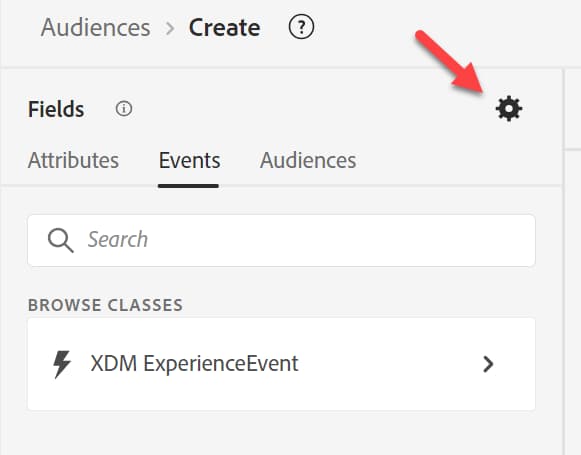

Build on what you started. Click on the Placed card, then clear “placed” from the Search on the left rail and drill down into:
XDM Experience Event -> Product List items folder

We are looking for something that we can filter on that might have iPhone. Notice we have three options
- Name
- Product
- SKU
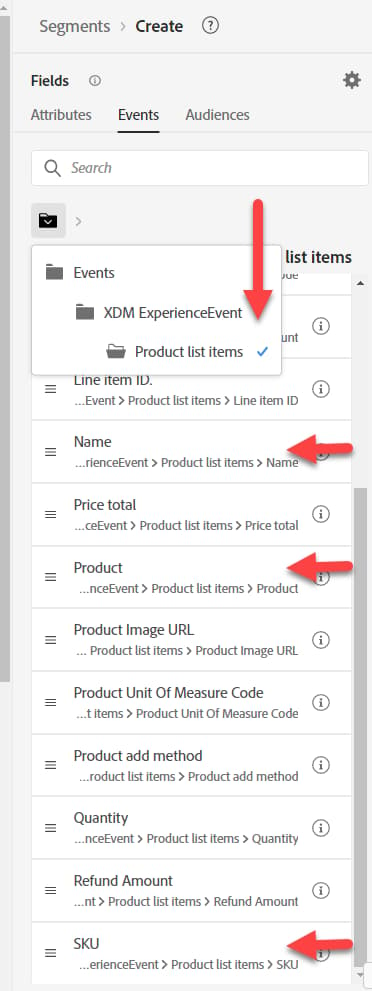
They all could be good candidates, but we don’t know. Click on the “i” for more detail on each one.
- Name Description = The display name for the product as presented to the user for this product view. For example: iPhone 14, Pixel 7
- SKU Description = Stock keeping unit (SKU), the unique identifier for a product defined by the vendor. For example: iP14, Pix7
- Product Description = The XDM identifier of the product itself. For example: 123, 456
Turn “show only fields with data” on
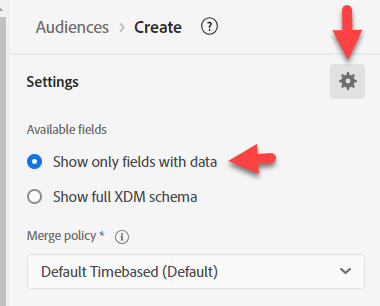
Once you turn on “show only fields with data,” you notice the fields you were thinking of using go away.
Drill down to XDM ExperienceEvent > Product list items > Dep > Model
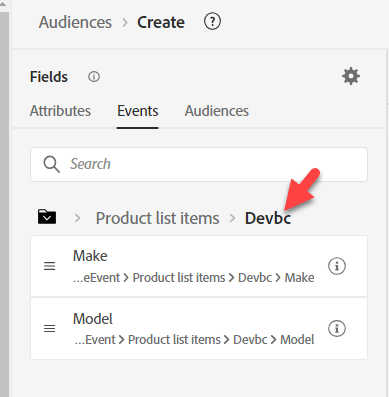
Model looks like it, but doesn’t have any descriptions.
Drag it onto the Placed Event Card.
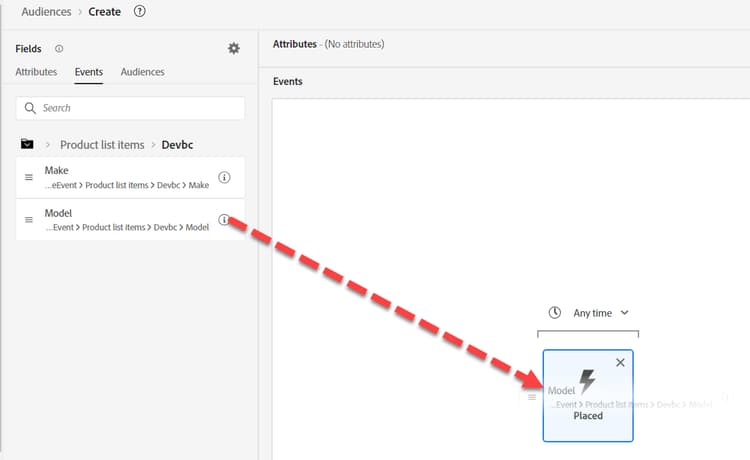
Add iPhone 14
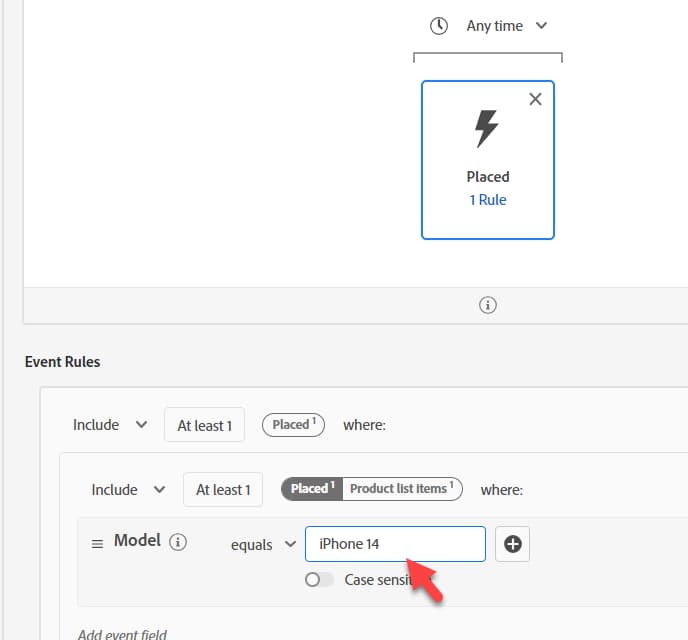
Above the Placed Event, change “Any time” to “Today”

Provide a description
Change evaluation method to Streaming

Save Audience as “Placed Order iPhone 14”
Click the blue button Activate Audience to Destination

Select the Streaming DEP Webhook Destination and click Next
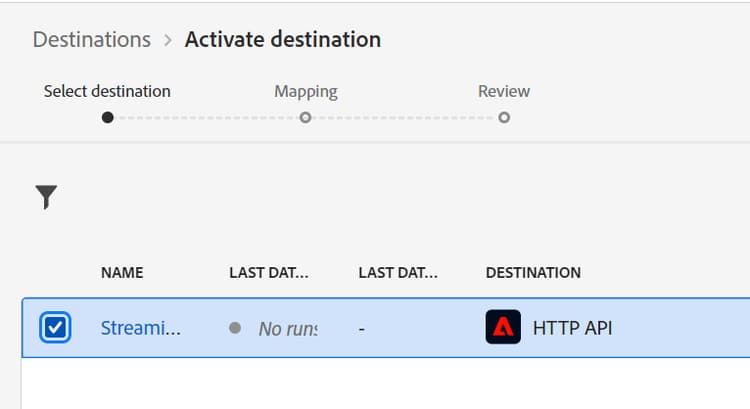
Do not change the mapping, click Next and Finish

- XDM Individual Profile > Dep > Active Products > Product ID properties > Product Name
- Description: Name of the product.
- XDM ExperienceEvent > Product list items > Dep > Model
- Description: The display name for the product as presented to the user for this product view.