Tag content using ExL Authors extension
This guide explains how to add metadata tags your markdown content using the Experience League (ExL) Authors extension in VS Code.
What’s new in ExL Authors extension whats-new
The latest version is Adobe ExL Authors - Version adobe-exl-authors-1.0.9.
- Adds a Validate tags panel (in the sidebar just below Review Tags) that scans Markdown and playlist files against the locally cached taxonomy, then reports invalid or retired tags, tags assigned to the wrong field, missing parent tags, and label mismatches. Authors can review files and apply fixes individually or in bulk.
- Adds playlist metadata editing and review. Save handling was also improved to preserve the latest playlist and slide content.
See the release notes wiki for the full list of fixes and updates.
Edit a single file single-file
You can add metadata tags to a single file. Use cases:
-
Add a product tag to the
metadata.mdor theTOC.mdfile -
Add a role tag to an article or TOC.md
-
Add a feature tag to an article
note important IMPORTANT Adding a tag (such as product) to metadata.mdcauses all articles in the repo to inherit the tag. Adding a tag in theTOC.mdfile displays the tag on all files referenced in the table of contents. Article-level tags supersedemetadata.mdandTOC.mdvalues.
To add a tag to a single file
-
Download and install the latest Experience League (ExL) Authors extension VSIX file in VS Code Extensions.
-
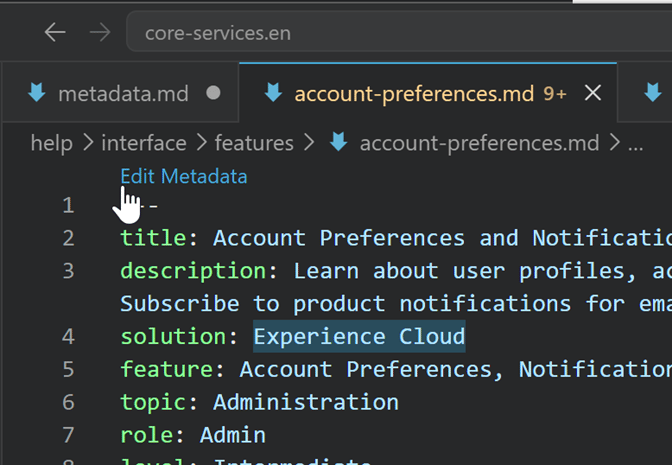
In your repo, open the file.
-
Click Edit Metadata.
-
In the IA Metadata panel, click Add (the plus icon) for product.
-
Save the file.
Work with tags review-tags
To launch the auto-tagger, click Adobe EXL Authors (in the sidebar), then click Review tags.
The Review Tags interface displays files and data about each file (file name, folder, tags found, and review status).
Descriptions:
-
Review Tags: (The main UI) Lets you find and add tags.
-
Keyboard shortcuts:
- alt-t or opt-t to open a new Add tags to selected files panel. This panel lets you quickly add tags with smart filtering.
- Copy tags from one file and paste (apply) them to others.
- opt-A or alt-A to launch auto-tagging for all visible files in a folder.
-
Filter: You can filter files by missing tags, folder, or review status. You can also search for specific files.
-
Select files: You can use the space bar to select articles when mousing over them.
-
Copy, paste, or add tags: Lets you perform these actions on files, or quickly access the Add Tags panel.
-
Autotag: Opens the IA Metadata panel. It’s an intuitive interface that lets you review, remove, and add tags.
Use IA Metadata to add and remove all tag types.
You can also browse and search the Taxonomy Glossary to verify whether tags exist.
Quick tag
This panel lets you quickly add tags with smart filtering and apply tags to multiple articles.
You can open the Quick tag panel in IA Metadata. Or, open it by selecting files, then using Opt-T or Alt-T shortcuts.
Tag automatically
In the IA Metadata panel, click Tag Automatically.
This option automatically determines appropriate tags for the article, based on tags in Top Quadrant (glossary).
Autotag batches of articles
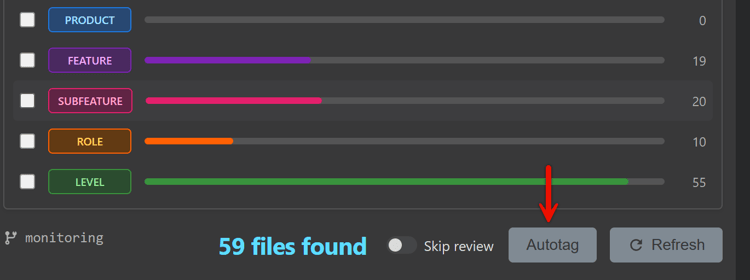
You can apply, save, and mark reviewed tags on batches of files (all the filtered articles on the Review Tags table). Tags are generated and validated for each file. Files are saved automatically.
-
In the Review Tags panel, click Autotag.
How-to videos
- Video - May 21, 2026 - v1.0.4 (recommended viewing)