Migrating to GHEC
GHEC migration
Adobe is moving from the old Enterprise account at git.corp.adobe.com to the new GitHub Enterprise Cloud (GHEC) across the board. While switching to GitHub Enterprise is going to offer several feature and security advantages, it might be difficult and confusing for some of us to make the transition. For example, we will have two Github.com accounts: Public and Enterprise.
Migration status
All repos have been migrated from git.corp.adobe.com to GitHub Enterprise Cloud.
Incomplete or missing v1 features
- Generate exl-ids for new GHEC articles is not yet available in GHEC.
- Migrated repos are no longer tracked in Jenkins reports such as Page counts. Reports will not be updated until migration is complete.
- Next Page and Previous Page buttons are not yet implemented, and might be deprecated.
Major changes all writers should know
Note the following migration issues:
- Intermittent publishing issues - We’re experiencing intermittent publishing issues, especially in large repos. We’re working on resolving these issues. See the Preview and publish article for details. Most of thesee issues have been resolved, but we’re still working on edge case issues.
- Preview before publish - Add
hold: trueto the article metadata to publish to preview, not production. When an article is set to hold, updates you make to the article appear only in preview, not in production. Remove thehold: truetag when you want to publish to production. The Slack notification provides URLs for both production and preview updates. - New {hide-from-toc} syntax - Instead of adding
hidefromtoc: truemetadata to the article you want to hide from the left nav, a{hide-from-toc}parameter needs to be added to the article or section in the TOC. (Example:+ {hide-from-toc} [Beta features](beta-features.md).) During migration to GHEC, converted all hidden metadata to use the new format. Going forward, you will need to tag the TOC with metadata instead of the article. - For
hideandindex, we no longer supportyes|y|no|n. We support onlytrueandfalse.
See Metadata for details.
Minor issues that might affect you
- In v2, if you include both
width=andalign="left"properties in your image links, the content doesn’t render properly (the text wraps around the image). We’ve removed all thealign="left"properties in existing files, but if you add new images with these properties, you’ll hit this rendering problem. - If the Kodiak job that scans your PR fails to complete, you can re-trigger the job using the Kodiak dashboard. This is an Adobe IT job, not SCCM.
- In v2, we have an allowlist of file formats for downloadable files. These include the major file types such as ZIP, PDF, XLS, DOC, and so on. If you set up a download link to a file type that is not working properly, please let us know, and we’ll add it to the allowlist.
- The Last update date is not always accurate. This issue is in progress.
Tighter syntax rules
Quick summary
- HTML syntax - Some HTML syntax especially complex or erroneous comment syntax causes content to disappear in V2. To prevent these errors from occurring, we have created a new validation rule for comments. See New rules for comments.
- Deprecated roles - In V1, we allowed deprecated roles (Data Engineer, Data Architect, and Architect) to be used even though these values were mapped to
Developer. In V2, we no longer support these deprecated values. (It’s likely we’ll expand role values later with the new metadata taxonomy.) - Table, note, and code block syntax - See below for details.
- Comment syntax - There are tighter rules for comment syntax to avoid rendering errors - see below for details.
Here are examples of new or updated syntax errors in v2 that are different from v1. Please let us know if you want to add, remove, or edit validation rules.
Common markdown linter rules
-
MD005 - Inconsistent indentation for list items at the same level
Items in bullet and numbered list need to have the same number of indent spaces.
-
MD010 - No hard tabs
Hard tab characters need to be spaces.
-
MD031 - Code blocks should be surround by blank lines
You need blank lines above and below the code blocks. This rule also applies to code blocks in notes.
-
MD032 - Lists should be surrounded by blank lines
You need blank lines above and below the lists. This rule also applies to lists in notes.
-
MD037 - Spaces at the start or end of emphasis syntax are no longer allowed.
Syntax such as
**This is bold**won’t pass if there is a space after the start syntax or before the end syntax. -
MD038 - Spaces at the start or end of code blocks are no longer allowed.
` VisitorAPI.js` will be flagged.
-
MD046 - Code block style inconsistency
This rule is tricky to troubleshoot. There are basically two ways to create code blocks: with triple backticks (fenced) or by indenting. The MD046 error mentions that a code block is fenced when it should be indented. What makes it tricky is that the error usually happens much earlier in the file with an improper indent in a list. Look before the line number to make sure that nested items between lists are indented properly and that you don’t indent a line unless it’s in a step. Or ping Bob.
-
MD055/MD056 - tables
For example, pipe characters in tables need to be preceded by a backslash to display. Tables must have the same number of pipe characters.
note NOTE During testing, check your HTML tables to make sure they render properly. We haven’t been able to validate every syntax issue that can cause a problem. Let us know if you find a table that doesn’t render properly.
Custom Adobe linter rules
-
AM004 - Malformed table
Spaces are not allowed after the closing pipe character in a table row.
-
AM009 - Malformed note
Catches issues like
> -
AM015 - Comment syntax (in-progress)
Flags commenting problems such as unmatched open/close syntax, nested syntax, and multiple comments in the same paragraph. In-progress.
-
AM016 - mismatched symbols not escaped.
Syntax such as
'{'will be flagged unless you escape the characters. -
AM020 - frontmatter-validation, especially deprecated role values
Old deprecated role values no longer allowed:
Architect,Engineer,Data Engineer -
AM030/AM031 - Anchors cannot be one of the reserved anchor ids
For example, a
{#search}anchor can cause problems for some rendering engines. -
AM046 - Missing links not found.
Broken links in unused .md files (files not in TOC) are now flagged as errors. To remove these errors, either rename the file suffix (such as
overview.draftorreadme.txt) or fix/comment out the links.This rule also flags bad links such as this (note the redundant brackets):
[requisition lists]([https://experienceleague.adobe.com/docs/commerce-admin/b2b/requisition-lists/requisition-lists.html](https://experienceleague.adobe.com/docs/commerce-admin/b2b/requisition-lists/requisition-lists.html))and this:
[link text](file.md/#deep-link)(need to remove slash for link to work) -
AM047 - Invalid filenames
In v1, we intercepted and changed filenames that include underscores and uppercase letters during post-processing. In v2, we no longer post-process files in the same way, so we flag invalid filenames such as
sendPushSubscription.mdorsend_push.mdas errors. -
AM049 - TOC validation
There are tighter rules for TOC.md files. For example, adding inline comments to TOC entries is now flagged to avoid rendering problems.
-
AM054 - Commenting requirements. See next section about new rules for comments.
-
AM062 - Linked repo asset exceeds allowed file size. In this case, SVG cannot be larger than 140 KB due to an EDS limitation.
-
AM063 - Inline triple backticks are not allowed at this time. This rule is likely temporary because we want to allow a way to use triple inline backticks to wrap a single backtick that needs to be part of an inline code block. For now, don’t use triple backticks inline.
New rules for comments
There are now tighter rules for comment syntax:
- To comment out a section with multiple lines, the open (
<!--) and close (-->) comment tags must be on their own lines.
Example:
<!-- ## Deprecated section

Use the widgets commmand for improving things.

The end
-->
In this example, the start syntax must be on its own line:
<!--
## Deprecated section

The end
-->
- You must use the same comment syntax type for the syntax, such as
<!--/-->and not<!----/--->. - You cannot use multiple inline comments in the same paragraph.
- No unpaired or nested comment syntax.
Signing in to GitHub Enterprise Cloud
-
Make sure that you are signed in to VPN (GlobalProtect) or are using AdobeCorp in the office.
Unlike
git.corp, GHEC requires VPN or AdobeCorp. -
Sign in to GitHub - Adobe Enterprise Docs using your LDAP.
The first time you sign in to Enterprise
github.com, an Enterprise GitHub account is created for you.Note that this Adobe Enterprise account is different from a personal GitHub.com account you may have created. You can sign in to only one account at a time in a browser, unless you use Incognito or Private tabs.
note tip TIP To be able to switch easily between your Github.com enterprise account and Github.com public account without having to sign in again, see Switching between accounts. Another option is to use one browser for GitHub Enterprise and a different browser for public GitHub. That way, you don’t have to sign in and out all the time. -
If you don’t have access to a repo, ask Bob (bbringhu) or another Org Owner to give you Write or Admin access to any repo you are working on.
By default, new members have Read access. You want Write or Admin access for any repo in which you need to publish content.
"User is not assigned to this application" error message when you try to sign in, you might have run into a bug that causes some migrated accounts to be suspended. This bug causes some account names such as johndoe_adobe to be mistakenly changed to something like behseflsi13sfeds_adobe, and the account no longer works. Follow these steps to ask Adobe IT to resolve the issue:Configuring GitHub Desktop
While repos are being migrated, you may need to edit some repos in git.corp.adobe.com and other repos in GitHub Enterprise. During this interim period, you should add both Enterprise accounts to GitHub Desktop.
-
Make sure that you can sign in to the new org on GHEC (see the previous section).
-
If you use GitHub Desktop, open Settings (macOS) or Properties (Windows), and then click Accounts.
-
Click Add GitHub Enterprise account (you might need to delete your public github.com account), and then specify
https://github.com/Adobe-Enterprise-Docs/as the URL. Sign in using your LDAP.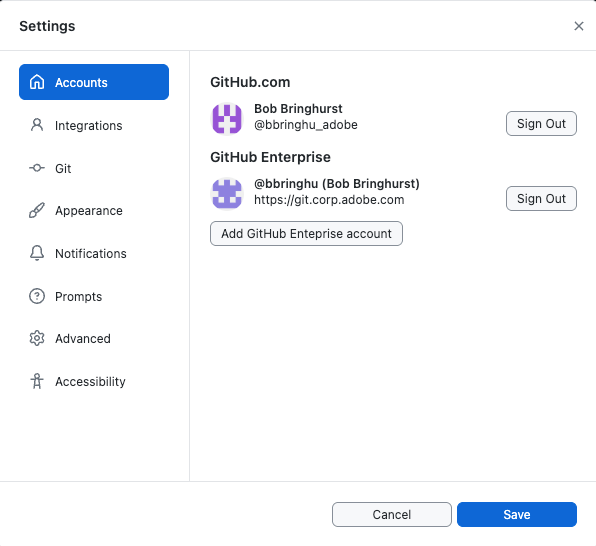
To verify you are connected, go to File > Clone Repository…. You should see a list of repos populated in the Github.com tab.
If you don’t see the list, go back to Accounts and log out of the Enterprise account, and then log in again. You should be prompted to give GH Desktop access to the Enterprise account. Once approved, the repos populate.
Setting up the new repo in GHEC
-
When you get the notification that your repo has been migrated, remove the git.corp.adobe.com clone and add the new GitHub Enterprise clone.
To remove the git.corp.adobe.com, select the repo in GitHub Desktop, and then choose Repository > Remove. Select the option to delete the files folder.
-
Create a clone of the new GHEC repo using the same process in GHEC as it was in git.corp.
Make sure that you’ve added your GitHub Enterprise account to GitHub Desktop settings as described earlier in this article. If you try to clone the repo in GHEC and get a prompt to install GitHub Desktop even if it’s already installed, it means your GitHub Desktop account isn’t signed in properly to GitHub Enterprise.
-
Test the new repo to make sure everything is set up properly. Let us know if you have any issues.
-
Once the repo is fully migrated to production, delete the old clone from
git.corp.adobe.com.
GitHub Enterprise Migration notes
- All history, branches, and branch-based pull requests are preserved in the migration. However, fork PRs are not migrated with the repository.
- Settings such as branch protection, team/user access, webhooks, and custom items such as wiki workflows need to be re-created.
- GHEC repos will require tighter branch protection rules, including mandatory pull requests: GHEC Branch Protection Rules wiki.
- Repos are migrated in batches. See ExL content repo migration plan wiki.
- VPN or Adobe Corp is required to use GHEC.
Autotagging content
There are two ways to autotag content.
- After your repo is migrated to GHEC (or any time after), the EXL team can run an autotag job that creates a PR to tag all the articles in your repo with v2 metadata. You can review this PR and merge.
- When creating or editing an article in Visual Studio Code, you can use a VSC extension to pick recommended metadata. More details to follow.
The V1 and V2 tags will co-exist in articles. V2 tags will have a v2_ prefix. During the GHEC migration process, EXL will ignore the V2 tags and use the V1 tags for search and browse pages. At some point after all repos have been migrated, there will be a cutover to using V2 tags in EXL. At that point, you will be able to delete V1 tags or just leave them.
For information about metadata tagging, talk to Tracy.