Resolve validation errors
Whenever you submit a pull request or commit to main, two validation checks occur:
- (Git/Kodiak) Check for conflicts between the main branch and your content, and check for security issues (Kodiak). Kodiak is required and controlled by Adobe IT.
- (article validation) Check to make sure your content is well-formed
Whenever a pull request to main is created, GitHub checks for merge conflicts as part of its built-in functionality.
When you submit a pull request, you can see the status of these checks on the pull request page.
If validation is successful, and if you have access, you can merge your pull request. If one or both of these validation passes fail, this article explains how to fix the errors.
Validation summaries
When you submit a pull request, you do not get a Slack notification. However, the validation summary (including errors) appears in the GitHub page.
Understand validation errors markdown-validation
Validation checks to make sure that you oon’t have any broken links and that you’re using valid Markdown syntax. Errors are listed in the validation summary that appears in Slack or your pull request page.
Markdown syntax
Most of the errors you see in this section are self-explanatory. You get the Markdown filename, a description of the error, and the line number where the error occurs. See the Syntax Style Guide.
To fix a syntax error, open the file containing the error. Make sure that you open the file in your branch if you submitted a pull request, not in main. Then edit the file and commit the changes to your branch. Committing the change to your branch automatically triggers a new validation job.
Resolve Git conflicts git-conflicts
A Git conflict occurs when an edit in your branch is in conflict with an edit in the main branch that occurred since you created your branch.
The most common Git conflict occurs when two people try to make changes to the same section of content within an article.
-
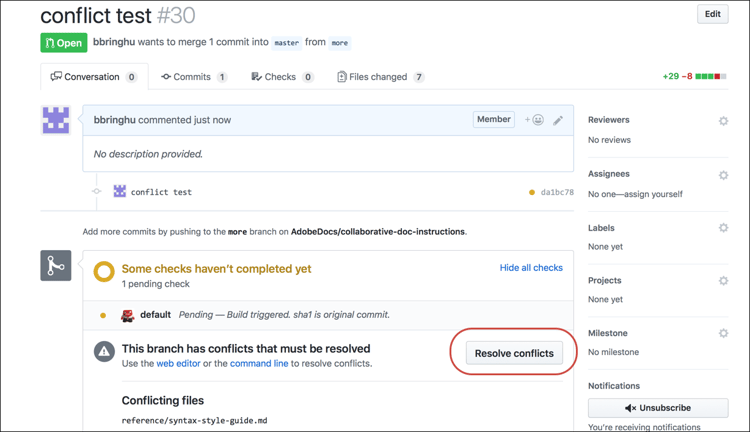
When you submit a pull request, check to see if there’s a conflict between your branch and the main.
-
Click Resolve Conflicts.
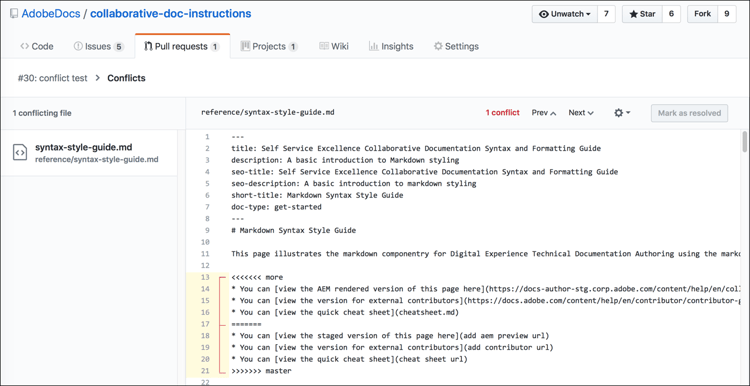
In this example, one person changed “AEM rendered” to “staged” and another person added links in the same line. Git doesn’t know which change to pick, so it flags the conflict and makes you decide.
-
Edit the section or sections with conflicts. Remember to remove the extra lines that are added.
-
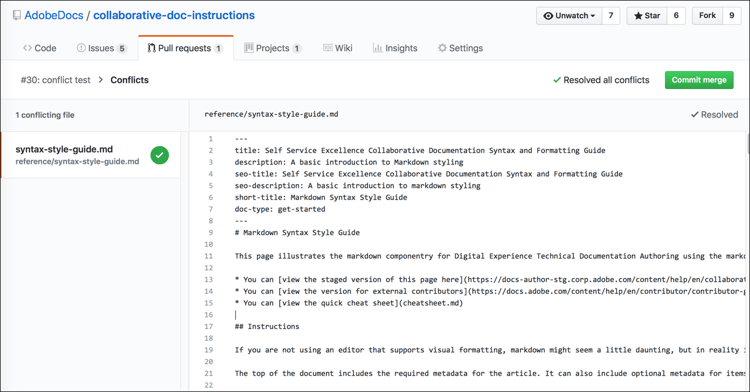
Click Mark as resolved.
-
Click Commit merged.
Clicking the “Commit merged” option commits the changes you made to your pull request. You can then go on to merge the pull request, assuming of course that the validation check passes. If not, well, keep reading.
git reset -hard main and then git push --force (it’s the equivalent of deleting/re-creating the branch).