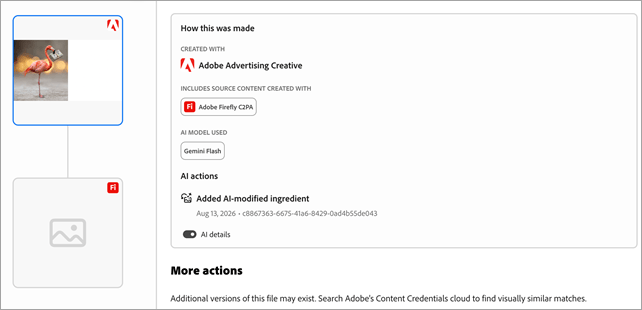
C2PA metadata in Creative Studio
Creative Studio automatically attaches C2PA metadata to content that’s generated or edited with generative AI, so that the provenance of your ad content is recorded as durable, invisible metadata. The metadata follows the standard of the Coalition for Content Provenance and Authenticity (C2PA).
Content types and their scope cc-content-types
Actions that attach C2PA metadata
The following table summarizes when C2PA metadata is attached, based on the image action performed in the Creative Studio AI Assistant.
You use a text prompt to replace the default image in an ad concept with an uploaded asset from your library.
You use a text prompt to generate variations of a background image in an ad template.
What happens as your content moves? cc-content-moves
The full provenance chain is preserved when a user downloads an image file or it is sent to be served in an ad.
What does the C2PA metadata include?
For each GenAI generation or alteration, the following are included in the C2PA metadata. If an asset is altered multiple times, then each operation appears in the C2PA metadata.
- Name and version information of the AI system used (Adobe Firefly C2PA)
- AI model used (Gemini Flash)
- Usage: Whether it was generated or edited using GenAI
- Time and date of content creation and/or modification with generative AI tools
- Unique identifier (which can be used to distinguish each use of Generative AI)
How can I view C2PA metadata for an image?
To see the complete asset history for an image,
-
Open the image file in a content authenticity inspection tool, such as https://contentauthenticity.adobe.com/inspect or https://verify.contentauthenticity.org/.
-
View the image metadata.
-
View the image code using your browser’s code inspection tool (often called Inspect).