Navigate the project page
In this step, you will explore how to effectively navigate and manage the project page in Workfront. You will learn about key features such as the project header, breadcrumb navigation, task list, and left panel. These tools will help you access essential project information, manage tasks efficiently, and organize documents and updates. By the end of this step, you will be equipped to handle project details with ease and ensure smooth project management.
- Project Header: Displays essential information such as percent complete, project manager, planned completion date, project condition, and status. The status helps track the project’s stage and triggers notifications.
- Breadcrumb Navigation: Shows the project’s placement within the organization’s program and portfolio, with clickable links for easy navigation.
- Favorites and Menu: The Favorites star bookmarks the project for quick access, while the Menu offers options like editing details, copying the project, and recalculating timelines.
- Task List: Represents steps in the project plan. Use quick filters to locate tasks, inline editing for quick changes, and the task summary panel for detailed information. Clicking a task name opens its dedicated page.
- Left Panel: Provides access to various project sections, such as details, updates, and documents. The panel can be customized by the system administrator.
- Updates Section: Centralizes communication about the project, allowing tagging of users, replying to comments, and viewing rolled-up updates from tasks, issues, and documents.
- Documents Section: Enables uploading and managing project-related files and proofs. Documents attached to tasks roll up to the project level for easy access.
Key takeaways
- Project Header Overview: Quickly access key project details like percent complete, project manager, due date, status, and condition. The status also controls notifications and workflow stages.
- Task Management: Use the task list to track project steps, apply quick filters to find tasks, and make inline edits. Access detailed task information via the summary panel or task page.
- Breadcrumb Navigation: Navigate the project’s hierarchy within the organization using clickable links in the breadcrumb trail.
- Centralized Updates: All updates from tasks, issues, and documents roll up to the project updates section, simplifying communication and tracking.
- Document Organization: Upload and manage project-related files and proofs in the documents section, ensuring relevant documents are attached to tasks for streamlined collaboration.
Key parts of the project page
Click here to download a PDF of this page.
The project page is filled with many features to help you manage your work. Work with your system administrator if there is an option you need but don’t see in your instance of Workfront. Here are a few of the main project page features to make note of.
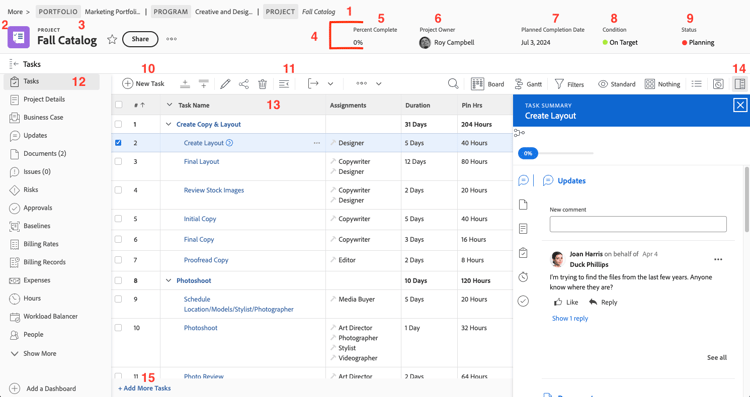
- Breadcrumb trail: Navigate through the program and portfolio hierarchy behind the project.
- Object type: Showing the object type on the landing page helps you identify what you’re looking at in Workfront. The “project” term is customizable by your Workfront system administrator.
- Project name: The name of the project that you’re viewing. Click the name to edit it.
- Project header: Standard information that’s available on all project pages.
- Percent complete: This updates automatically, based on the tasks completed in the project.
- Project Owner: At most organizations, this is the project manager. This is the person responsible for managing the project in Workfront and ensuring that it’s completed.
- Planned Completion Date: The planned completion date of the project is set by the project manager through the project timeline.
- Condition: The Condition is a visual representation of how the project is progressing. Workfront can automatically configure the Condition based on the progress status of the tasks in the project. Or Condition can be set manually through the project details.
- Status: The Status indicates where the project stands in the process: is the project still being planned, is the project in progress, or is the project complete.
- New Task: Click to create a task in the project. The task generates at the bottom of the list.
- Export: Export the task list or selected tasks to a PDF, spreadsheet, or tab delimited file.
- Left panel menu: Navigate to different information about the project with the left panel. Click the Task icon at the top to collapse the panel if you need a bit more space on your screen. Drag and drop the icons so the order helps you work efficiently. The options you see are set by your Workfront system administrator.
- Task list: The task list shows all the tasks that make up your project plan. The information visible about each task is determined by the view selected.
- Summary panel: The summary panel provides a quick look into information about the selected task. Click the ummary panel icon to open or close.
- Add More Tasks Click here to add another task to the bottom of the task list using inline edit.
This concludes the module on navigating and managing projects in Workfront. You are now ready to apply these skills to enhance your project management efficiency.