Perform asset lifecycle – update
Learning scenario
After helping the Colorado web team with their new assets for six months, the WKND team hires a design agency to help with their new set of Colorado pages. They would like to use the cropped chairlift image as a starter asset for the design team.
As a digital librarian, you need to provide this asset to the peripheral design agency so they can update it for the new campaign on the Colorado tourism landing page. The digital agency will email you the final asset that you can re-upload to AEM so it can be updated on the Colorado tourism landing page.
Since the chairlift asset has been previously added to the Colorado tourism landing page, when you upload the same named file, you have the option to create a version of the existing asset. This means that after the asset is republished it automatically updates on referenced pages. The DAM admin informs you that WKND has a policy to use approval workflows for republishing or deleting any assets that are referenced on published pages. This allows the web team to approve (and potentially adjust) assets before the asset is republished or deleted.
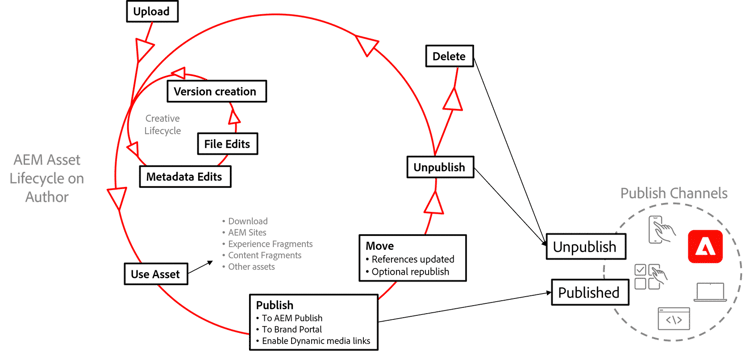
Perform asset lifecycle – update
This hands-on activity shows you how to download and reupload an asset. If you need step-by-step instructions, please refer to Activity 2.4: Perform Asset Lifecycle – Update, Task 1: Download and Reupload an Asset in the activity guide.
Task 1: download and reupload an asset
In this activity, your instructor shows you how to download and reupload an asset.
Task 2: run the asset through the publishing workflow
In this activity, your instructor shows you how to update an asset.
Task 3: revert to the original
In this activity, your instructor shows you how to run the asset through the publishing workflow.
Task 4: delete an asset using a workflow
In this activity, your instructor shows you how to delete an asset using a workflow.
In the next step, you'll review key takeaways for this module.