Configure a web image preset
Image presets are a pre-created set of parameters used to change an asset at the time of delivery. They are useful for repeated transformations across the DAM.
You can deliver images of different renditions, based on different sizes, formats, and other image properties, that are generated automatically based on pre-created image presets.
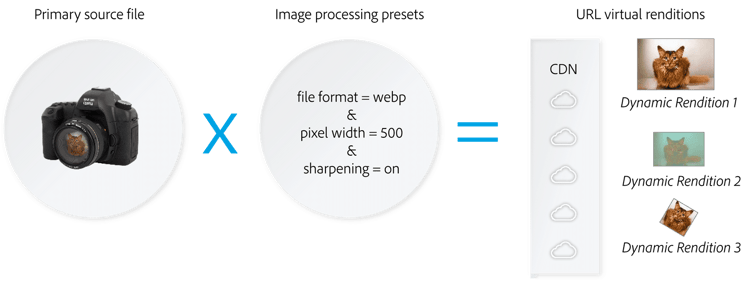
In Dynamic Media, you can use more than 80 different parameters, which may range from quality, format, sharpening, color, blur, angle, and shadow.
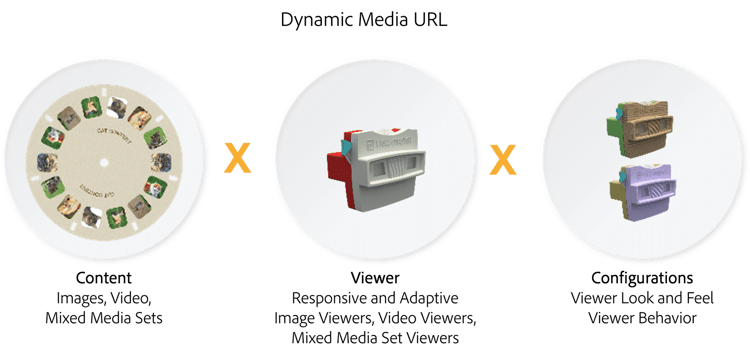
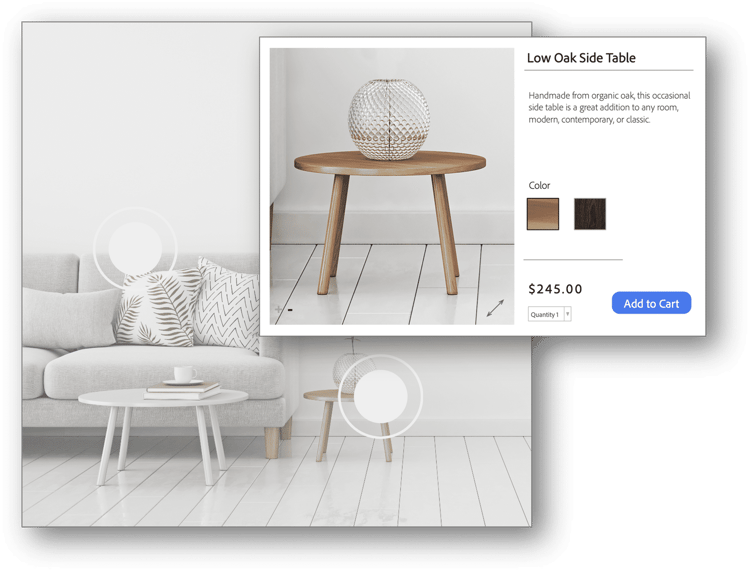
You can try out hundreds of different combinations to create an optimized image. You can also add hotspots to images and videos to create interactive assets and map to quick-views (Experience Fragments), links, or product details pages. This enhances navigation throughout website, driving engagement and conversion
Demo 5.2: configure a web image preset
In this demonstration, the instructor (with administrator privileges) will create a Web image preset that can be used to generate a Web rendition of an asset.
Now that you've learned about configuring a Web image preset, let's learn about creating rich assets with dynamic media.
Learning scenario
WKND has an e-commerce division that sells all types of accessories related to travel and adventure and is separate from the WKND website development team. The e-commerce website is built on a different web platform, but the assets used by the website are currently managed in AEM Assets.
The e-commerce team recently announced that they will sell a line of snowboards highlighting artwork from local designers in the Steamboat Springs area.
Create rich assets with dynamic media
This hands-on activity shows you how to share the asset URLs and responsive code of dynamic renditions of an asset. If you need step-by-step instructions, please refer to Activity 5.2: Create Rich Assets with Dynamic Media, Task 1: Share the Asset URLs and Responsive Code of Dynamic Renditions of an Asset in the activity guide.
Task 1: share the asset urls and responsive code of dynamic renditions of an asset
In this activity, your instructor shows you how to share the asset URLs and responsive code of dynamic renditions of an asset.
Task 2: share the url of a flyout viewer of an asset
In this activity, your instructor shows you how to share the URL of a flyout viewer of an asset.
Task 3: share the url of an interactive shoppable viewer of an asset
In this activity, your instructor shows you how to share the URL of an interactive shoppable viewer of an asset.
In the next step, you'll learn how to create rich media viewers.