Right-click menus
Right-click menus in analysis workspace
This step explains the features that the right click menus have in Analysis Workspace. Click on the images to zoom in or zoom out if needed.
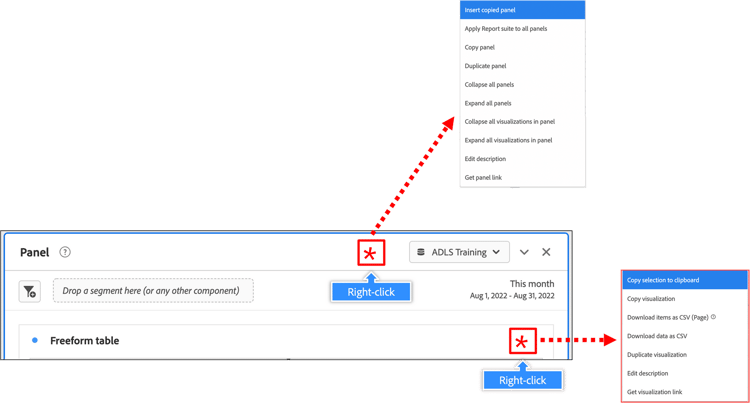
Using the Right-click Menu
Right click menu in Analysis Workspace includes powerful features like date comparisons, creating alerts, breakdowns in context, fallout actions and more.
Right clicking isn't just for creating segments or metrics from the components you might have right, clicked from.
You can also copy panels, duplicate panels, edit and just manage in general.
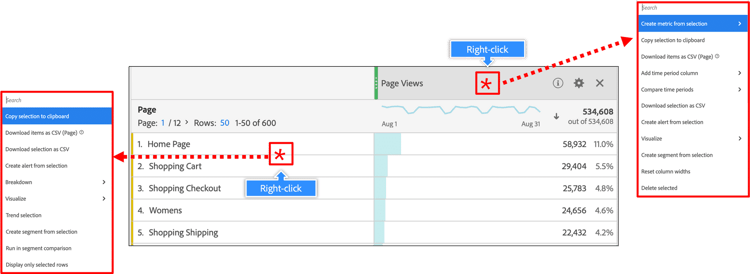
Using Right-click from a Table Report
You can also copy the highlighted elements to your clipboard so that you may paste it elsewhere, say in an Excel or PowerPoint or an email or a document for presentation purposes or maybe to an internal newsletter.
When you are selecting line items and or components, you can click on one element, hold the shift key down and then choose another element and everything in between will highlight, then your right click will apply to all highlighted items. If you needs to choose specific elements that are not next to each other, you need to hold the control key on pc or the command key in mac and then make your selections.
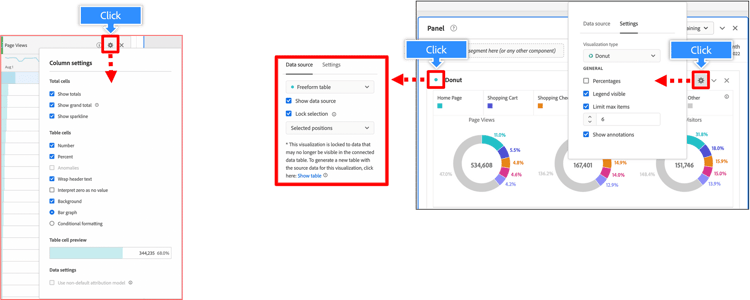
Additional Clicks
These additional click options allow you to customize column settings and visualization displays and also control the visualization settings.
In the next step, you'll learn how to create a calculated metric to calculate the number of registrations per visit.