Workflows
Business rules and process
AEM Workflow provides a way to collaborate, manage, and process content in AEM. Workflows allow for automation of AEM actions such as Publish, delete, locking, and so on.
Workflow tools manage active workflows, archive history for auditing, and include a WYSIWYG workflow editor tool. You can see a visualization of the "Require reviews/approvals" workflow in the following image.
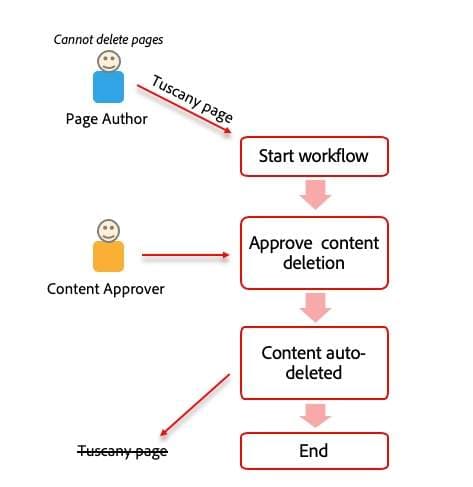
Workflows typically include steps that require a person to perform an activity on a page or asset.
The workflow selects a user or group to perform the activity and assigns a work item to that person or group. The user receives notification and can then take the appropriate action.
Types of steps
Automated steps
- AEM performs the step
- Triggers the next step
Manual steps
User/Group is notified of the assigned step.
Requires a user to take an action:
- Complete
- Delegate
- Step Back
Workflow with and, or options
Workflow with and option
Workflow with or option
Workflow actions
Notifications
- Quickly access a newly assigned step/task or view all assignments in the inbox
- Only steps/tasks assigned to the current user or a group they are a part of are displayed
Inbox actions
AEM’s Inbox facilitates greater collaboration and visibility into tasks and workflow. The Inbox’s Calendar view tracks projects and tasks in a time-based view for easier project management and scheduling.
With Calendar view, the user has overall visibility over projects and tasks that are in progress, planned, due soon, and past due.
Workflow actions in page editor
In the next lesson, you'll learn how to duplicate a page to save time.